
Organizers
Use the sidebar’s Organizers section to manage saved configurations, monitoring assets, and media destinations. Open the sidebar from the toolbar. It is hidden by default and remembers its open or closed state between sessions.
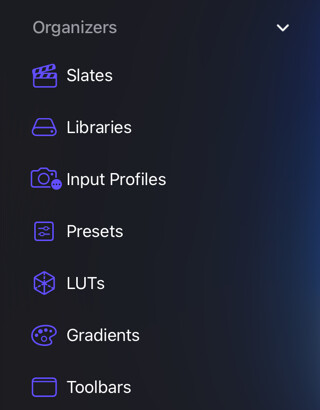
In this section
- Managing presets: Create, organize, import, and export monitoring presets.
- Managing slates: Create and organize slate templates for recording metadata.
- Libraries: Manage recording destinations and choose the app default library.
- Input profiles: Assign and manage per-source input gamma, gamut, and color transforms.
- LUTs: Import and organize LUT files for monitoring and input calibration.
- Gradients: Create, import, and organize false color gradients.
- Toolbars: Choose which tools appear in the monitor toolbar and arrange their order.
Most organizers are part of a PRO Pack. The Toolbars organizer is always available. See Packs & Purchases for what each Pack unlocks.
Working with organizer items
The following interactions are shared across organizers.
Adding and importing
Each organizer shows action buttons next to its name at the top of the list. Use these to add a new item (for example, a new Preset or Slate) or to import an item from a file (for example, a .cube LUT or a shared gradient).
Item actions
iPad Long-press Mac right-click any item in the list to reveal its actions. Swiping left or right on an item reveals shortcut buttons for the same actions.
Common actions include Rename, Duplicate, Delete, and, for the asset types that support files, Export and Import. The exact set depends on the organizer, so see each organizer’s page for details.
Exported items are plain files. You can back them up, copy them to another device, or share them with other CineMon users, who can import them into their own setup.
Removal and deletion
The action’s target determines what is lost:
| Action | Effect | How to use it again |
|---|---|---|
| Remove a monitoring source (×) | Removes source configuration; media files stay on disk. | Add the device or file again and configure it as needed. |
| Forget a library | Removes the storage location from CineMon’s list; its files stay on disk. | Add the same folder again. |
| Delete a preset, slate, gradient, or Input Profile | Deletes that saved configuration, not recorded media. | Import a saved export where supported, or recreate the settings. |
| Delete a LUT | Deletes CineMon’s stored LUT file and list entry, not recorded media. | Import a retained original .cube file. |
| Delete media in the Media Library | Permanently deletes the selected files from storage after confirmation. | Restore a separate backup or original copy; CineMon cannot undo it. |
See Delete media files before using the Media Library’s trash button. A source’s × button only removes that source from the setup.
Reordering
Drag items to reorder them. The order you set here is reflected everywhere else in the app. For example, reordering Presets changes the order in the Presets menu and when you cycle presets, and the same applies to LUTs and gradients.