
Gradients
Available with the CineMon PRO Video Monitoring Pack or a CineMon PRO Pass subscription.
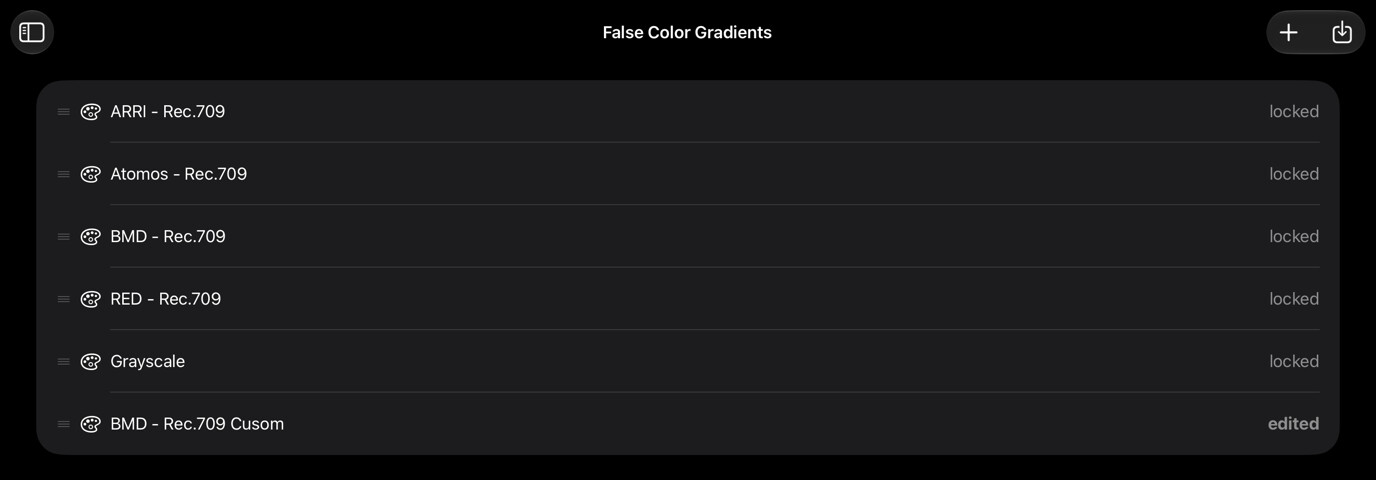
The Gradients organizer manages your library of false color gradient definitions. These gradients are used by the False Color tool to map luma values in IRE to color. CineMon ships with several built-in gradients; you can also create, import, and share your own.
Where to open it
Open the sidebar and select Gradients under Organizers.
Built-in vs. custom gradients
Built-in gradients show a locked badge. They cannot be renamed or deleted, but you can duplicate them to create an editable copy as a starting point for your own scheme.
Custom gradients (those you create or import) are fully editable and carry no badge unless they have unsaved changes, in which case an edited badge appears.
Creating gradients
Select New Gradient (+ icon) in the toolbar to create and select a blank gradient, then rename it.
You can also Duplicate any existing gradient (built-in or custom) from its context menu or swipe actions. The duplicate is added to the bottom of the list as a custom gradient.
To edit a gradient’s color stops and IRE mappings, use the edit controls inside the False Color tool while that gradient is active.
Importing and exporting gradients
- Import: Select the Import button (down-arrow icon) in the toolbar. CineMon accepts
.cmgradientfiles and legacy.jsongradient files. You can select multiple files at once. - Export: Swipe right on a gradient row (iPad) or right-click (Mac) and choose Export Gradient. The file is saved in
.cmgradientformat, which you can share with other CineMon users or back up for later.
Managing your gradients
All per-gradient actions are available from the context menu (long-press on iPad, right-click on Mac) or from swipe actions:
| Action | Available on | Notes |
|---|---|---|
| Duplicate | All gradients | Creates an editable copy. |
| Export Gradient | All gradients (when no unsaved changes) | Saves as a .cmgradient file. |
| Rename | Custom gradients only | Type a new name and press Return (or select elsewhere) to confirm. |
| Delete | Custom gradients only | Deletes the saved gradient configuration, not media files. Export it first if you want to restore it later. |
| Save Changes | Custom gradients with unsaved edits | Commits the current color-stop edits to the saved definition. |
| Revert Changes | Custom gradients with unsaved edits | Discards unsaved edits and restores the last saved state. |
Drag any row by its handle to reorder the list. The order is reflected in the gradient picker inside the False Color tool and is saved automatically.
Selecting a gradient for monitoring
Selecting a row in the Gradients organizer is a browsing action and does not apply the gradient to your monitor. To activate a gradient, use the Color Scheme picker in the False Color tool.