
Input profiles
Available with the CineMon PRO Video Monitoring Pack or a CineMon PRO Pass subscription.
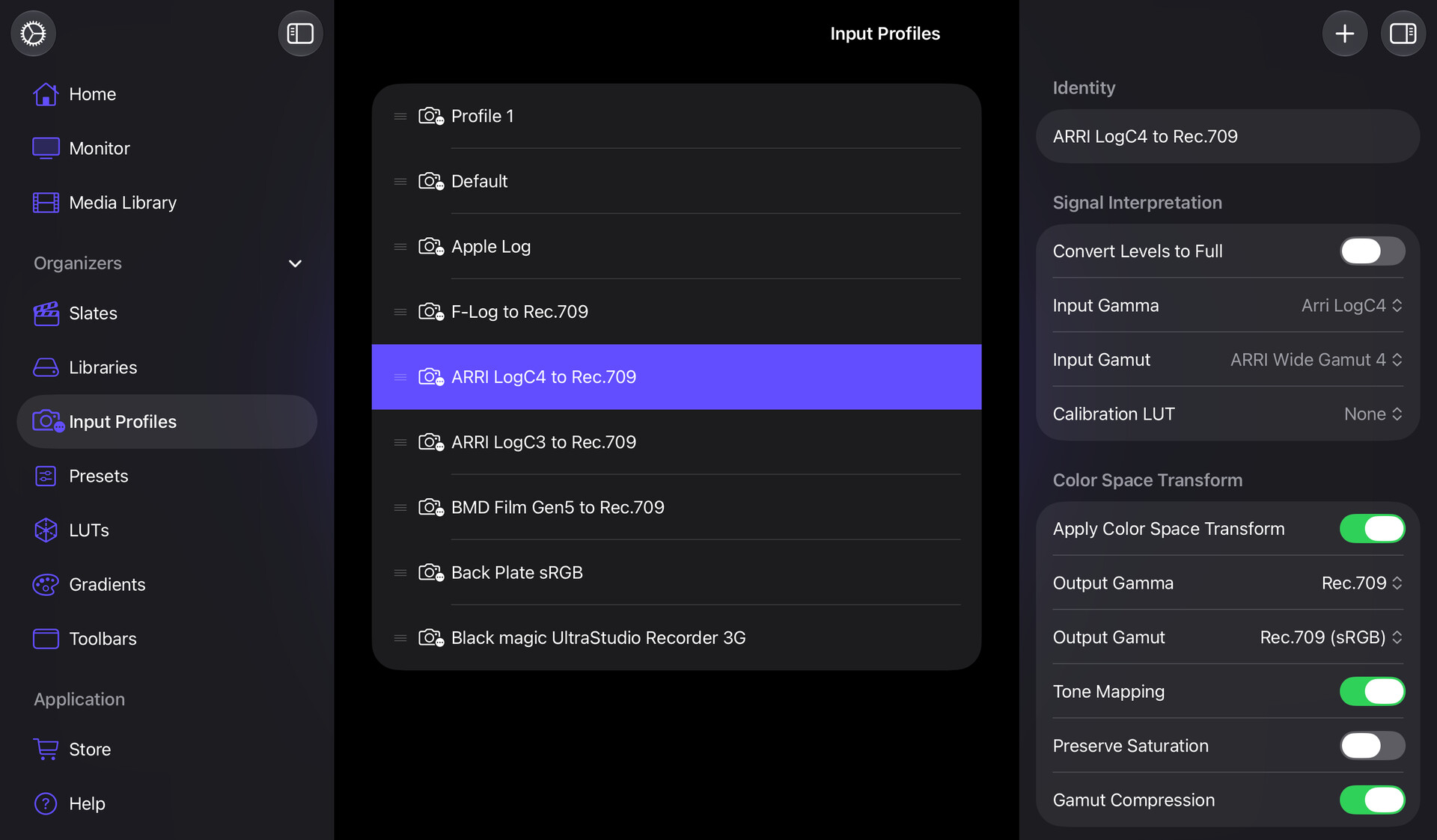
Where to open it
Open the sidebar and select Input Profiles under Organizers.
What an Input Profile is
An Input Profile describes how a source signal is interpreted and normalized before any monitoring tools inspect it. It holds the input-signal calibration for a source: the Input Gamma (log curve), Input Gamut (color space), an optional Calibration LUT, and the Color Space Transform (CST) settings, along with data-level conversion and input cropping.
Each video source has its own Input Profile, independent of other sources and the active Preset. The profile provides the source-specific settings used by photometric tools (Spot Meter, Exposure) and the Color Management pipeline.
Input Profiles own the input-signal pipeline only. Creative monitoring transforms such as orientation and anamorphic desqueeze belong to the Preset, not the Input Profile.
Assigning a profile to a source
You choose a source’s Input Profile where you add or configure the source:
- Use the profile menu next to the source to pick an existing profile, or None for passthrough (no signal interpretation).
- Select New to create a fresh profile pre-named after the source, assigned to it immediately.
- Select Edit to open the selected profile’s settings inline and adjust them.
A source set to None passes through untouched. If a source is assigned a profile that is later deleted, it falls back to None.
Editing a profile
Selecting a profile in the organizer opens its editor in the inspector. The editor is organized into sections:
| Section | Settings |
|---|---|
| Identity | The profile Name. |
| Signal Interpretation | Convert Levels to Full (video 16-235 to full 0-255), Input Gamma, Input Gamut, Calibration LUT (and its Interpolation, Standard/Tetrahedral, when a LUT is selected). |
| Color Space Transform | Apply Color Space Transform, and when on: Output Gamma, Output Gamut, Tone Mapping, Preserve Saturation, Gamut Compression. |
| Input Signal Cropping | Crop Horizontal and Crop Vertical (0-500 px each). |
For a full explanation of these controls and when to use them, see Color Management.
Managing your profiles
Profile actions are available from the context menu (long-press on iPad, right-click on Mac) or from swipe actions:
| Action | How to access |
|---|---|
| New Profile | The plus button in the toolbar. Creates a new profile and selects it. |
| Duplicate | Swipe right, or the context menu. Creates a copy you can adjust independently. |
| Rename | Swipe right, or the context menu. Type a new name and press Return (or select elsewhere) to confirm. Press Escape to cancel. |
| Delete | Deletes the saved profile configuration, not media files. Sources assigned to it fall back to None (passthrough). Note its settings first if you want to recreate it later. Available by swiping left or from the context menu. |
Drag any row by its handle to reorder the list. The order you set is saved automatically.
Input Profiles are part of your configuration library, along with Presets, Slates, LUTs, and Gradients. If you enable iCloud in App Settings, they sync across your devices.