
Libraries
Available with the CineMon PRO Recording Pack or a CineMon PRO Pass subscription.
A Library is a named storage location where CineMon saves your recordings and snapshots. The Libraries organizer is where you add, rename, re-link, and remove these storage locations. To browse and work with the media inside them, see the Media Library section.
Where to open it
Open the sidebar and select Libraries under Organizers.
The built-in library
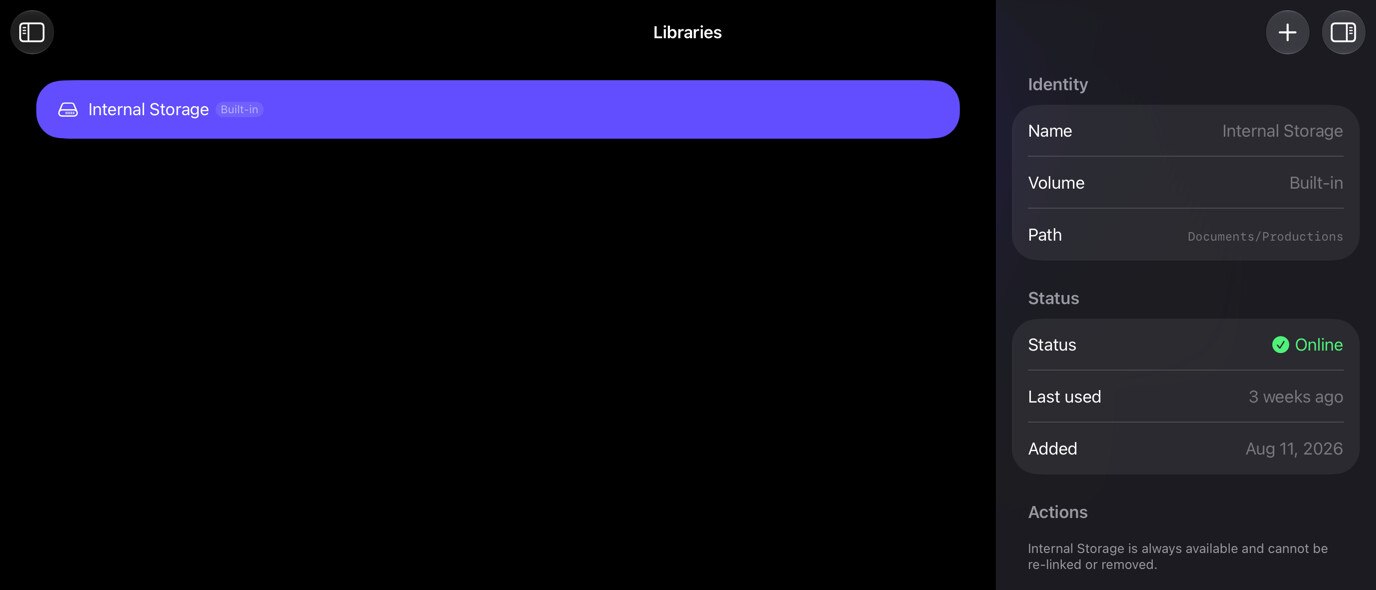
CineMon always includes an Internal Storage library that points to the app’s own sandboxed container. It is always online and cannot be removed or re-linked.
Adding a library
Select the + button in the toolbar and pick a folder. CineMon registers the folder as a new library and adds it to the list. You can add as many libraries as you need, for example one per project or one per external drive.
Libraries on external drives or folders outside the app container show an Offline indicator when the drive is not connected. Their entries remain in the list so you can re-link them when the drive is available again.
Library list
Each row shows the library name, a Built-in or App Default chip where applicable, and an Offline indicator when the storage is not reachable. Select a library to open its inspector.
Inspector
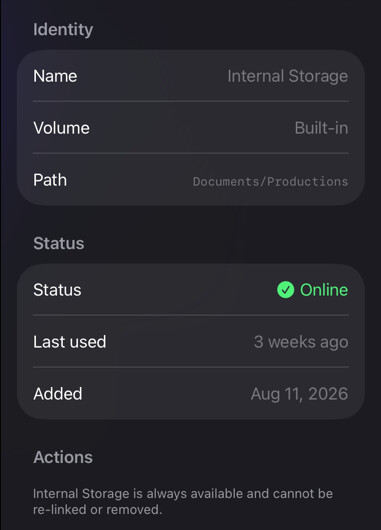
The inspector shows the library’s name, volume, path, online status, when it was last used, and when it was added. From the inspector you can:
- Rename the library with a custom alias. Leaving the alias blank restores the folder name as the display name.
- Re-link the library to a different folder. This preserves the library’s identity and any associations to slates that reference it by ID.
- Set as App Default to make this library the destination for all recordings that do not have a slate-level override.
- Forget the library. Forgetting removes the library from the app’s list but does not delete any files on the drive. You can re-add it at any time by picking the same folder again.
The built-in Internal Storage library cannot be forgotten or re-linked.
Where recordings are saved
When you record a clip or take a snapshot, CineMon saves it to the active library:
- The library set by the active slate’s override, when Use Custom Recording Settings is on and a library override is set, or
- The App Default library otherwise.
Set the app default by selecting a library and choosing Set as App Default from its inspector. See Recording & Capture for recording codecs and file organization.