
LUTs
Available with the CineMon PRO Video Monitoring Pack or a CineMon PRO Pass subscription.
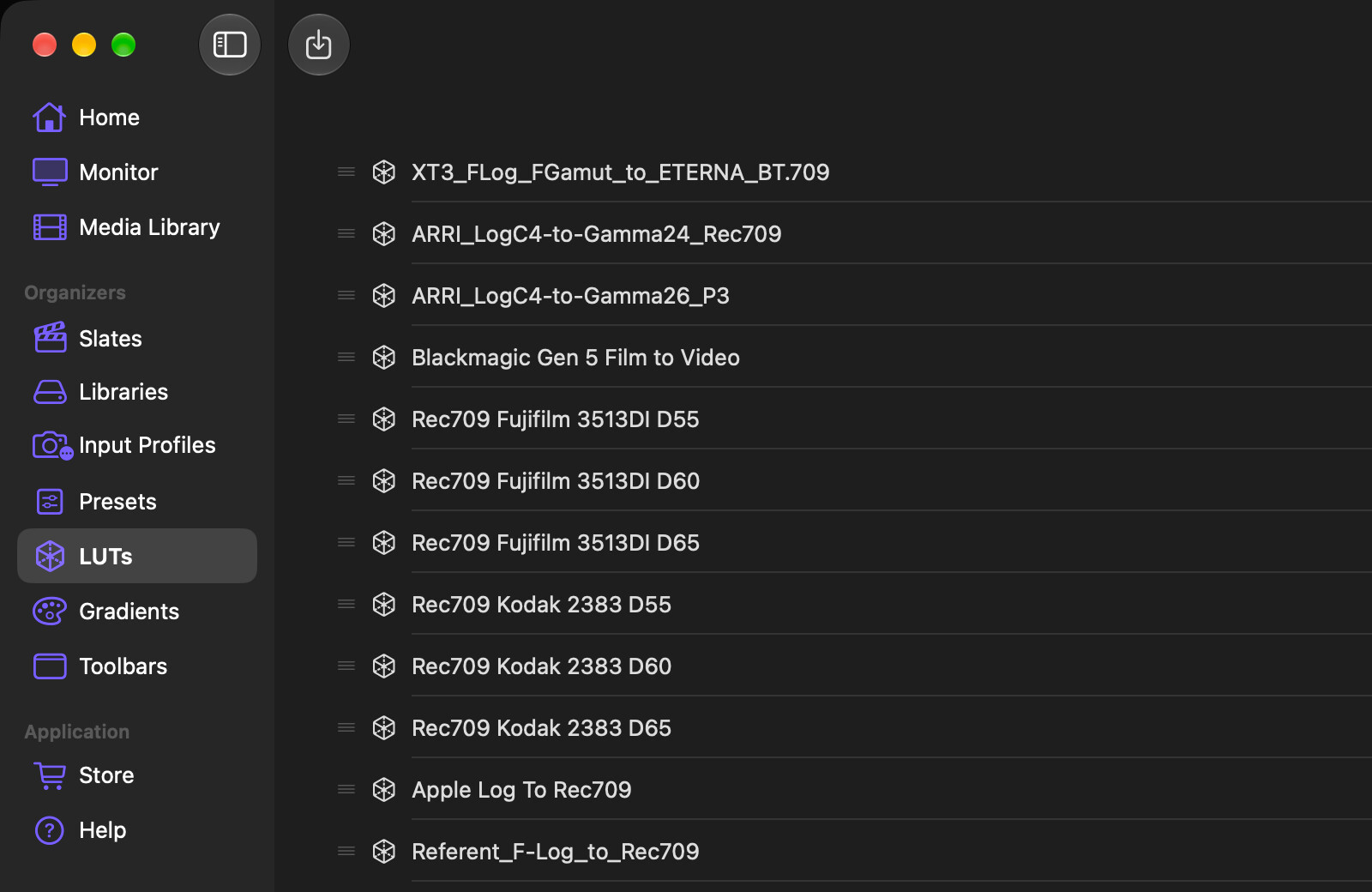
The LUTs organizer is your library of imported .cube LUT files. Any LUT you import here becomes available to select in the Display LUT tool (for a monitoring look) and as the Calibration LUT in the source’s Input Profile (for input-signal calibration).
Where to open it
Open the sidebar and select LUTs under Organizers.
Importing LUTs
Select the Import button (down-arrow icon) in the toolbar to open the file picker. You can select one or more .cube files in a single import operation. Each imported file is copied into CineMon’s internal storage and added to the list.
CineMon supports 3D LUTs in
.cubeformat with a grid size up to 65 points. If a file exceeds that limit, an error is shown and the LUT is not added.
Managing your LUTs
All per-LUT actions are available from the context menu (long-press on iPad, right-click on Mac) or from swipe actions:
| Action | How to access |
|---|---|
| Rename | Swipe right, or use the context menu. Type a new name and press Return (or select elsewhere) to confirm. Press Escape to cancel. |
| Delete | Swipe left, or use the context menu. Deletes CineMon’s stored LUT file and its list entry, not your recorded media. Keep the original .cube file if you want to import the LUT again later. |
To change the order LUTs appear in the Display LUT picker, drag any row by its handle. The order is saved automatically.
If a LUT’s source file cannot be found, the row shows a Not Found badge in red. The LUT remains in the list but cannot be applied until you delete it and re-import it.
Selecting a LUT for monitoring
Selecting a row in the LUTs organizer is a browsing action and does not apply the LUT to your monitor. To apply a LUT, use the LUT Menu in the Display LUT tool, or set the Calibration LUT in the source’s Input Profile.