
Managing presets
Overview
The Presets organizer is where you manage your library of saved presets. For what presets are and how to use them while monitoring, see Using presets.
Presets are a PRO feature, available with the PRO Video Monitoring Pack, the PRO Audio Monitoring Pack, or a PRO Pass subscription.
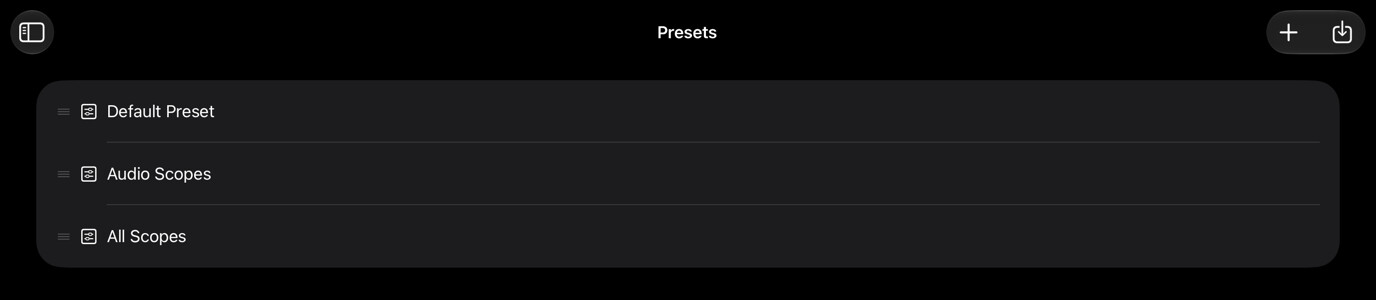
Where to open it
Open the sidebar and select Presets under Organizers.
Managing presets
Use the buttons above the preset list to add or import a preset, and the item actions below to manage a selected preset. For shared interactions (item actions, import and export, reordering), see Organizers.
| Action | Effect |
|---|---|
| New | Adds a new blank preset with all tools off and options at their defaults. |
| Duplicate | Copies the selected preset, adding “(Copy)” to its name. |
| Save Changes | Saves the current configuration to the selected preset. Available when the edited badge is showing. |
| Revert Changes | Discards configuration changes and restores the last saved version. Available when the edited badge is showing. |
| Rename | Renames the selected preset. |
| Delete | Deletes the saved preset configuration, not source media or recorded files. Export it first if you want to restore that setup later. |
| Export | Saves the selected preset to a .cmpreset file you can back up or share. |
| Import | Adds a preset from a .cmpreset file. Older .json preset files are also accepted. |
When the active preset has unsaved changes, an orange edited badge appears next to its name. Drag presets to reorder them; the order is reflected in the Presets menu and when cycling presets.