
Using presets
Presets save your monitoring tools, their settings, and your display layout so you can recall a setup without rebuilding it. Use separate presets for tasks such as checking focus, evaluating exposure, and showing a clean picture.
Presets require the PRO Video Monitoring Pack, PRO Audio Monitoring Pack, or PRO Pass.
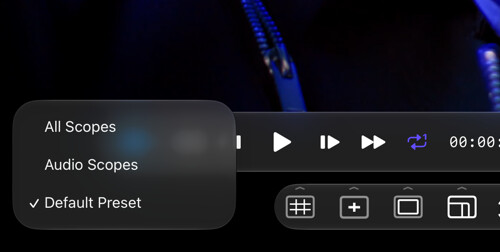
Recall a preset
- Open the Presets menu in the Assist Toolbar.
- Select a saved preset. Its tools, settings, and layout are applied to the monitor.
- Adjust your tools as needed. These changes remain unsaved until you choose Save Preset Changes.
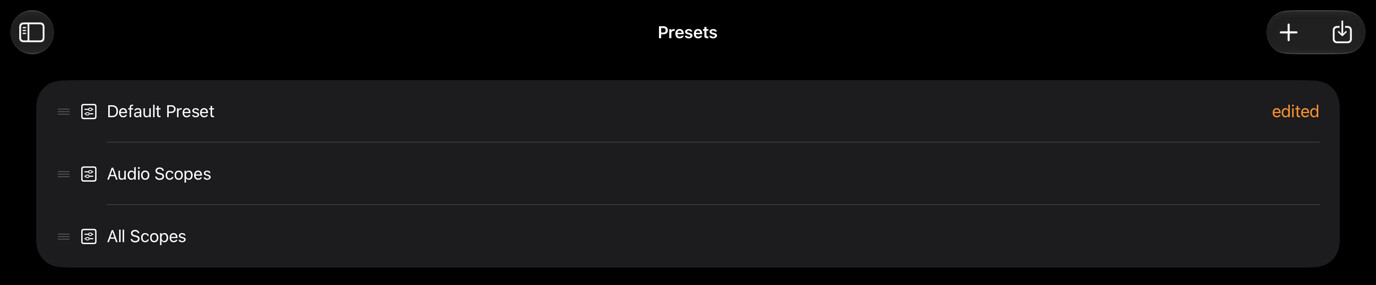
You can also select a preset in the Presets organizer, choose Previous Preset or Next Preset, or swipe horizontally on the monitor to cycle through presets. Use a finger on iPad or a two-finger trackpad swipe on Mac. Disable preset swiping in Settings → General if it triggers accidentally.
Save or discard changes
When the current configuration differs from the saved preset, its name in the Assist Toolbar turns orange. The organizer also shows an orange edited badge.
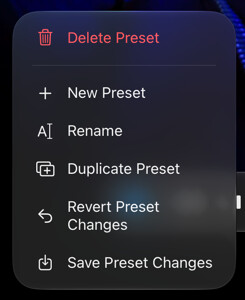
Open Preset Actions in the Assist Toolbar and choose:
- Save Preset Changes to update the active preset with your current configuration.
- Revert Preset Changes to discard unsaved changes and restore the saved configuration.
- Duplicate Preset to keep the current configuration as a separate preset.
If you switch presets with unsaved changes, choose:
- Save and Switch to save the edits to the current preset, then load the selected preset. The destination preset is not overwritten.
- Discard and Switch to discard the current unsaved edits and load the selected preset.
- Cancel to keep working on the current preset without switching.
For creating, naming, reordering, importing, and exporting presets, see Managing presets.
What a preset includes
A preset stores active tools and scopes, their option values, toolbar and display layouts, and scope settings. It does not store:
- Input-signal settings. Input Gamma, gamut, Color Space Transform, calibration LUT, data levels, and input crop belong to the Input Profile assigned to each source. Switching presets does not switch that profile.
- Global app settings. Audio hardware, capture codecs, display and performance preferences, and iCloud sync live in App settings.
For exposure measurements and color transforms, configure the source’s Input Profile to match the incoming signal before evaluating the image. See Color management.