App settings
Overview
The Settings screen (iPad)/window (Mac) controls app-wide defaults, independent of the active Preset. On iPad, open the sidebar and select the Settings gear. On Mac, choose CineMon → Settings (⌘,).
Settings is organized into tabs: General, Configuration, Display, Audio, Capture, CineMon PRO, and Support.
Per-source input-signal settings (Input Gamma, gamut, Color Space Transform, calibration LUT) are not here. Those live in Input Profiles. Per-preset scope, display, and monitoring settings are set from the toolbars and tool menus on the Monitor screen. See Presets.
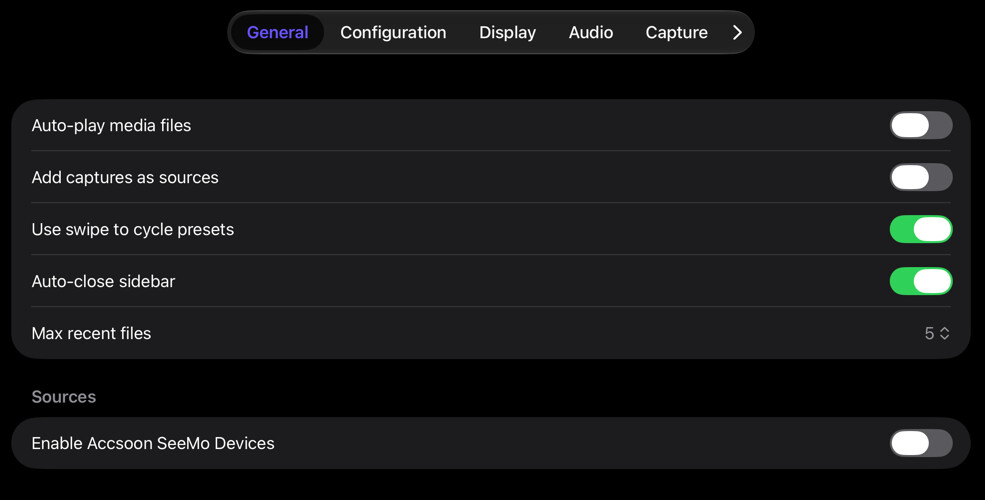
General
| Setting | Description |
|---|---|
| Auto-play media files | Automatically plays media when a file is opened. |
| Add captures as sources | Automatically adds the most recent capture (snapshot or recording) back into the source list. |
| Use swipe to cycle presets | Lets you swipe horizontally on a monitor to cycle to the next or previous preset. On by default; turn off if it triggers by accident. |
| Auto-close sidebar | Closes the sidebar automatically once you pick a destination from it, so the picture gets the full window back. Off by default. |
| Max recent files | The maximum number of entries kept separately for video/images and audio (0 to 8 per group). Captures and Media Library files are excluded. |
| Enable Accsoon SeeMo Devices (iPad) | Enables detection and integration with Accsoon SeeMo video capture devices. Shown in a Sources section. |
Configuration
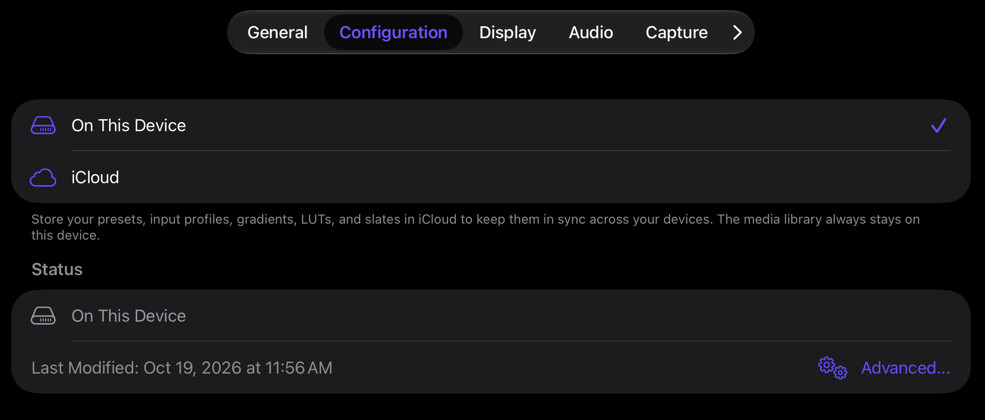
The Configuration tab controls iCloud sync for your configuration library (Presets, Input Profiles, Gradients, LUTs, and Slates). Each device keeps a local copy of the configuration. Media files stay on the device and are not synced.
| Setting | Description |
|---|---|
| Configuration Storage | Choose On This Device or iCloud. Turning iCloud on keeps your configuration library in sync across your devices. |
| Status | Shows the current storage state (On This Device, Synced with iCloud, iCloud Unavailable, or Syncing) and when the configuration was last modified. |
| Advanced… | Opens advanced actions: back up the local configuration, restore a local backup, or wipe the iCloud configuration. |
Switching to iCloud prompts you to reconcile only when iCloud already holds a different configuration library from another device. Turning iCloud off is silent: the library stays on this device. Restoring a local backup replaces only this device’s local configuration and does not change iCloud.
Display
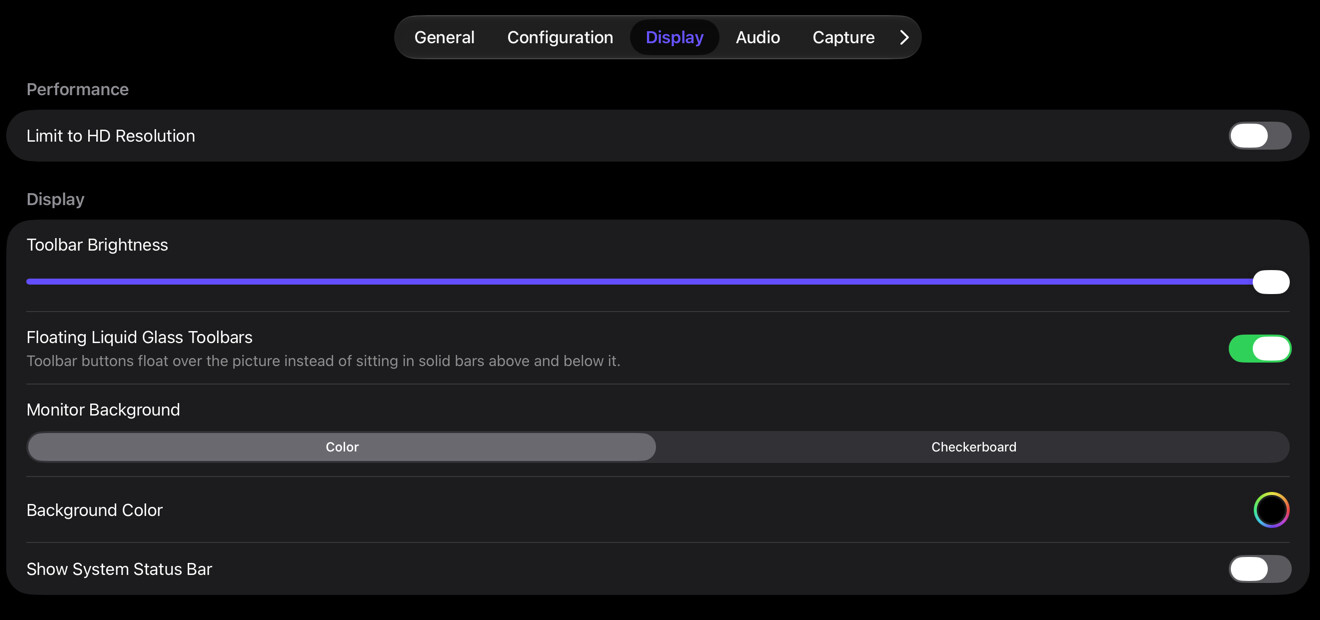
The Display tab holds global monitor and performance preferences.
| Setting | Description |
|---|---|
| Limit to HD Resolution | Reduces the size of the input image to a maximum of 1080p (HD) for better real-time performance. |
| Toolbar Brightness | Dims the toolbars’ brightness. Double-select the label to reset to the default. |
| Floating Liquid Glass Toolbars | On by default. The picture fills the monitor edge to edge and the toolbar buttons float over it in translucent glass capsules. Turn it off for the classic layout, with the toolbars in solid bars above and below the picture. |
| Monitor Background | The background shown behind the image: a solid Color or a Checkerboard. |
| Background Color | The solid background color, shown when Monitor Background is set to Color. |
| Show System Status Bar (iPad) | Show or hide the System Status Bar (date/time, Wi-Fi signal, battery level, and so on). |
Audio
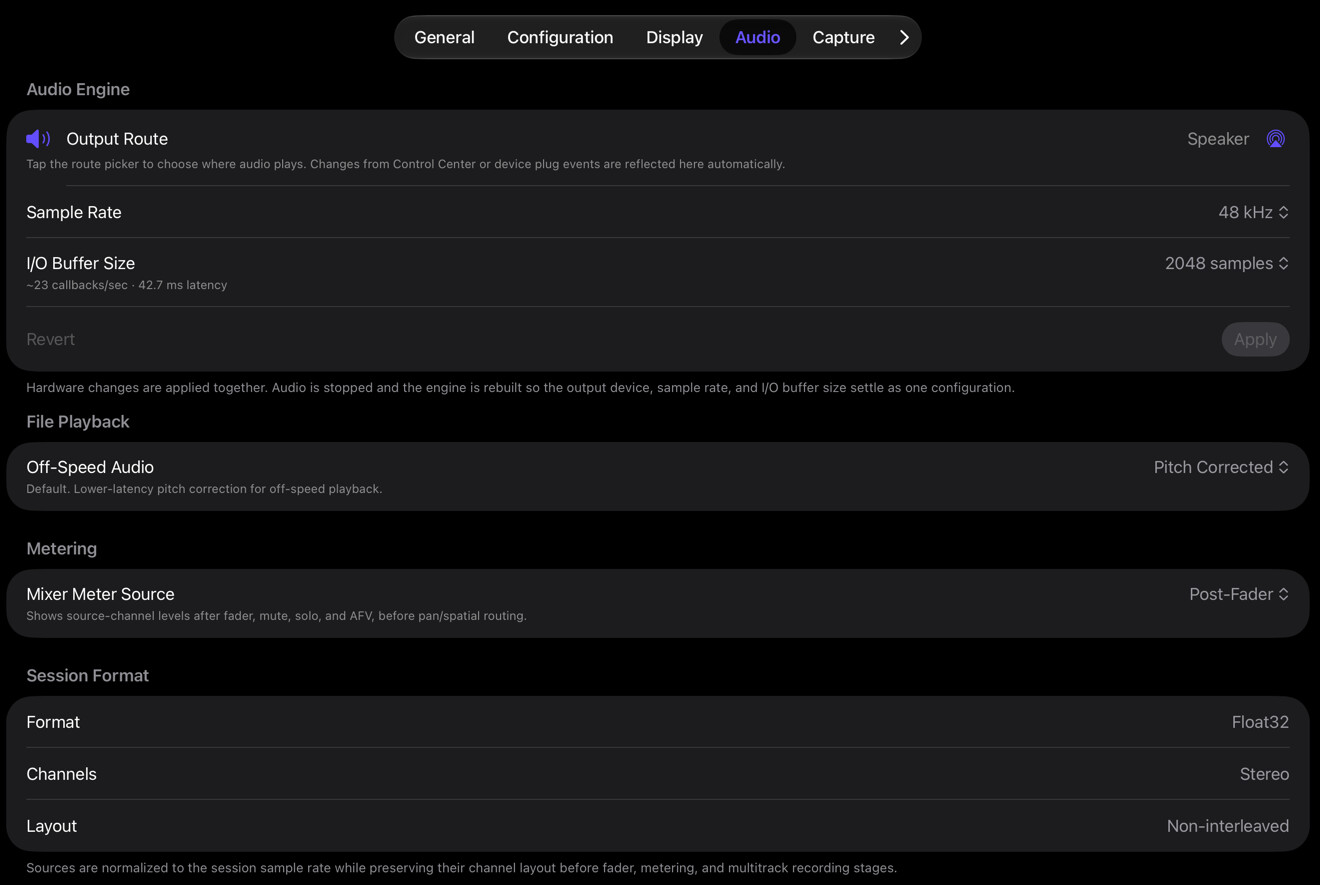
The Audio tab configures the audio engine hardware, file playback, metering, and shows the session format.
| Setting | Description |
|---|---|
| Output Device (Mac) | Choose where audio plays: the System Setting (system default), or pin a specific output device. The current output is shown below the picker, and a pinned device that is unplugged is preserved until it returns. |
| Output Route (iPad) | Shows the current system audio route and provides a route picker to change where audio plays. Routing is system-arbitrated, so changes from Control Center or device plug events are reflected automatically. |
| Sample Rate | The audio engine sample rate. On Mac the list is filtered to the rates the selected output device supports. |
| I/O Buffer Size | The hardware buffer size, shown with its approximate callback rate and latency. |
| Off-Speed Audio | The time/pitch algorithm used when a file plays back off its native speed. |
| Mixer Meter Source | Which signal the mixer’s meters measure. |
Hardware changes (output device, sample rate, and buffer size) are staged together. Select Apply to activate them and briefly restart audio, or Revert to discard them.
The Session Format section shows the fixed processing format that all audio sources are converted to: Float32, Stereo, Non-interleaved.
Capture
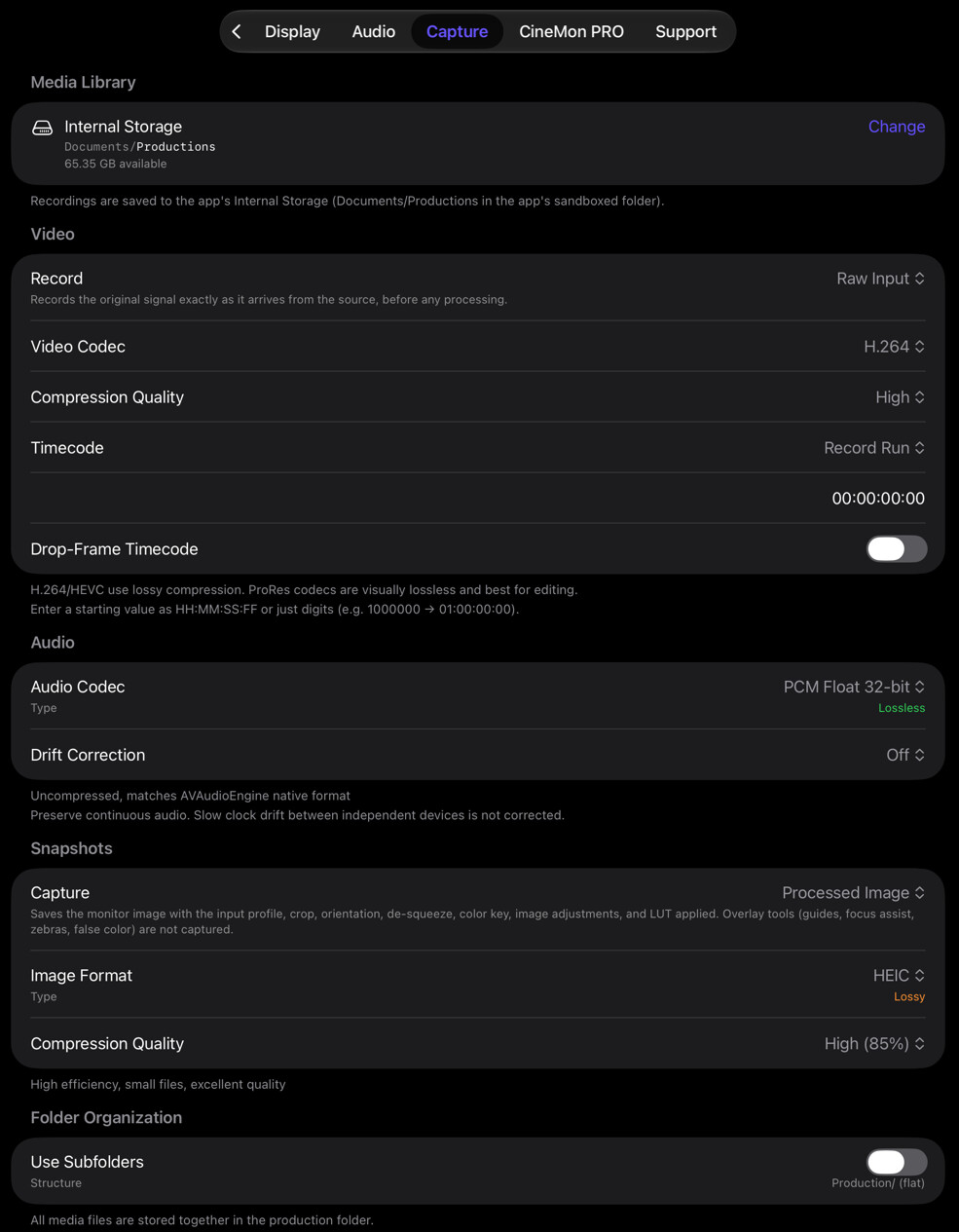
The Capture tab configures where recordings and snapshots are saved, and the codecs used.
| Setting | Description |
|---|---|
| Media Library | The destination library for recordings and snapshots. Use Change to switch libraries, add a library, or open the Libraries organizer. While custom libraries are locked, files are saved to Internal Storage and your previous selection is preserved. |
| Record | Which video signal is recorded: Raw Input or Processed Image. |
| Video Codec | The codec used for recordings: H.264, HEVC (H.265), three 10-bit HEVC options, and the ProRes family. The 10-bit options appear only on devices whose encoder supports them. |
| Compression Quality | Quality level, shown for H.264 and all HEVC options. ProRes has none. |
| Timecode | The timecode mode for recordings: Disabled, Record Run (with a start value), Free Run (wall clock), or External (LTC). |
| Start Value | The starting timecode, shown for Record Run. Enter HH:MM:SS:FF or plain digits. |
| Drop-Frame Timecode | Keeps time of day in sync at 29.97/59.94 fps. Hidden for External (drop-frame is inherited from the source). |
| Audio Source / Channel | The audio input device and channel used to decode external LTC, shown for External timecode. |
| Acquire Signal | Releases the LTC audio capture device while the engine keeps running, shown for External timecode. |
| Advanced LTC Alignment | A collapsed calibration for rigs where external LTC lands a consistent amount off from the picture. Offsets the LTC reading by frames, milliseconds, or samples. Leave at zero unless a frame-accurate test has shown a stable offset. See Advanced LTC Alignment. |
| Audio Codec | The codec used for recorded audio, labeled Lossless or Lossy. |
| Drift Correction | Corrects slow audio clock drift between independent devices on long takes. Off (default) preserves continuous audio; Discrete applies small, smoothed corrections. Locked once a take starts. See Audio drift correction. |
| Capture | The snapshot mode: Raw Input, Processed Image (the default), Monitor View, or All at Once. Monitor View and All at Once require Screen Recording permission on Mac. |
| Image Format | The format used for snapshots (HEIC and others). |
| Compression Quality | Snapshot quality, shown for formats that support compression. |
| Use Subfolders | When on, videos and stills are organized into separate subfolders within each production. When off, all files are stored together in the production folder. |
External LTC mode follows a source (Tentacle Sync, Ambient Lockit, UltraSync, and similar) through a chase, jam, and freewheel cycle. While chasing, select Jam Sync to capture the frame into an internal generator, after which the engine runs autonomously.
CineMon PRO
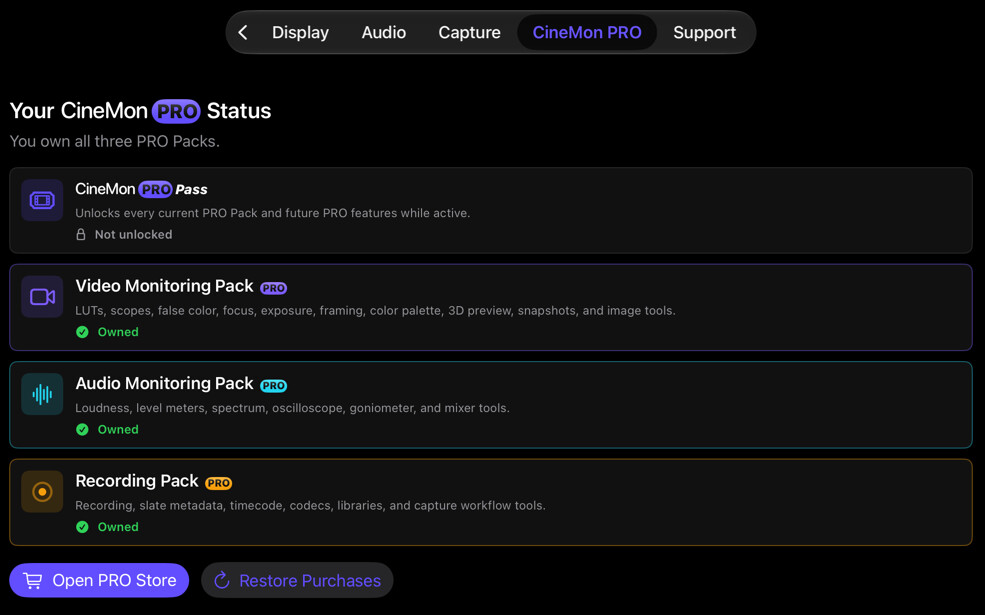
This tab shows the status of your CineMon PRO purchases and the available Packs and PRO Pass options from the App Store.
Support
This tab shows the app version and build, copyright, and links to Support, Terms of Service, and Privacy Policy.