
Platform differences
Overview
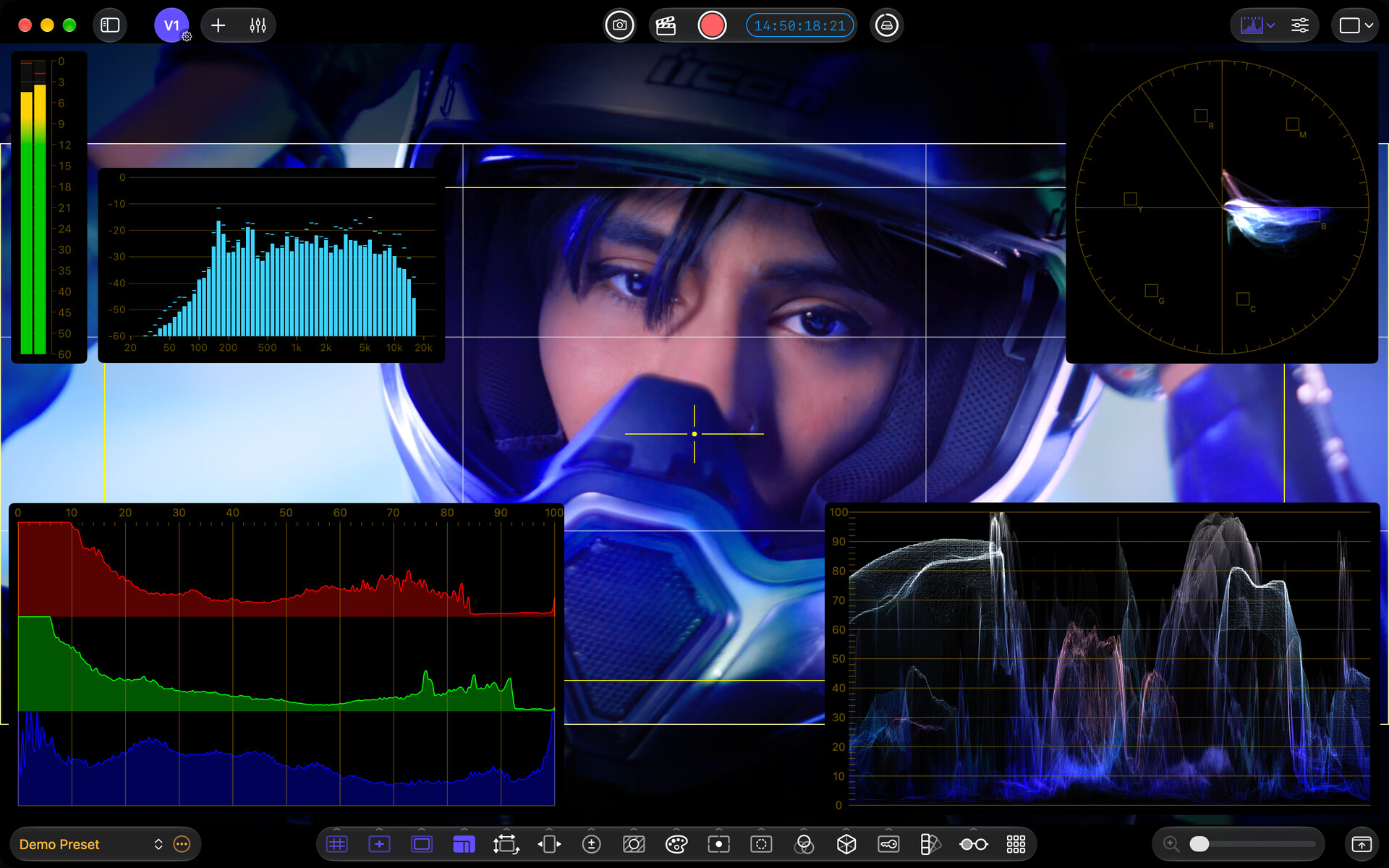
CineMon for Mac and iPad share most tools and features. Both support built-in cameras, including the Mac’s FaceTime camera. Accsoon SeeMo devices and dual-camera monitoring are iPad-only. See Video Input Options for the full comparison.
The Mac interface adapts to different monitor sizes and resolutions, with mouse and trackpad controls. The iPad interface is designed for touch.
CineMon also supports a main menu and hardware-keyboard shortcuts on iPadOS 26.
Cross-platform compatibility
When you purchase a CineMon PRO Pack or a CineMon PRO Pass, you get access to those features on all your devices registered with the same Apple account.
Export and import Presets, custom False Color Gradients, and LUTs to transfer configurations between devices or share them with other CineMon users. Enable iCloud configuration sync to sync Presets, Input Profiles, Gradients, LUTs, and Slates automatically. Media files remain on each device.
Choosing a setup
Choose hardware around your input devices, screen size, portability, and power needs. These are examples of common setups.
| Use | Role | Example |
|---|---|---|
| On-camera monitor | Camera operator | An iPad mini rigged with a compact battery mount. |
| Handheld monitor | Cinematographer | An iPad Pro rigged with a wireless video receiver. |
| Video Village | Director, Cinematographer, Producers, others | A Mac mini with multiple large OLED monitors. |
| DIT Cart | DITs | Mac minis with multiple monitors and custom scope arrangements. |
| Review Station | Script, Gaffer, Wardrobe, others | An iPad rigged with a wireless video receiver. |
| Dailies/post preview | Editor, Colorist | MacBook Pro |
Audio devices
CineMon supports audio input from capture devices and USB audio interfaces on both platforms, but the underlying audio system works differently on each.
iPadOS: One device at a time
iPadOS only allows one active audio connection system-wide, which affects how CineMon handles audio devices there:
- One active audio device at a time. When you add an audio source and select a device, that device becomes the active one. If a different device is already active (for example, because another audio source or the External LTC timecode reader is using it), the device picker marks it as in use and shows the other devices as unavailable.
- New USB devices may take a moment to appear. After connecting a USB audio interface, it might not show up in the source picker right away. CineMon keeps your saved audio source configuration and reconnects it automatically as soon as the device is detected.
- Reconnecting after unplugging. If a USB interface is unplugged, CineMon detects that it’s gone, preserves your configuration, and reconnects the source automatically once you plug the device back in.
iPadOS: External LTC and device conflicts
The External LTC timecode reader also claims an audio device input channel. On iPadOS, if LTC is configured on the same device as an audio mixer source, the channel used for timecode is marked “(Timecode)” in the audio source picker and cannot be assigned to the mixer. On discrete multi-channel interfaces, other channels on the same device remain available for mixer sources.
macOS: Multiple devices at once
Unlike iPadOS, macOS lets CineMon treat each audio interface as its own independent device:
- Multiple devices simultaneously. You can add audio sources from different physical devices at the same time, each with its own mixer channel strip.
- Automatic disconnect handling. When a USB or Thunderbolt audio interface is unplugged, CineMon detects it right away and shows the affected mixer channel strip in a disconnected state. Your settings and channel assignments are preserved. Plug the device back in and reopen the audio source settings to reconnect it.
- Device claim conflicts with External LTC. As on iPadOS, channels in use by the External LTC timecode reader are marked “(Timecode)” and are unavailable for the audio mixer. On a discrete multi-channel interface, only the specific channel(s) claimed by LTC are blocked; the remaining channels are available.
For full details on setting up audio sources and monitoring, visit Audio Monitoring.