
Audio monitoring
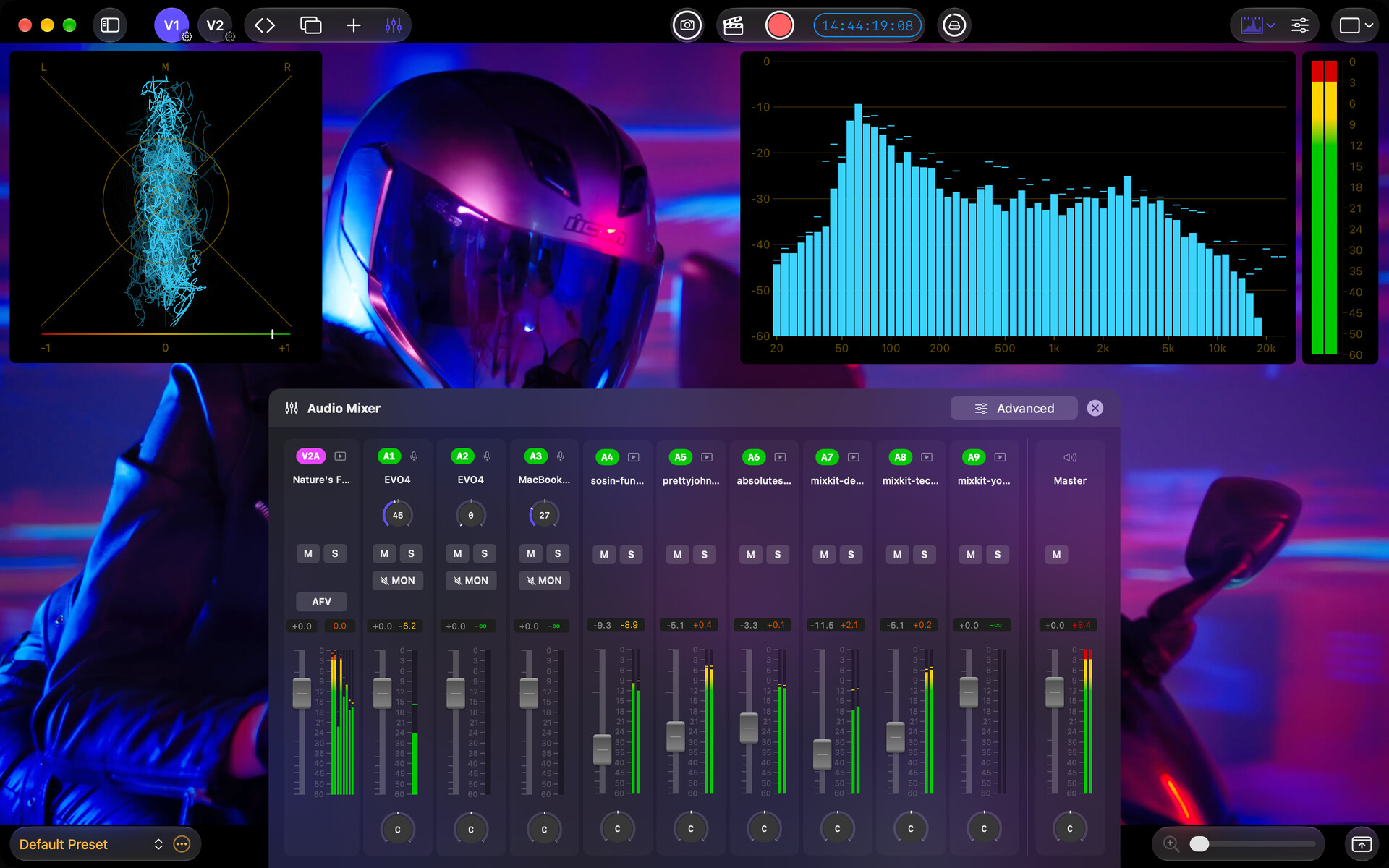
Mix audio from capture devices, audio interfaces, and media files, with or without video. Use the mixer for source balance and monitoring, and audio scopes to check the signal.
In this section
- Audio sources and devices: Add audio inputs and files, choose channels, and manage connected devices.
- Audio mixer: Balance audio sources, set input monitoring, and adjust recording sync in the mixer.
- Audio scopes: Choose audio scopes for levels, loudness, stereo phase, and frequency analysis.
Start monitoring audio
- Add a video source with audio, or choose Add Source → Audio Input or Audio File on Home.
- Open Scopes → Levels to check that a signal is arriving. The basic Levels meter is free.
- If you have access to the mixer, open Mixer to balance sources. Enable MON on a live input when you want to hear it.
Signal flow
Audio passes through these stages:
- Sources bring audio in. A source can be an audio capture device or interface, the audio paired with a video capture device, an Accsoon device, or the audio track of a media file. See Audio Sources & Devices.
- Channel strips in the mixer give each source its own fader, pan, mute, solo, and monitoring controls.
- The master bus sums every channel into the final stereo output you hear and meter.
- The audio scopes show levels, loudness, stereo phase, and frequency content.
Tips
- The basic Levels meter is always free, so you can confirm you are getting signal without a Pack. The Audio Mixer and the advanced audio scopes are part of the PRO Audio Monitoring Pack.
- Audio source tags (A1, A2, A3… and V1A/V2A) identify the same source in the transport bar, mixer, and scopes. They follow the V1/V2 model introduced in Video Input Options.