
Audio mixer
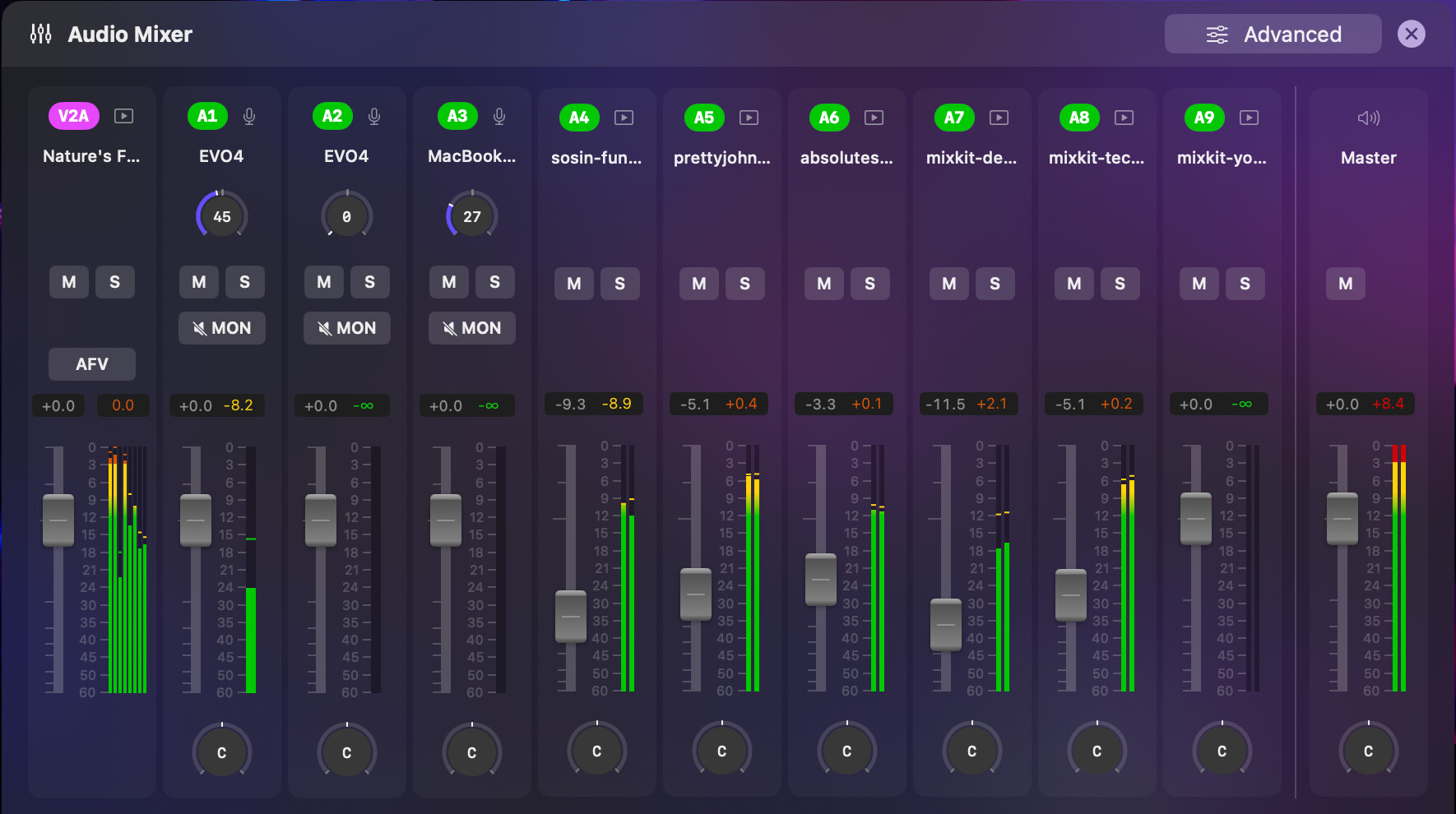
The Audio Mixer provides a channel strip for each audio source, with a fader, level meters, pan, mute, solo, and monitoring controls. The master rail on the right combines the channels into the stereo output.
The Audio Mixer is available with the CineMon PRO Audio Monitoring Pack or a CineMon PRO Pass subscription.
Opening the mixer
- Select Mixer on Home or the Monitor’s Status Toolbar.
- On the source you want to hear, enable MON if available and check that Mute is off.
- Adjust the source fader while watching its meters. Set the Master fader for the overall output level.
The mixer overlays the picture without changing its framing. Select Mixer again, or the close button in its header, to dismiss it.
Each channel strip lines up with the sources shown elsewhere in CineMon. Video-paired audio (V1A, V2A) appears first, then standalone audio sources (A1, A2), in the same order as your source cards.
Channel strips
Every audio source has a channel strip, top to bottom:
- A source tag (A1, A2, V1A, V2A) and the channel name.
- A source-type icon (microphone, video, media file, or Accsoon connector).
- An input gain knob on capture-device strips (see below).
- Mute (M) and Solo (S) buttons.
- MON and AFV buttons (see below), shown only on the channels they apply to.
- A vertical fader with a gain readout above it, paired with the channel’s level meters and a peak-hold readout.
- A pan knob (for mono and stereo channels).
If a source has no audio bound to it, its strip dims and shows a “no source” marker, and its controls are disabled. If a capture device or interface is unplugged, the strip turns orange to flag the disconnect, and CineMon rebinds it automatically when the device returns.
Faders and gain
Drag a fader to set the channel’s gain. The range runs from silence at the bottom to +12 dB at the top, with unity (0 dB) marked on the scale. Double-tap a fader on iPad or double-click it on Mac to reset it to unity. The well above the fader shows the exact value in dB.
Input gain
Capture-device strips have an input gain knob near the top. This adjusts the hardware input gain on the capture device itself, before the signal reaches the mixer fader, on a 0 to 100% scale. Use it to set a healthy level at the source, then use the fader for monitoring balance. Double-tap the knob on iPad or double-click it on Mac to reset it to 50%.
Input gain applies to the input channels assigned to the strip, so several sources drawn from one multi-channel interface can each set their own gain. Some devices expose no adjustable input gain, or report it as read-only; in those cases the knob is dimmed. On iPad, one input gain is shared across capture sources.
Mute, solo, and panning
- M (Mute) silences the channel.
- S (Solo) silences every other non-soloed channel so you can isolate one source. Solo multiple channels to hear just that group.
- The pan knob places a mono or stereo channel in the stereo field, from full left to full right.
MON (input monitoring)
MON controls input monitoring for microphone-style inputs: whether you hear that input live through your speakers or headphones. When MON is on (green), the input is audible. When off, the channel still feeds the recording path but is not played back through the monitor. Turn MON off to avoid feedback or monitoring latency on a live mic.
AFV (Audio Follows Video)
AFV appears on channels whose audio is paired with a video source (V1A, V2A). When AFV is on, the channel is automatically muted unless its video source is the one currently showing on the monitor. This keeps the audio matched to the picture when you switch between sources. When AFV is off, the channel stays audible regardless of which video is on screen.
The master rail
The rightmost strip is the Master. It sums all channels into the final stereo output:
- A master fader and gain readout set the overall output level.
- Master meters with peak-hold show the summed stereo signal you are actually sending out.
- A mute button silences the entire output.
- A pan control places the master output in the stereo field.
REC Delay (recording sync offset)
Each source has a REC Delay, a sync offset that delays its audio in the recorded mixdown. It does not affect monitoring or the individual multitrack stems.
To reach the delay controls, use the Advanced button in the mixer header. The channel strips flip to their advanced face, where each strip shows a REC Delay field:
- Type a value in milliseconds (from
0to500 ms), or use the minus and plus buttons to step by 1 ms. - For media-file sources with an available estimate, the suggestion button (the sparkles icon) fills in a suggested offset. It stays dimmed when no suggestion is available.
Use the Advanced button again (now labeled to return to the mixer) to flip the strips back to the normal mixing controls.
Options
| Option | Values | Default | Description |
|---|---|---|---|
| Input gain | 0 to 100% | 50% | Hardware input gain on the capture device, before the fader (capture sources only). Double-tap on iPad or double-click on Mac to reset to 50%. |
| Channel fader (gain) | -∞ to +12 dB | 0 dB (unity) | Sets channel level. Double-tap on iPad or double-click on Mac to reset to unity. |
| Pan | Full left to full right | Center | Places the channel in the stereo field (mono/stereo channels). |
| REC Delay | 0 to 500 ms | 0 ms | Per-source recording sync offset. Delays this source in the recorded mixdown only, not monitoring or stems. On the Advanced strip face. |
| Mute (M) | On / Off | Off | Silences the channel. |
| Solo (S) | On / Off | Off | Silences all other non-soloed channels. |
| MON | On / Off | On | Input monitoring for mic-style inputs: hear the input live or not. |
| AFV | On / Off | Off | Mute the channel unless its paired video source is on the monitor. |
| Master fader | -∞ to +12 dB | 0 dB (unity) | Sets the overall output level. |
| Master mute | On / Off | Off | Silences the entire output. |
Tips
- Reading the meters: green is healthy, yellow approaches the top of your range, and red warns you are close to clipping. Aim to keep peaks out of the red.
- Use Solo to identify a noisy source, then clear it to return to the full mix.
- On a live mic, turning MON off avoids hearing yourself with monitoring latency while still capturing the signal for recording.
- Turn AFV on for camera-embedded audio when you switch between cameras, so you always hear the source you are watching.
- For deeper analysis of the master signal, pair the mixer with the audio scopes (Levels, Loudness, Goniometer, and others) in the Scopes section.