
Audio sources and devices
An audio source is anything that feeds audio into CineMon. A source can be:
- an audio capture device or interface (a USB mic, mixer, or multi-channel interface),
- the audio paired with a video capture device (a camera’s embedded audio),
- an Accsoon device, or
- the audio track of a media file.
Each source gets a channel strip in the Audio Mixer.
Source tags
CineMon labels audio sources the same way everywhere (the transport bar, the mixer, and the scopes):
- A1, A2, A3…: discrete audio sources, such as a standalone mic or interface, numbered in the order they appear on the Home screen. There is no fixed limit; add as many as your device can process.
- V1A / V2A: audio that arrives paired with a video source (for example, a capture device’s embedded audio). The “A” marks it as the audio that follows video source V1 or V2.
This is the same source model used for video (V1/V2). It is introduced in Video Input Options; this page covers the audio side.
Adding an audio source
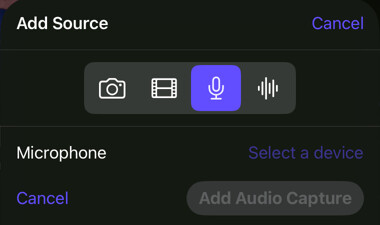
- Select Add Source (+) on the Home screen, or choose File → Add Source….
- Choose the source type: Audio Input (a microphone or interface) or Audio File.
- For an audio input, pick the device from the menu.
- Choose how its channels map to the mixer (see Channel selection below).
- Finish adding the source. CineMon creates its channel strip and starts capture.
- Open Mixer and enable MON when you want to hear the input live.
Remove an audio source
Use the × button on the source card or the remove action in its settings. CineMon stops the source and removes its configuration and mixer strip. For an audio-file source, the underlying file stays on disk; your recordings are also unchanged.
You can add the same device or file again using Add Source. Re-adding a source may require you to configure its channels and mixer settings again. This is different from deleting media files in the Media Library.
Channel selection
How a device’s inputs map into a channel depends on the device:
- Mono uses a single input channel.
- Stereo uses a pair of input channels (left and right).
- For a multi-channel audio interface (a discrete device), you choose exactly which input channel feeds a mono channel, or which pair feeds a stereo channel. You can add several sources from the same interface as long as they use different input channels.
CineMon prevents two sources from using the same device channel. The picker marks channels already used by another source or reserved for timecode; choose an available channel.
Input monitoring
Each capture-device source remembers an input monitoring preference, which is the same MON control you see on its mixer strip. When on, you hear the input live through the monitor’s output. When off, the input still feeds the recording path but is not played back, which avoids feedback and monitoring latency on a live mic. See Audio Mixer.
Devices on each platform
Audio device handling differs by platform. See Platform Considerations for the full details.
- On Mac, audio capture devices appear as discrete devices you select directly. If you unplug a device, CineMon flags the source as disconnected and rebinds it automatically when you plug it back in.
- On iPad, audio follows the system audio route. USB audio interfaces can take a moment to appear after you connect them, and CineMon picks them up on the next route change. If a USB device is removed, CineMon detects that it is no longer available and disconnects the source, then reconnects it when the device returns.
Disconnected sources keep their mixer strip, channel assignments, and settings.
Tips
- Add multiple sources from one multi-channel interface by assigning each a different input channel; they each get their own strip, fader, and meter.
- If a strip stays orange (disconnected) on iPad, allow a moment for the system to recognize the USB interface. CineMon reconnects the source when the system reports the audio route change.
- Use the audio scopes to inspect source and master-output levels, phase, and frequency content.
Recent files
Use Open Recent in the file-source editor to reopen an external file, or Change File… to choose a different file for an existing source. Video/images and audio have separate recent-file lists. Clear Recents clears only that editor’s list; it does not delete the files.
On Mac, or on iPad with a hardware keyboard, File → Open Recent groups entries into Video and Images and Audio. The limit in Settings → General applies separately to each group. Recordings, snapshots, Photos imports, and files opened from the Media Library stay out of Recents; find those in Media Library.