
Scope settings
Choose where scopes measure the signal and how they draw it. These shared controls apply to video scopes and audio scopes.
Scope settings
Open the Scope Settings popover with the Scope Settings button (the sliders icon) in the status toolbar, next to the Scopes and Layout menus. On narrow layouts the button moves into the overflow (...) menu with the other scope controls.
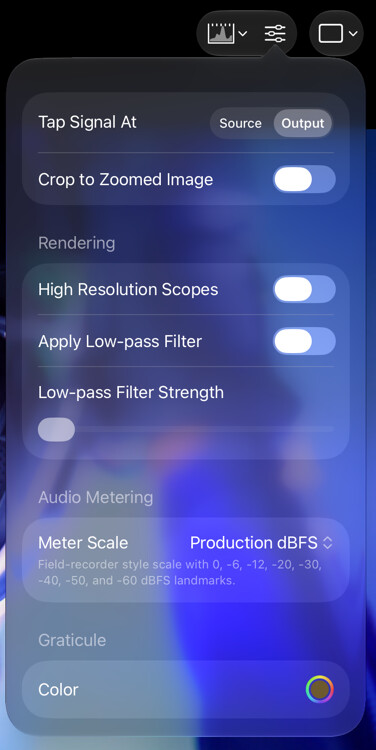
These settings are saved with the preset, so each preset can carry its own scope configuration. The video options require the CineMon PRO Video Monitoring Pack, and the audio metering option requires the CineMon PRO Audio Monitoring Pack; a CineMon PRO Pass subscription unlocks both.
| Setting | Description |
|---|---|
| Tap Signal At | Whether the scopes read the signal before or after your image adjustments (Image Adjust, LUT, and the Color Space Transform). Read before to evaluate the incoming source, or after to see the graded result. |
| Crop to Zoomed Image | When you zoom the monitor, measure only the visible region instead of the whole source image. |
| High Resolution Scopes | Render the scopes from a higher-resolution sampling of the image for finer detail, at some added processing cost. |
| Apply Low-pass Filter | Smooth the scope trace to reduce noise, with a Low-pass Filter Strength slider to control how much smoothing is applied. |
| Meter Scale | The dB scale used to draw all audio level meters, including the mixer strips. See Audio Level Meter. |
| Graticule Color | The color (and opacity) of the graticule lines drawn behind the scopes. |
For the Levels and Loudness meters, Graticule Color affects the history graphs; their meter scale markings remain independently legible.
With Crop to Zoomed Image enabled, video scopes follow the region visible in the monitor, including split Compare layouts. At the Source tap, this region is mapped back to V1; if no part of V1 is visible, the scope measures all of V1.
Per-scope analytical options (such as waveform mode, trace gain, or a scope’s own scale on/off) are edited directly on each scope, not here. Showing or hiding a scope is done from the Scopes menu and the layout controls.
Floating scopes
Assign a scope to a specialized monitor or open it as a Floating Window above the main monitor. Drag a floating scope to move it and resize it to fit your layout. Double-tap a floating video scope on iPad or double-click it on Mac to open its options. Scope settings are saved with the preset.
See each scope’s page for display modes, measurement options, and practical tips.