
Color management
Color management tells CineMon how to interpret a source’s gamma curve and color gamut. Configure it when monitoring camera log footage, converting between color spaces, or using tools that measure exposure in linear light. These controls require PRO access.
If your camera already sends a display-ready Rec.709 image, you may not need a color space transform. The input profile should still describe the signal your camera actually sends.
Set up a log source
- Check the gamma and gamut selected in your camera’s video-output settings.
- Open the Input Profile assigned to that source.
- Set Input Gamma and Input Gamut to match the camera output. Each source uses its own profile.
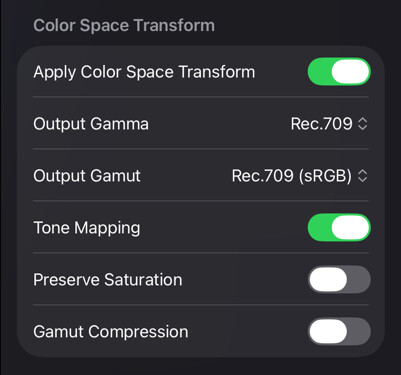
- To preview a display-ready image, enable Apply Color Space Transform and choose the intended output gamma and gamut, such as Rec.709 / BT.709.
- Check the picture and scopes. For tools that offer Tap Signal At, choose whether to measure the source or the transformed output.
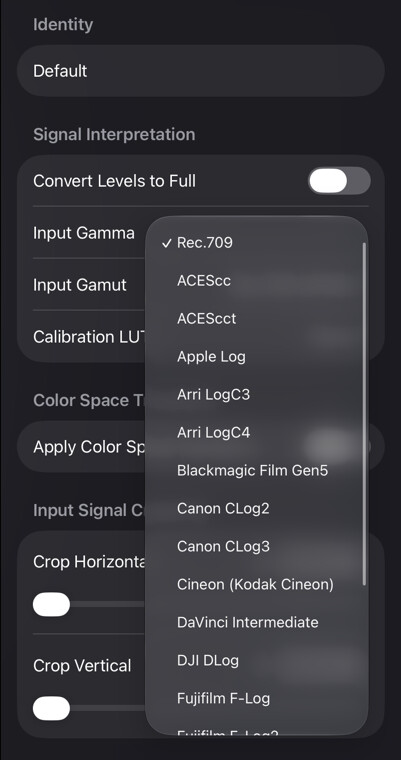
Some tools work in linear light, so their exposure readings depend on the input gamma being correct. See Input gamma notes below.
When a source supplies 16-bit pixel data, such as a 64-bit RGBA or half-float signal, CineMon preserves that precision through processing. This helps avoid quantization and banding when processing log or wide-gamut images.
Color space transform (CST)
A color space transform (CST) converts the source gamma and gamut to a destination gamma and gamut. For example, it can convert ARRI LogC4 / ARRI Wide Gamut to Rec.709 / BT.709 for viewing on a standard display. CineMon uses GPU-accelerated transforms based on camera-vendor specifications.
The CST runs after the Calibration LUT and before subsequent image adjustments.
Tools such as Spot Meter, Zebras, False Color, and the Scopes offer Tap Signal At to read the signal before the CST (Source) or after it (Output). The Exposure tool always works on the source signal.
Choose a transform or a LUT
Camera log signals encode scene brightness in a form that usually looks flat and low in saturation on a standard display. A CST converts that signal to the selected viewing space. Tone mapping and gamut compression help fit the source’s range into the destination.
A Display LUT provides another way to transform the image. A LUT may perform a technical conversion, apply a creative look, or combine both. Choose one designed for your source gamma and gamut.
You can also apply a Display LUT after a CST. In that case, set the CST output to the gamma and gamut the LUT expects. That output can be another log space, such as Cineon, rather than a display space. Avoid applying the same log-to-display conversion twice.
Test the complete workflow with representative footage, including highlights, saturated colors, and skin tones, before using it on a shoot.
Supported log profiles
| Type | Description | Values |
|---|---|---|
| Gamma* | Supported gamma curves. | Rec.709, ACEScc, ACEScct, Apple Log, Arri LogC3, Arri LogC4, Blackmagic Film Gen5, Canon CLog2, Canon CLog3, Cineon (Kodak Cineon), DaVinci Intermediate, DJI DLog, Fujifilm F-Log, Fujifilm F-Log2, GoPro ProTune, Leica LLog, Nikon NLog, Panasonic VLog, Red Log3G10, Sony SLog2, Sony SLog3, Z CAM Z-Log2, Kinefinity KineLOG3 |
| Color Space (Gamut) | Supported color spaces or gamuts. | Rec.709 (sRGB), Rec.2020 (Apple/Fuji/Nikon/Leica), P3/DisplayP3, ACES AP0, ACES AP1, Apple Wide Gamut, ARRI Wide Gamut 3, ARRI Wide Gamut 4, Blackmagic Film Gen 5 Wide Gamut, Canon Cinema Gamut, DaVinci Wide Gamut, Fuji F-Gamut C, Panasonic V-Gamut, Red Wide Gamut, Sony SGamut3.Cine, Sony SGamut3, Sony Venice SGamut3.Cine, Sony Venice SGamut3, Kinefinity Wide Gamut |
Associated Input Profile settings:
| Type | Description | Values |
|---|---|---|
| Apply Color Space Transform | Activates a Color Space Transform (CST) or Display Rendering Transform (DRT) from the Input Gamma and Color Space to the Output Gamma and Color Space. | On/Off |
| Tone Mapping | Applies a tone mapping function to compress higher dynamic range values to fit in the destination color space. | On/Off |
| Preserve Saturation | Modifies the tone mapping function to preserve saturation values. | On/Off |
| Gamut Compression | Compresses color values from a larger gamut to fit a smaller destination gamut. | On/Off |
Input gamma notes
The following tools are photometrically accurate only if the input signal is in a scene-referred gamma, and if the Input Gamma setting matches the input image’s log curve:
- Spot Meter
- Exposure (including its Test Strip sub-feature)
- Color Space Transform
If the input image is not in a log format (e.g. Rec.709), or the Input Gamma setting is not properly configured, these tools will report inaccurate exposure levels.