
Layouts and compare
CineMon can show a single monitor, several monitors at once, or two video sources compared side by side. This page covers the multi-view layouts and the Compare modes.
Compare two sources
- Add two video sources on Home. These become V1 and V2.
- Open Monitor and enable Reference Mode on the Status Toolbar.
- Choose a mode in the Compare Toolbar. Start with Side by Side to see both complete images.
- Choose Wipe to compare matching parts of the images, or Overlay to view a keyed subject over a background.
Compare and multi-view layouts require the PRO Video Monitoring Pack or a PRO Pass.
Monitor layouts
The Main Display Area shows one monitor by default. CineMon PRO supports multi-view layouts that host multiple monitors in different Panels. Use the Display Layout menu on the Status Toolbar to switch layouts.
For layouts named N Over M, the numbers describe the panel count in each row, from top to bottom.
| Layout | Displays |
|---|---|
| Single (Default) | One monitor at a time. |
| Side by Side | Two monitors, side by side. |
| Over-Under | Two monitors, stacked vertically. |
| Quad | Four monitors in a two-by-two grid. |
| 1 Over 2 | Three monitors: one across the top, two below. |
| 2 Over 4 | Six monitors: two across the top, four below. |
Drag a divider to resize adjacent panels. Double-tap it on iPad or double-click it on Mac to re-center it. In layouts with multiple rows, separate dividers control row heights and panel widths within each row. Each panel can show any monitor type: the processed image, the raw source, a framing crop, a color channel, or a scope.

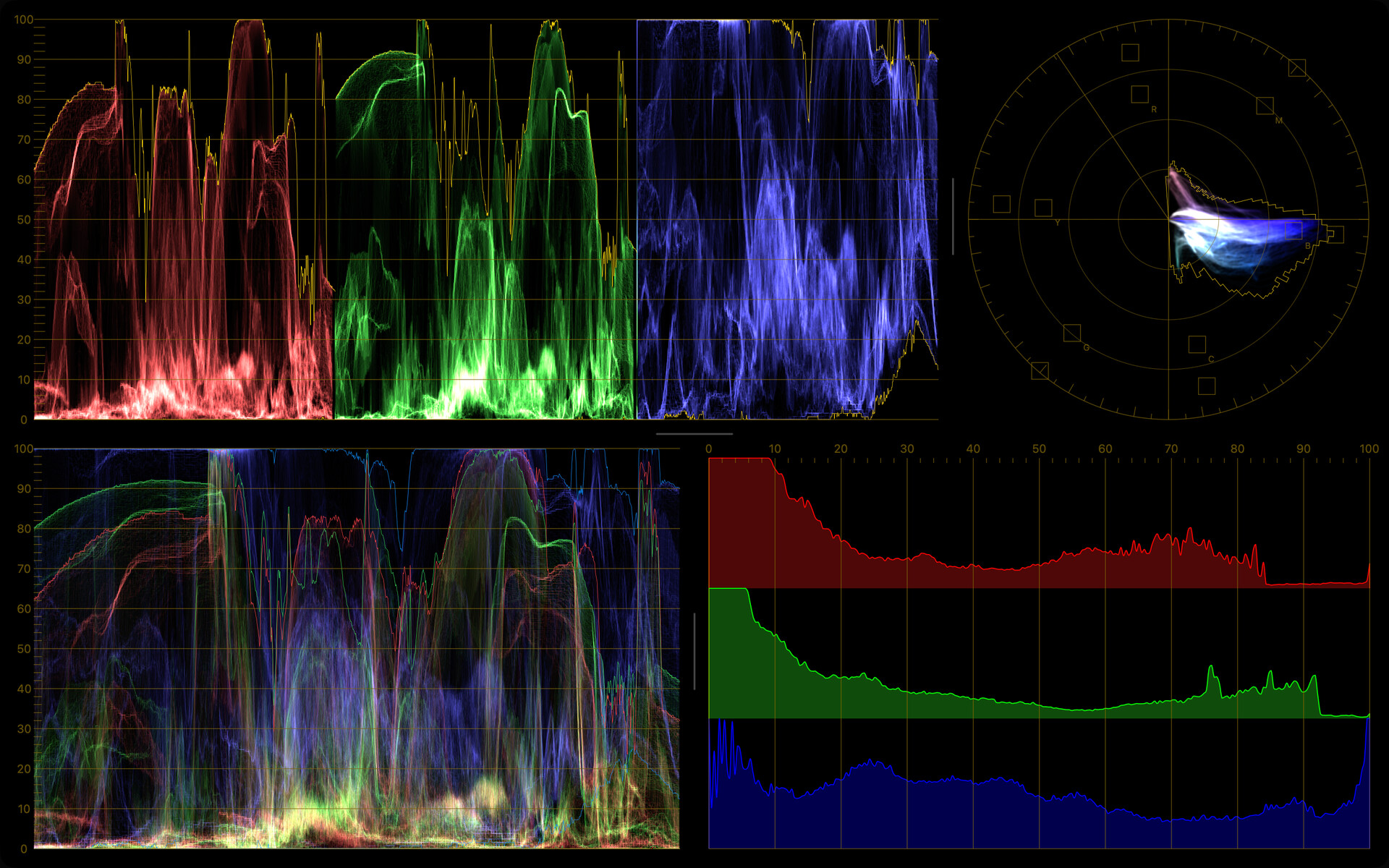
The multi-view layouts and color-channel monitors are available with the CineMon PRO Video Monitoring Pack or a CineMon PRO Pass subscription.
Compare
Compare mode (Reference Mode) displays V1 and V2 together. Toggle Compare from the Status Toolbar. When Compare is active, a Compare Toolbar appears with a mode picker and mode-specific controls.
Compare is available with the CineMon PRO Video Monitoring Pack or a CineMon PRO Pass subscription.
There are four Compare modes:
| Mode | What it does |
|---|---|
| Wipe | Composites V1 and V2 into one image, split by a movable divider. |
| Side by Side | Places V1 and V2 next to each other horizontally. |
| Top / Bottom | Stacks V1 and V2 vertically. |
| Overlay | Composites V1 straight over V2, honoring V1’s alpha channel. |
In Compare mode, processing for the Wipe and Overlay composites applies to V1 only; V2 is shown raw. The Side by Side and Top / Bottom modes show each source in its own panel.
Wipe
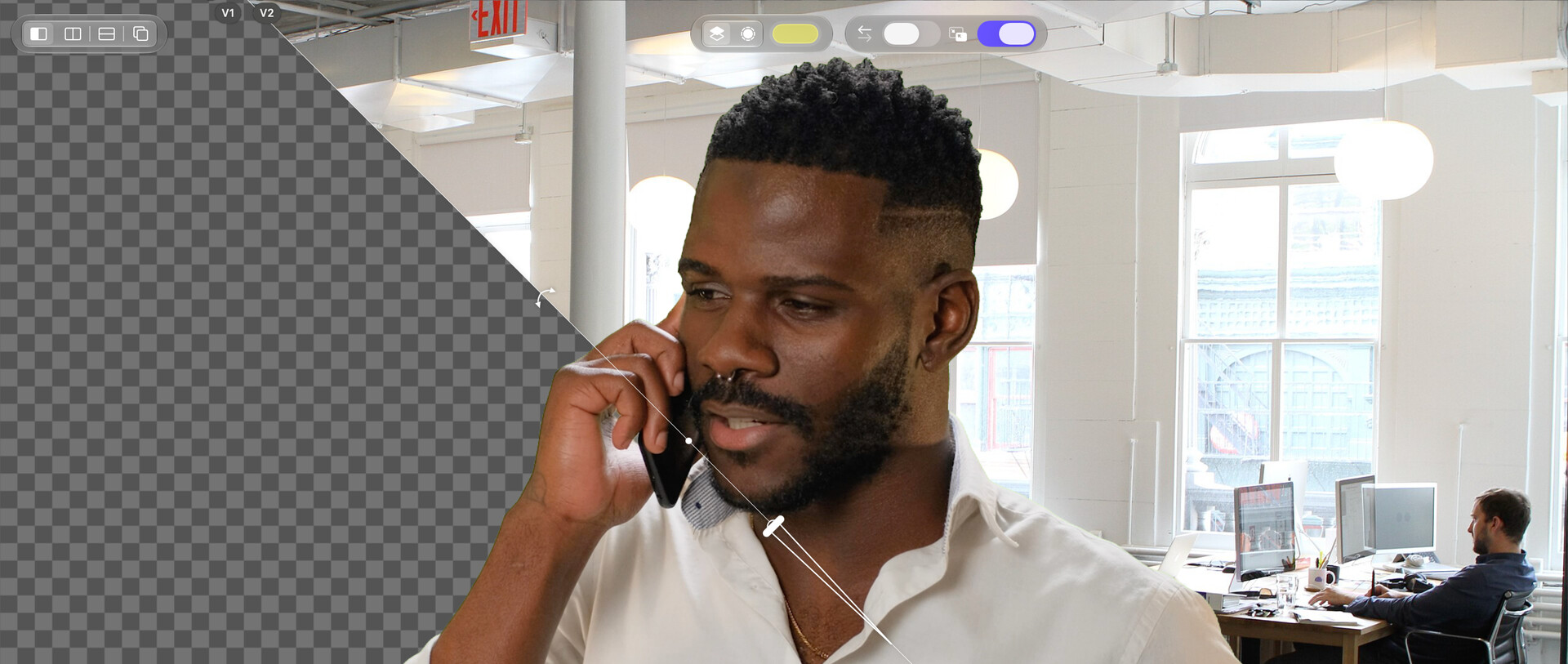
In Wipe mode, one on-image guide controls the wipe amount, angle, and opacity. You adjust the comparison directly over the picture instead of using separate angle and opacity sliders in the toolbar.
| Control | How to adjust it | Reset |
|---|---|---|
| Wipe position | Drag the divider or another part of the picture, or select a point to move the divider there. | Double-tap the picture on iPad or double-click on Mac, away from the angle and opacity controls, to center the divider without changing its angle. |
| Wipe angle | Drag the curved-arrow handle around the center peg. The angle ranges from -90° to 90° and snaps to 0°, ±45°, and ±90°. | Double-tap the handle on iPad or double-click on Mac to return to 0°. |
| Wipe opacity | Drag along the hollow wedge on the guide to change the blend opacity. The control follows the divider at any angle. | Double-tap the wedge on iPad or double-click on Mac to restore 100%. |
Angle and opacity readouts appear while you adjust their controls. The divider and handles fade after three seconds without interaction. Tap or click the picture to reveal the guide and reposition the wipe; moving a pointer over the picture also reveals it.
You can pinch on the iPad screen or a Mac trackpad to zoom, including when the pinch starts over the guide. A pinch cancels any wipe adjustment started by the first touch. While zoomed, the guide hides so you can pan the picture without changing the wipe. Return to actual size to adjust the guide again. Zooming and panning do not move the split within the image.
The Compare Toolbar keeps these controls:
- Mix / Difference: Mix blends the two sources; Difference highlights where they differ. With Difference selected, Highlight Color sets the color used to mark differences.
- Swap Images: flips which side of the wipe shows V1 and which shows V2.
- Swap Compositing Order: composites V1 over V2 instead of V2 over V1. Use this when V1 has an alpha channel, for example from the Color Keyer, and V2 should fill its transparent areas.
On narrow windows, some controls move into Wipe Settings (the sliders button). With Floating Liquid Glass Toolbars enabled in Display settings, the Compare Toolbar floats over the picture; the classic layout places it above the picture.
The Compare mode and wipe settings, including position, angle, opacity, blend, highlight color, and swap options, are remembered. Compare resumes when you return to Monitor or relaunch, provided both sources start successfully. If a source cannot start, CineMon falls back to the surviving source. Explicitly choosing single-source monitoring leaves Compare.
Wipe guide labels
Small V1 and V2 labels near the divider identify the source on each side. They follow the divider’s angle: when the divider crosses the top edge, the labels appear to its left and right; when it crosses a side edge, they appear above and below. The labels respect the Swap Images setting, so they always match the source actually shown on each side.
Side by Side and Top / Bottom
These two modes give each source its own panel: V1 and V2 sit beside each other or one above the other. Use them when you want to see both full frames at once rather than a single blended composite.
Overlay
Overlay mode composites V1 straight over V2, honoring V1’s alpha channel. This is the reference mode for keying: key V1 (the subject) with the Color Keyer, then place it over V2 (the background plate). Use Swap Compositing Order in Wipe mode when you need to reverse that mode’s compositing order.
To spot keyed-out (transparent) regions, set the monitor background to the Checkerboard in Settings → Display. The background shows through any transparent pixels in the signal, including the holes left by the Color Keyer. It is a global preference, not part of Compare.
Record a comparison
Choose Processed Image in Settings → Capture → Record to record the Compare composite, even if V2 is selected. Both sources must be ready. Raw Input records the selected source instead. This does not create two separate recordings. See Recording capture modes.