
Histogram
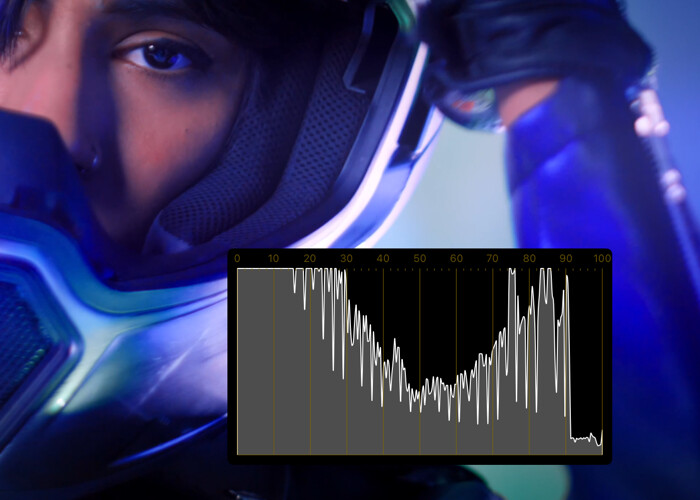
The Histogram shows the distribution of luma or RGB channel values in the image. Three display modes are available: Luma, RGB, and Stacked. Histogram is included free with CineMon; no purchase is required.
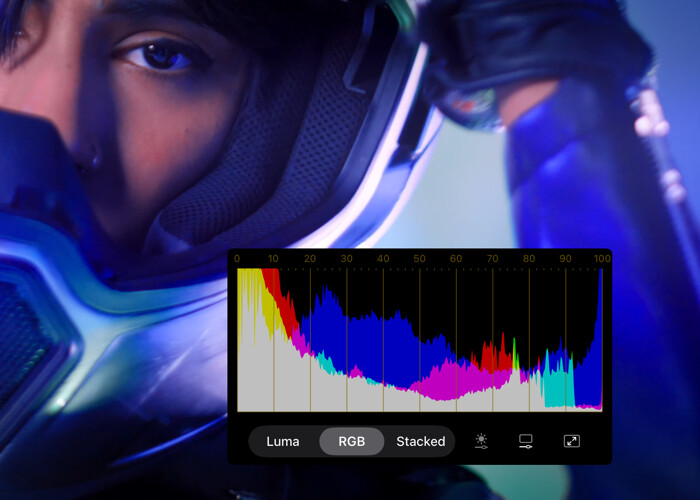
The RGB mode overlays semi-transparent R, G, and B channel traces while the Stacked mode displays them one on top of the other. You can adjust the trace’s gain, move and resize the histogram window, or make it full screen. You can also customize the color and opacity of the graticule and the opacity of the floating window background.
Basic use
Open Scopes in the status toolbar and select Histogram. If the menu is hidden in a narrow window, open More Controls (…).
Double-tap the floating scope on iPad or double-click it on Mac to open its options. Choose a display mode, then adjust trace brightness or gain so the trace is easy to read.
- Choose Luma to inspect brightness distribution, or RGB or Stacked to compare channels.
- Adjust Trace Gain to make less prominent parts of the distribution easier to see.
Options
| Setting | Options | Description |
|---|---|---|
| Display Mode | Luma/RGB/Stacked | Select the Histogram display mode. |
| Scope Settings | Graticule Color | Customize the color of the graticule. |
| Trace Gain | Slider | Applies gain to the histogram trace. |
| Window Settings | Size | Adjust the size of the floating window. |
| Opacity | Change the transparency of the floating window background. | |
| Full Screen | - | Make the floating scope full screen. |
Increasing Trace Gain can reveal subtle midtone detail on footage that otherwise hugs the floor.