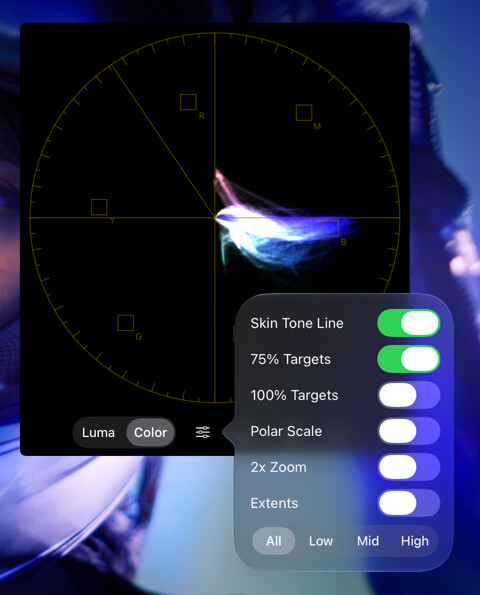
Vectorscope
The Vectorscope plots the hue and saturation of pixels in the image on a polar graph. Angle indicates hue; distance from the center indicates saturation. There are two display modes: Luma and Color.
Available with the CineMon PRO Video Monitoring Pack or a CineMon PRO Pass subscription.
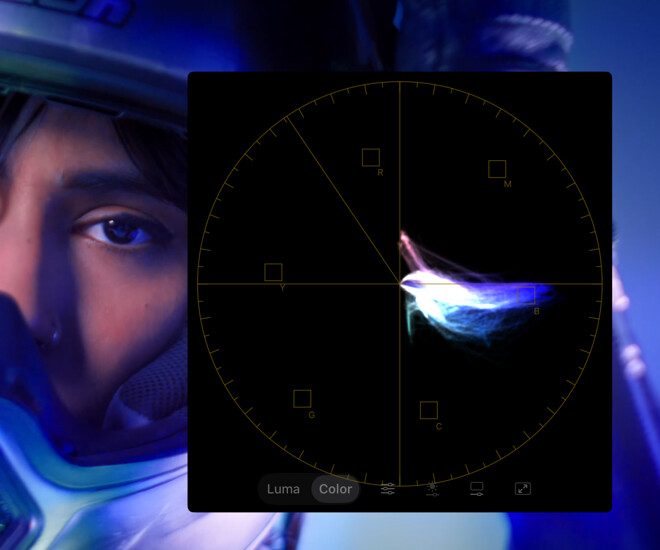
Reference guides include targets for 75% and 100% Rec.709 color bars and a skin-tone line. Use 2x zoom, signal extents, and trace brightness to inspect the trace. The window controls are shared with the other floating scopes.
Basic use
Open Scopes in the status toolbar and select Vectorscope. If the menu is hidden in a narrow window, open More Controls (…).
Double-tap the floating scope on iPad or double-click it on Mac to open its options. Choose a display mode, then adjust trace brightness or gain so the trace is easy to read.
- Choose Color to see the hues represented in the trace.
- Turn on the reference guides needed for your check, such as Skin Tone Line or the color-bar targets.
Options
| Setting | Options | Description |
|---|---|---|
| Display Mode | Luma/Color | Select the vectorscope display mode. |
| Scope Settings | Graticule Color | Customize the color of the graticule. |
| Skin Tone Line | Displays a guide where average skin tones show up in a neutrally lit scene. | |
| 75% Targets | Shows reference targets for 75% Rec.709 color bars. | |
| 100% Targets | Shows reference targets for 100% Rec.709 color bars. | |
| Polar Scale | Shows a series of concentric polar guides. | |
| 2x Zoom | Applies a 2x zoom to the scope trace. | |
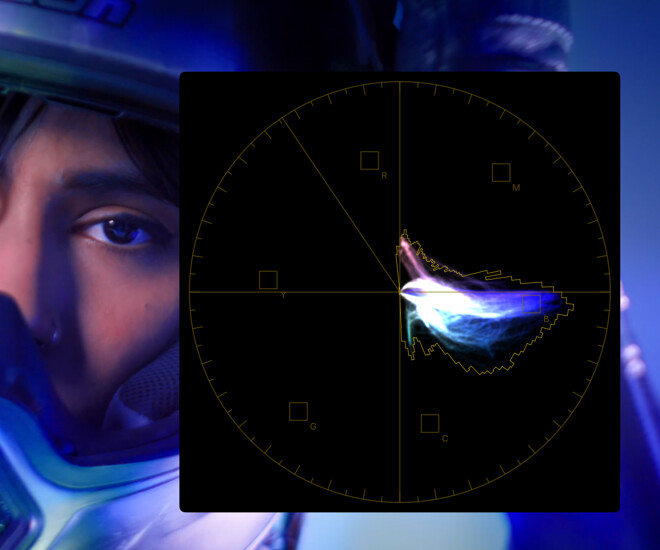
| Extents | Show an envelope of the min/max saturation values that might otherwise be difficult to see on the trace. | |
All/Low/Mid/High | Optionally filters the trace to show only the colors in the shadow areas (Low), the mid tones, or the highlights. | |
| Low Range | Defines the IRE value threshold for the Low filtering. | |
| High Range | Defines the IRE value threshold for the High filtering. | |
| Trace Brightness | Slider | Configures the brightness of the vectorscope trace. |
| Window Settings | Size | Adjust the size of the floating window. |
| Opacity | Change the transparency of the floating window background. | |
| Full Screen | - | Make the floating scope full screen. |
Color-bar targets are reference markers, not a complete gamut or signal-legality test. Use the Waveform Monitor’s RGB or Parade mode to inspect channel levels against your delivery limits.
Use a standard color chart to aid in calibration of white balance and other camera settings.