
Video sources and devices
CineMon can monitor up to two simultaneous video sources. The sources can be live capture devices, media files, still images, or supported Accsoon devices. Follow the steps below to add a source, then use the device-specific sections to configure it.
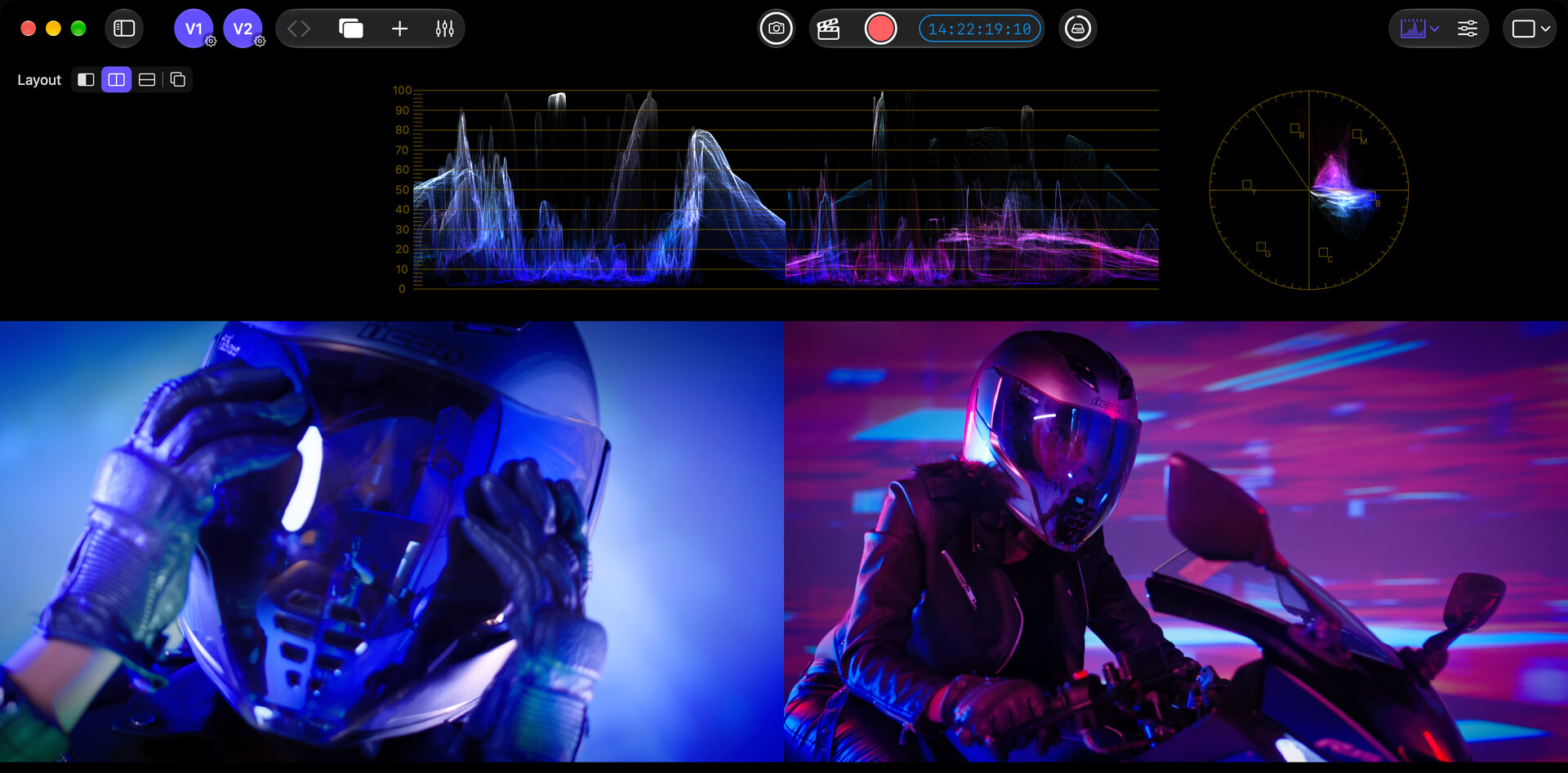
Connect and monitor a source
- Connect your capture device, or have a media file ready to open.
- On Home, select Add Source, then Camera, Media File, or Accsoon as appropriate.
- Select the device or file. For a capture device, choose a supported format and frame rate.
- Finish configuring the source, then select Monitor on its Home card.
For microphone and audio-file inputs, see Audio sources and devices.
Source slots
CineMon uses the following slot names for video, paired audio, and discrete audio sources:
| Slot | What it is |
|---|---|
| V1 | The first video source slot. |
| V2 | The second video source slot. iPad On iOS, V2 can be a second built-in camera running simultaneously via multi-cam. |
| A1, A2, A3… | Discrete audio sources, independent of any video source, numbered in the order they appear on the Home screen. There is no fixed limit; add as many as your device can process. See Audio Sources for details. |
| V1A / V2A | Audio that arrives paired with a video source (for example, the audio track embedded in a capture device’s signal or a video file). V1A is associated with V1, V2A with V2. |
You can assign any supported source type to V1 or V2, and switch the active Monitor between them.
Add a source
Add sources from the Home screen’s Add Source (+) button, or with File → Add Source… (⌘N). The Add Source sheet offers five types: Camera, Media File, Accsoon (iPad only), Audio Input, and Audio File. Select a type to open its editor.
To open a media file directly, choose Add Source → Media File on Home, or drag the file onto the CineMon window. On Mac, or on iPad with a hardware keyboard, you can also use File → Open Media as Source… (⌘O).
Your video sources are assigned to V1 and V2 in the order they appear on the Home screen; drag the cards to change which is which. If both video slots are already configured when you open a new file, CineMon asks which one to replace.
Switch sources
Once sources are configured, you switch between them from:
- The V1 / V2 slot controls on the Status Toolbar.
- The Sources menu: Monitor V1, Monitor V2, and Switch to Other Source.
- The keys
1and2to monitor V1 or V2, and`to switch to the other source. These work while the Monitor is the active screen. See Keyboard Shortcuts.
The Sources menu also has Configure V1… / Configure V2…, Exchange V1 and V2 Assignments, Stop Monitoring, and Remove V1… / Remove V2….

Remove a source
Use the × button on a source card, the remove action in the source settings, or Sources → Remove V1… / Remove V2… where menus are available. These actions remove the source from CineMon’s setup. They do not delete the underlying video or image file, or any recordings made from that source.
You can add the same device or file again with Add Source. Its source configuration and associated mixer settings may need to be set up again. If you only want to stop viewing a source while keeping its configuration, use Stop Monitoring instead.
To delete an actual media file, use the Media Library’s Delete action. The source removal buttons do not perform that action.
Capture devices (UVC)
Most cameras output HDMI or SDI video. To bring that signal into CineMon you need a video capture adapter. CineMon supports UVC-class devices, the same plug-and-play protocol webcams use. Connect the HDMI or SDI cable to the adapter, and the adapter to the iPad or Mac with USB.
Note: A USB-to-HDMI cable is not the same as a video capture adapter. USB-to-HDMI cables carry video out to external monitors. A capture adapter converts video in to the iPad or Mac.
Some cameras and wireless video receivers output UVC video directly via USB, so no separate adapter is needed.
If the source appears as a camera in FaceTime, the system recognizes it as a capture device. You can then look for it in CineMon’s device picker.
Blackmagic DeckLink and UltraStudio Mac
On Mac, CineMon 2.0 uses compatible DeckLink cards and UltraStudio units through Blackmagic’s CoreMedia IO adapter, included with Desktop Video, which presents them as webcams. These devices follow the signal on their input, regardless of the selected mode. CineMon reports the delivered format on the source card, and recordings match that signal. See When a device delivers something else.
Native DeckLink SDK support, including 10-bit capture and hardware timecode, is planned for a future version and is not part of 2.0.
Choose a capture adapter
Compare adapters by connection type, image quality, latency, and power requirements:
| Characteristic | Range |
|---|---|
| Connection type | HDMI, SDI, or both |
| Cost | $10 to $500+ |
| Image quality | Highly compressed to near-lossless |
| Latency | 0 to 3 frames |
| Form factor | Dongle, box, or battery mount |
| Power | Some include USB-C PD pass-through |
| Output resolution | 1080, 4K |
| Frame rates | 10 to 120 fps (device-dependent) |
Test an adapter with your camera at the resolution and frame rate you intend to use. For focus and exposure work, check latency, compression artifacts, and color accuracy. Price alone does not establish whether an adapter meets those needs.
For long monitoring sessions you will likely need external power. Some adapters include an integrated USB-C hub with a PD input port; otherwise you need a separate hub.
Format and frame rate selection
When you add a capture device CineMon reads the formats and frame rates the device reports. You choose a resolution and frame rate in the source settings. The default frame rate is 30 fps when the device supports it.
The Format menu lists every native variant a device offers for a resolution and names the signal format, for example 1920x1080 - YCbCr 4:2:2 8-bit Video Range (2vuy); the closed menu shows the short form. Listing the variants means a normal frame rate cannot silently land on a binned high-speed sensor mode.
If a device refuses a format or frame rate, the selection rolls back to the previous mode and CineMon explains why, including when another application is holding the device.
When a device delivers something else
Some capture devices report that they accepted the mode you picked but keep sending whatever is on their input. This is common with devices that follow their source signal. CineMon reports the difference:
- A one-time alert names the difference, for example that the device accepted 1280x720 at 25 fps but is delivering 1920x1080 at 29.97 fps.
- A standing note in the source settings and on the source card shows what is actually being delivered.
Recordings reflect what the device delivers, not what was selected.
Separately, if a device simply adjusts your request (for example 30 fps to 29.97 fps), CineMon reports that too and the source settings update to the rate actually in use.
Orientation correction
For built-in cameras on iOS, CineMon automatically corrects the video orientation as you rotate the device. External UVC cameras are not rotated automatically.
Built-in cameras iPad
The front and rear cameras on iPad are always available as sources. Select them from the source picker just like any other capture device.
Dual-camera capture (multi-cam) iPad
On supported iPad models, you can assign a built-in camera to both V1 and V2 at the same time, so you can monitor them side by side. Each slot receives its own independent stream. Recording still works on one source at a time, not both cameras at once.
Multi-cam is only available on iPad hardware that supports simultaneous front and rear camera capture. If the combination of cameras you selected is not compatible, CineMon shows an error when you try to add the second camera.
Under thermal pressure, the system may reduce the frame rate of one or both cameras automatically.
Accsoon devices iPad
CineMon supports Accsoon SeeMo and SeeMo 4K devices directly. These devices bring an HDMI source into the iPad over USB. Because they use a proprietary protocol, they require this direct integration rather than UVC.
To use an Accsoon device:
- Enable Accsoon support in Settings.
- Connect the device to the iPad via USB.
- Open the source picker and select the Accsoon device.
Enabling Accsoon is a master switch. When it is off, CineMon does not probe for Accsoon hardware and Accsoon is hidden from the source picker. Turning it off during a session disconnects any active Accsoon source.
CineMon shows the detected device name (SeeMo or SeeMo 4K), current resolution, frame rate, and bitrate. You can set a target bitrate in the source settings. The default target bitrate is 20 Mbps.
Accsoon sources carry embedded audio, which appears as V1A or V2A in the audio mixer depending on which slot the device is assigned to. Because it is a live device input, the Accsoon audio channel offers input monitoring (MON) in the mixer, like a camera’s paired mic. Accsoon support is available on iPad only.
Visit the Partners Page on the CineMon website for the full list of supported partner products.
Video and image files
You can load a video file, a still image, or an audio-only file as a source. There are two ways to open a file:
- Drag and drop: Drag a file from Files, Photos, or another app onto the CineMon window. CineMon opens it as the appropriate source type.
- Open Media as Source: Use File → Open Media as Source… (
⌘O) to browse with the system file picker.
Supported file types include .mov, .mp4, .avi, and common still image formats. Audio-only files (such as .m4a or .aac) load as audio sources rather than video slots; they appear in the audio mixer and do not occupy a V1 or V2 slot.
Video file sources loop playback by default.
Static image sources display the image at its native resolution and do not loop.
Paired audio from video files
When a video file has an audio track, that audio appears as V1A or V2A in the audio mixer, depending on which slot the file is assigned to. You can mix, mute, or adjust the level independently from other audio sources.
Platform differences
Some input options are only available on specific platforms. See Platform Considerations for a full comparison.
| Input Type | iPad | Mac |
|---|---|---|
| UVC Capture Adapters | Yes | Yes |
| Built-in Cameras | Yes | Yes (FaceTime camera) |
| Dual-Camera (Multi-Cam) | Yes (supported models) | No |
| Accsoon SeeMo / SeeMo 4K | Yes | No |
| Blackmagic DeckLink / UltraStudio | No | Yes (CoreMedia IO adapter) |
| Video and Image Files | Yes | Yes |
| Audio-only Files | Yes | Yes |
Recent files
Use Open Recent in the file-source editor to reopen an external file, or Change File… to choose a different file for an existing source. Video/images and audio have separate recent-file lists. Clear Recents clears only that editor’s list; it does not delete the files.
On Mac, or on iPad with a hardware keyboard, File → Open Recent groups entries into Video and Images and Audio. The limit in Settings → General applies separately to each group. Recordings, snapshots, Photos imports, and files opened from the Media Library stay out of Recents; find those in Media Library.