
3D Preview
3D Preview combines left- and right-eye images into an anaglyph for viewing with colored glasses.
Available with the CineMon PRO Video Monitoring Pack or a CineMon PRO Pass subscription.
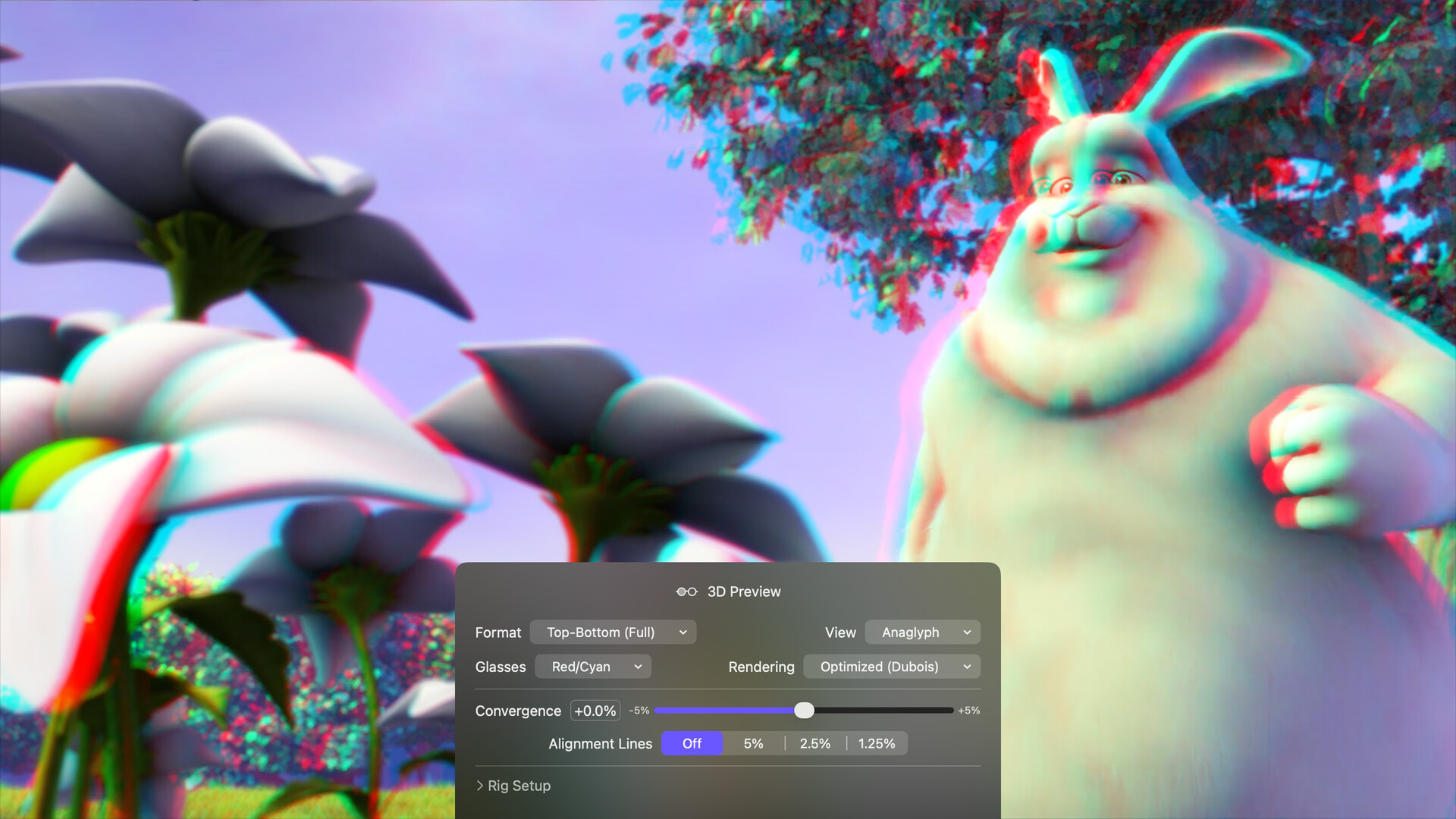
Use Blend or Difference and the alignment ruler to check convergence and stereo rig alignment without glasses.
Both eyes are graded independently, each through its own Input Profile, so you can configure color management for each camera.
Basic use
Long-press the 3D Preview button in the Assist Toolbar to open or close its options drawer. On Mac, you can also select the chevron beside the button. Select the tool button to turn the effect on or off.
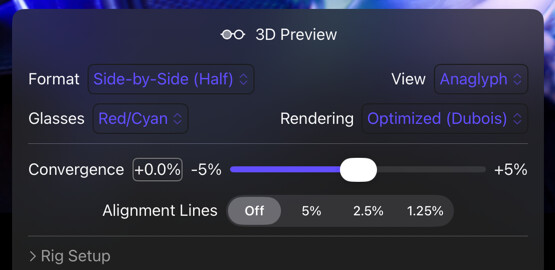
- Choose the Format that matches your stereo signal. For Two Sources (V1/V2), assign both sources.
- Use Difference or Blend to check alignment, then choose Anaglyph and match Glasses to your pair.
Source format
The Format control tells CineMon how the left and right images reach it:
| Format | Use when |
|---|---|
| Side-by-Side (Half) | One signal carries both eyes side by side, each horizontally squeezed to half width. The most common broadcast packing. |
| Side-by-Side (Full) | One signal carries both eyes side by side at full width. |
| Top-Bottom (Half) | One signal carries both eyes stacked, each vertically squeezed. |
| Top-Bottom (Full) | One signal carries both eyes stacked at full height. |
| Two Sources (V1/V2) | Two separate feeds: V1 is the left eye, V2 the right. |
In Two Sources mode you need a V2 source assigned; the tool prompts you if one is missing. The two eyes are matched by arrival time, and a badge appears on the monitor if the feeds drift out of sync.
Because packing is handled here, the Lens Desqueeze control only ever means anamorphic lens squeeze, never the horizontal squeeze that comes from side-by-side packing.
Viewing modes
View chooses what the monitor shows:
| View | What you see | Glasses |
|---|---|---|
| Anaglyph | Both eyes composited for colored glasses. | Yes |
| Left Eye / Right Eye | A single eye, full frame. Useful for framing and focus on one eye. | No |
| Blend | A 50/50 mix of both eyes. The offset between them shows you convergence directly. | No |
| Difference | What differs between the eyes. Vertical misalignment and rig errors stand out immediately. | No |
Use Blend and Difference to line a rig up, then switch to Anaglyph to judge the depth.
Glasses and rendering
Glasses matches the pair you are wearing: Red/Cyan, Green/Magenta, or Amber/Blue.
Rendering sets how the two eyes are combined:
| Method | Description |
|---|---|
| Optimized (Dubois) | The default. Balances color fidelity and reduced ghosting. |
| Half Color | Retains some color, with more ghosting than Optimized. |
| Full Color | Keeps the most color, at the cost of the most ghosting and retinal rivalry. |
| Gray | Discards color entirely. Removes color differences between the eyes. |
Glasses and Rendering only apply to the Anaglyph view; they are dimmed in the no-glasses modes.
Convergence and alignment
Convergence shifts the eyes horizontally against each other, from -5% to +5% of eye width. Where the two images coincide, objects appear at the screen plane. Adjusting convergence moves the scene in front of or behind that plane.
Alignment Lines overlays a vertical ruler for squaring a rig, spaced as a percentage of frame width: Off, 5%, 2.5%, or 1.25%. Combine it with Difference view to check that corresponding features land on the same line in both eyes.
Rig Setup
The Rig Setup section is collapsed by default. It contains controls for lens squeeze and eye assignment:
- Lens Desqueeze, from
1.0to2.0, with preset buttons for the common anamorphic factors (1.33x, 1.42x, 1.5x, 1.6x, 1.65x, 1.78x, 1.8x, 2x). This is lens squeeze only. - Swap Eyes, which exchanges left and right if your rig or packing delivers them the other way around.
Options
| Option | Values | Default | Description |
|---|---|---|---|
| Format | Side-by-Side (Half) / Side-by-Side (Full) / Top-Bottom (Half) / Top-Bottom (Full) / Two Sources (V1/V2) | Side-by-Side (Half) | How the left and right eyes reach CineMon. |
| View | Anaglyph / Left Eye / Right Eye / Blend / Difference | Anaglyph | What the monitor displays. |
| Glasses | Red/Cyan / Green/Magenta / Amber/Blue | Red/Cyan | The glasses you are wearing. Anaglyph view only. |
| Rendering | Optimized (Dubois) / Half Color / Full Color / Gray | Optimized (Dubois) | How the two eyes are combined. Anaglyph view only. |
| Convergence | -5% to +5% | 0% | Horizontal offset between eyes; sets what sits at the screen plane. |
| Alignment Lines | Off / 5% / 2.5% / 1.25% | Off | Vertical ruler spacing, as a percentage of frame width. |
| Lens Desqueeze | 1.0 to 2.0 | 1.0 | Anamorphic lens squeeze, applied per eye. On the Rig Setup panel. |
| Swap Eyes | On/Off | Off | Exchange left and right after extraction. On the Rig Setup panel. |
Capture behavior
In Processed Image mode, recordings and snapshots include the displayed anaglyph composite. Raw Input captures preserve the original packed or unpacked signal. See Recording & Capture.
3D Preview’s Two Sources mode and Compare both claim V1 and V2, so they cannot be active at the same time.
Tips
Align the rig in Difference view with Alignment Lines on. Set Convergence in Blend view, then switch to Anaglyph and use glasses to judge depth.
If the depth reads inverted, with foreground objects pushing back instead of forward, turn on Swap Eyes.
Try Gray rendering if color differences between the eyes make the anaglyph difficult to view.