
Color Palette
Color Palette shows the dominant colors in a shot as a strip of swatches, sized by their share of the frame. Use it to check a scene’s palette, compare setups, or collect reference colors.
Available with the CineMon PRO Video Monitoring Pack or a CineMon PRO Pass subscription.
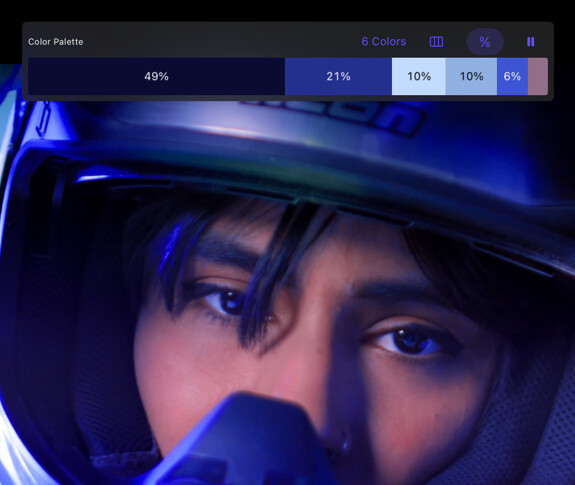
The palette samples the graded monitor image after color management and the creative look. Assist overlays such as false color, zebras, and focus peaking are excluded.
It refreshes a few times per second as the shot changes, with smooth transitions between readings.
Basic use
Select Color Palette in the Assist Toolbar to show the palette. Use the controls in its header to set the number of colors and how the swatches are displayed.
Reading the palette
By default each swatch is proportional: a color that fills half the frame gets half the strip. Turn on Percentages to display each color’s share inside its swatch.
Switch to Equal Widths when you care about which colors are present more than how much of each there is. Every swatch gets the same width, though the measured percentages stay accurate and still show in the labels.
Inspecting a color
Select Pause Palette to freeze the analysis on the current frame. While paused with Equal Widths on, each swatch gets an info button that reveals its RGB and hexadecimal values, with a button to copy the hex to the clipboard.
Resume the palette to track the picture again. The paused reading clears whenever the program source changes.
Options
The controls are in the guide’s header, above the swatches.
| Option | Values | Default | Description |
|---|---|---|---|
| Palette Colors | 1–16 | 6 | How many colors to extract. At 1 you get the frame’s single average color. |
| Equal Widths | On/Off | Off | Give every swatch the same width instead of sizing it by share of frame. |
| Percentages | On/Off | On | Print each color’s share of the frame inside its swatch. |
| Pause Palette | On/Off | Off | Freeze the analysis so you can inspect and copy individual colors. |
On a very wide palette, swatches that get too narrow to fit their percentage simply drop the label and show color only.
Tips
Set Palette Colors to 1 to read the frame’s overall average color, which is a quick way to compare the general cast of two setups.
Pair Color Palette with the Vectorscope when matching cameras: the vectorscope shows you where the color sits, the palette shows you how much of the frame it occupies.