
False Color
False Color maps IRE values, photometric stops, skin tone range, or white balance neutrality to colors over the monitor image. A guide strip at the edge of the frame shows the active color key. The strip scales with the displayed image, so it stays readable in a small tile, and you can drag it up or down to reposition it.
Available with the CineMon PRO Video Monitoring Pack or a CineMon PRO Pass subscription.
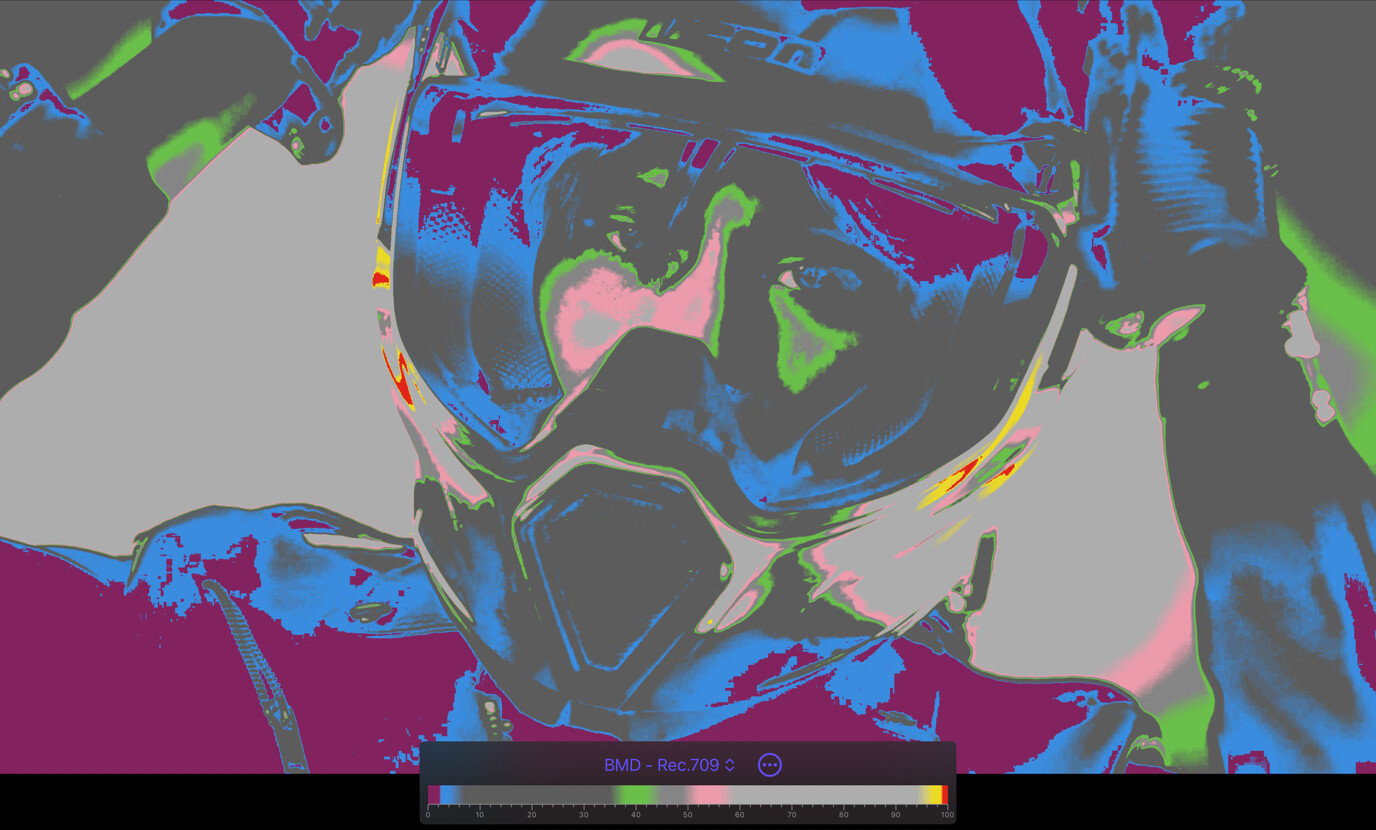
You can use False Color two ways: as an assist tool overlaid on the monitor, or as its own panel in a multi-view layout so the program image stays clean.
Basic use
Long-press the False Color button in the Assist Toolbar to open or close its options drawer. On Mac, you can also select the chevron beside the button. Select the tool button to turn the effect on or off.
- Choose IRE, Stops, Skin, or WB for the measurement you need.
- Use the guide strip to interpret the colors. In Stops mode, check that your configured gamma matches the source encoding.
False Color as a panel
Set any panel’s monitor type to False Color (iPad long-press / Mac right-click the panel) to get a dedicated false-color view alongside your normal image. This is useful when you want to judge exposure continuously without tinting the picture everyone else is watching.
The panel renders whichever mode is currently selected and shows that mode’s color key, but the gradient-editing controls (the scheme picker, Options menu, Edit button, stop handles, and Stop Detail row) stay on the monitor overlay. The panel does not change the program image, and it works whether or not the False Color assist tool is switched on.
Modes
IRE
The classic false color mode. Each pixel is colored according to its IRE value (0 to 100), using the active gradient. You can choose from built-in gradients (ARRI, Atomos, Blackmagic, and a CineMon grayscale default) or create your own.
Use IRE mode when you want a continuous, fully customizable luma map and you are comfortable interpreting exposure in IRE units.
Stops
Stops mode divides the image into discrete exposure bands, each one stop wide, centered on 18% middle gray (0 EV). The gradient is generated automatically from the log curve configured in the source’s Input Profile, so each band corresponds to a real photometric stop of light in the scene. The bands extend to the edges of the gradient. Black and white are the outer exposure bands, not separate clipping indicators.
The palette runs from black at -8 EV through purples and blues in the shadows, gray at middle, and yellows and reds in the highlights to white at +8 EV. Adjacent bands have distinct hues. Half-stop bands flank middle gray for finer mid-tone discrimination.
Use Stops mode to check key tones against middle gray in scene-light terms. Because the gradient is derived from your log curve setting, make sure the gamma curve in the source’s Input Profile matches the camera’s actual log encoding.
Skin Tone
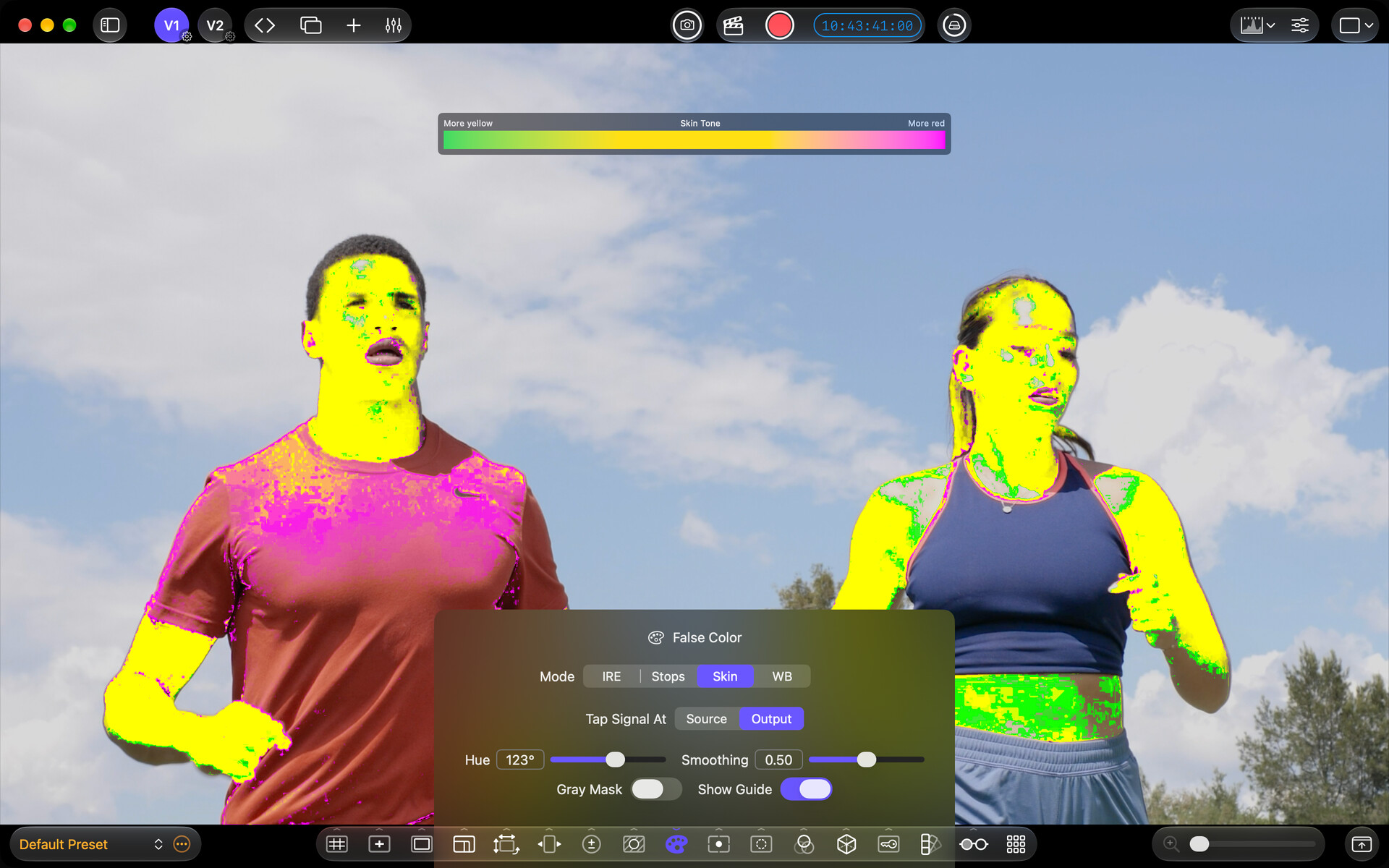
Skin Tone mode highlights pixels that fall within the skin-tone reference hue range (centered on the NTSC I-line at approximately 123 degrees in Y’CbCr Rec.709 vectorscope space). Pixels in range are tinted yellow, magenta, or green based on where they sit within the acceptance window. Pixels outside the range pass through unchanged, or render as flat gray if Gray Mask is on.
You can adjust the center hue (100 to 140 degrees) and a smoothing value (0 to 1) that controls how sharply the tint fades at the edge of the acceptance window. Double-tap the label or value readout in the settings panel on iPad or double-click it on Mac to reset either slider to its default.
Use Skin Tone mode to compare skin-tone hue and spot shifts caused by mixed lighting.
White Balance
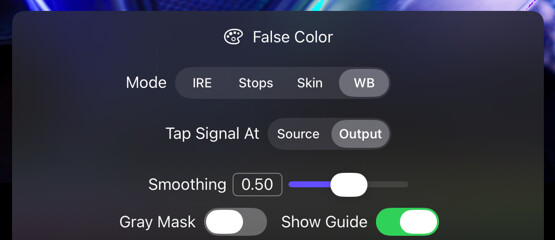
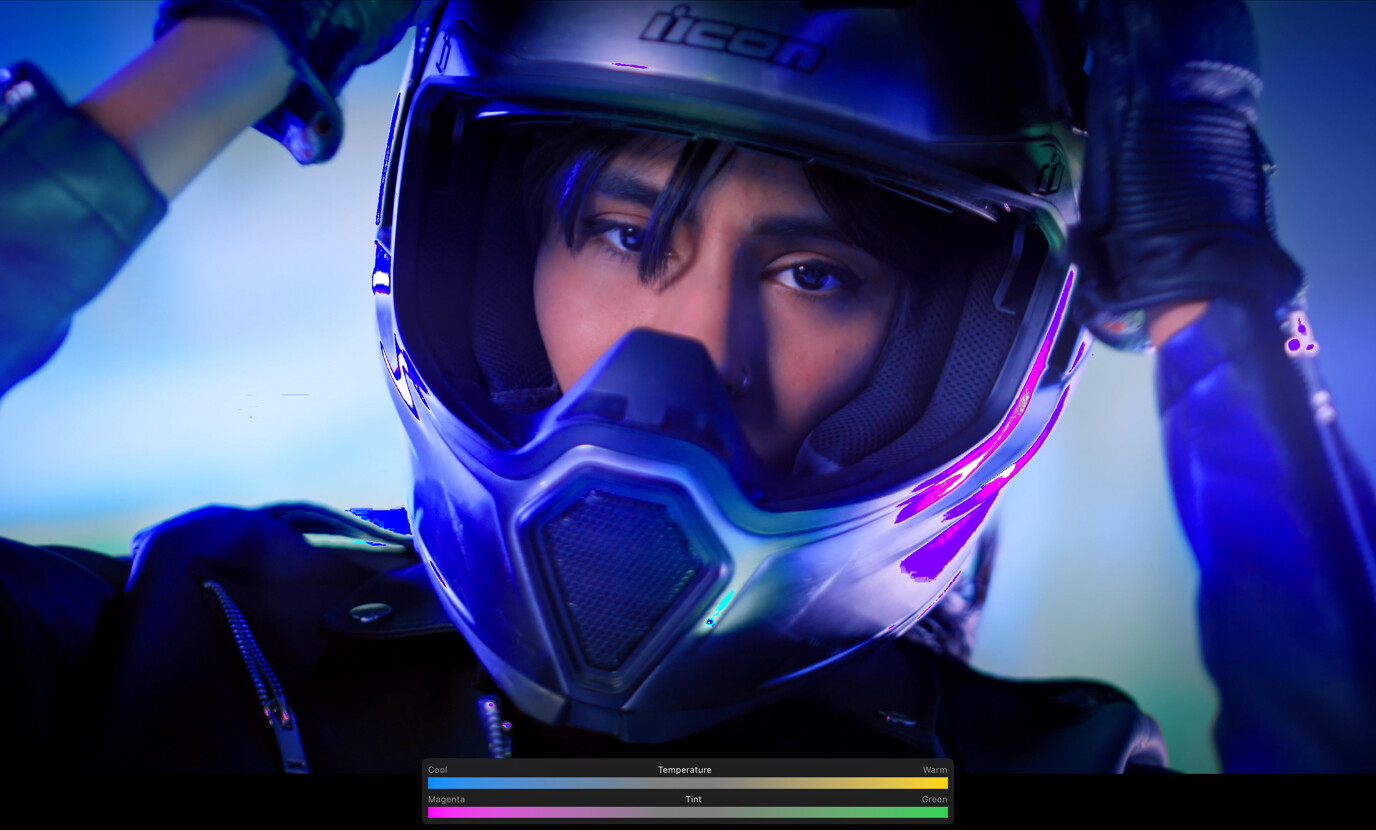
White Balance mode examines pixels that should be neutral (whites, grays, and blacks) and colorizes any residual cast. Yellow and blue indicate a temperature cast (warm or cool); green and magenta indicate a tint cast. Non-neutral pixels (intentional subject color) pass through unchanged unless Gray Mask is on, in which case they render as a dark gray so the neutrals being evaluated stand out.
A Smoothing slider (0 to 1) controls how gradually the tint fades at the edges of the neutral detection window. Double-tap the label or value readout on iPad or double-click it on Mac to reset it.
Use White Balance mode to confirm that light sources targeting neutral surfaces are actually neutral, or to detect mixed light when several sources illuminate a scene.
Custom gradients (IRE mode)
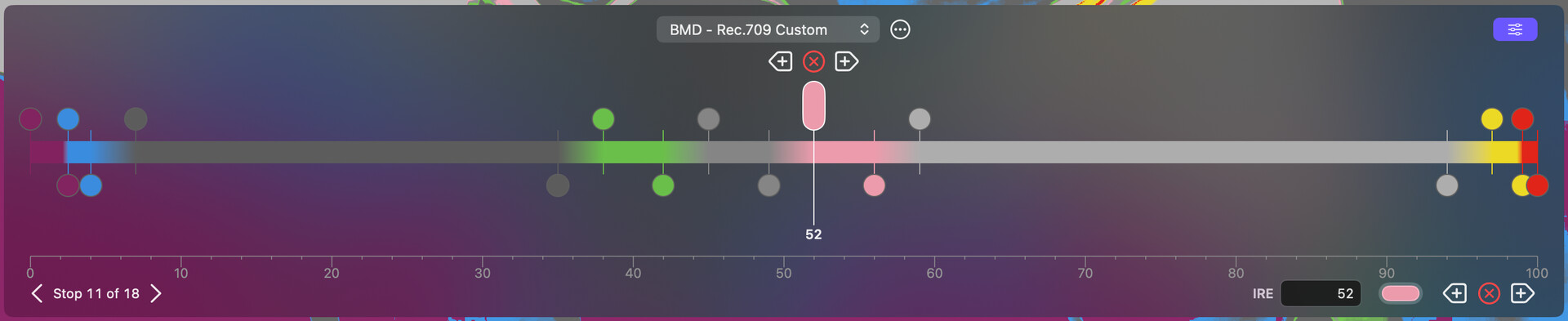
CineMon supports an unlimited number of false color gradients for IRE mode. To create a new gradient:
- Duplicate an existing one from the Options menu.
- Show the guide (if not already visible).
- Select the Edit button next to the scheme name on the guide. The editor opens across the full width of the monitor.
- Select a gradient stop. The selected stop’s handle grows into a capsule, and its IRE readout appears on the opposite side of the bar.
- Drag it left or right to change its IRE value. A stop can be dragged straight past its neighbors, and the gradient reorders as you go.
Below the bar, a Stop Detail row gives you precise control over whichever stop is selected:
- Previous Stop and Next Stop buttons step through the gradient, with a Stop N of M readout between them.
- The IRE value can be typed rather than dragged, to two decimal places. On Mac it is an editable field; on iPad it opens a keypad, as does tapping the stop’s readout on the bar.
- A color well sets the stop’s color and opacity.
- Add Stop to the Left and Add Stop to the Right insert a new stop halfway to that neighbor, and Remove Stop removes the selected stop from the gradient being edited. It does not delete the whole gradient or any media. The same three buttons also appear on the bar beside the selected stop.

The first and last stops cannot be removed, and a gradient never drops below two stops, so those actions are hidden when they do not apply.
You can export gradients as .cmgradient files to share them with other CineMon users, and import gradients the same way.
Options
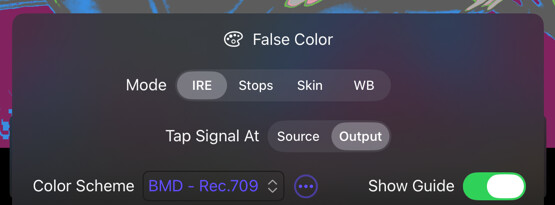
| Option | Values | Default | Description |
|---|---|---|---|
| Mode | IRE / Stops / Skin / WB | IRE | Selects the false color mode. |
| Tap Signal At | Source/Output | Output | (IRE, Skin Tone, and White Balance modes) Whether False Color reads the signal at the source, before the Display LUT and creative color, or the final processed image. Not shown in Stops mode, which always reads the source to match the log curve. |
| Color Scheme | False Color Gradients | ARRI - Rec.709 | (IRE mode only) Chooses which gradient to use. |
| Options Menu | Save Changes / Revert Changes / New Gradient / Duplicate / Delete | - | (IRE mode only) Create, duplicate, or delete gradients, and save or discard edits to a custom one. Custom gradients can be deleted; built-in gradients cannot. |
| Show Guide | On / Off | On | Toggles the color key guide strip on the monitor. |
| Hue | 100 to 140 degrees | 123° | (Skin Tone mode only) Center hue of the skin-tone acceptance window in Y’CbCr Rec.709 vectorscope degrees. |
| Smoothing | 0 to 1 | 0.5 | (Skin Tone and White Balance modes) Controls how gradually tinting fades at the edge of the detection window. |
| Gray Mask | On / Off | Off | (Skin Tone and White Balance modes) When on, pixels outside the detection window render as flat gray. |
CineMon ships with popular IRE-mode schemes: ARRI, Atomos, Blackmagic, and a grayscale CineMon default that is a useful starting point for customizing your own.
Tips
You can calibrate IRE gradients to your specific camera’s log curve. For example, some camera log profiles render middle gray at 38 IRE. Setting a green band around that value lets you expose by checking that an 18% gray card in the shot looks green.
In Stops mode, verify that your preset’s gamma curve matches your camera’s log encoding. If the curve is set to Rec.709 but your camera is recording S-Log3, the stop bands will be placed at the wrong IRE positions.
In Skin Tone mode, Gray Mask is useful for quickly isolating faces in a complex scene. Turn it off again to review the full image with the skin-tone overlay applied.
In Compare, Source False Color and Stops mode analyze V1 and stay within its part of the comparison, leaving V2 clean. Output analysis applies to the composite.