
Focus Peaking
When this tool is on, features of the image that are in focus are highlighted. Focus Peaking has two modes, Peaking and Contrast, selectable from the Mode picker.
Available with the CineMon PRO Video Monitoring Pack or a CineMon PRO Pass subscription.
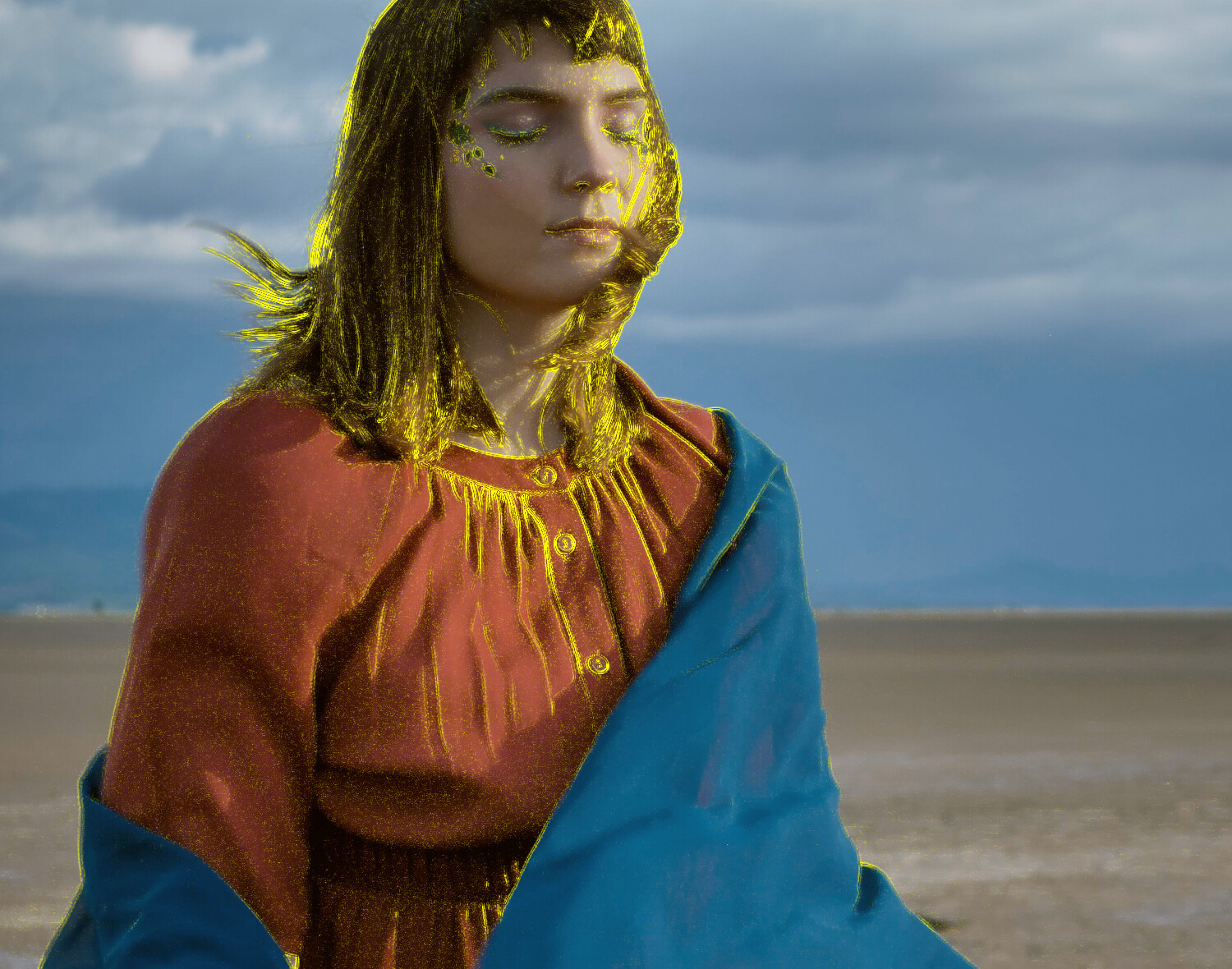
In Peaking mode, in-focus edges are highlighted with the selected color. This can help visualize where the focus plane is and the approximate depth of field. An Edges Only mode shows only the peaking highlights, which can be useful with certain types of images.
In Contrast mode, a high-contrast view emphasizes detail for checking focus. You can set how strongly it is blended over the picture, and optionally view it in monochrome.
Both modes have a Threshold control that suppresses weak edge responses. Leave it at 0 to mark everything the tool finds, and raise it when grain or sensor noise is being marked along with real detail.
Peaking detects edges in luma (the encoded brightness signal). An edge that differs only in color, with no difference in luma, is not marked.
Basic use
Long-press the Focus Peaking button in the Assist Toolbar to open or close its options drawer. On Mac, you can also select the chevron beside the button. Select the tool button to turn the effect on or off.
- Choose Peaking for colored edges or Contrast for a high-contrast view.
- Adjust focus while watching image detail. Raise Threshold if grain or noise is also highlighted.
Options
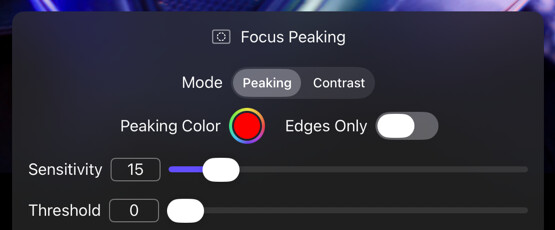
Every slider shows its current value in a box beside the label. Double-tap the label or the value box on iPad or double-click it on Mac to reset that slider to its default.
Peaking mode
| Option | Values | Default | Description |
|---|---|---|---|
| Peaking Color | Color | Red | The color of the peaking highlight. |
| Edges Only | On/Off | Off | Turns on the edges only mode over a black background. |
| Sensitivity | 5–100 | 15 | How strongly detected edges are marked. Raising it marks more, but lifts noise and speckle along with real detail. |
| Threshold | 0–100 | 0 | Cuts the marking on soft, out-of-focus edges so only sharp detail stays lit. |
Contrast mode
| Option | Values | Default | Description |
|---|---|---|---|
| Monochrome | On/Off | On | Renders the focus-assist view in monochrome, so edges read without color distraction. |
| Intensity | 0–100 | 100 | Blends between the untouched picture and the full high-contrast view. |
| Threshold | 0–100 | 0 | Suppresses grain and sensor noise so they are not sharpened, while real edges keep their halo. High values can also suppress fine detail such as hair and fabric texture. |
Tips
Activating Image Adjust → Saturation 0% converts the scene to monochrome, letting the peaking color stand out against a gray image.
If peaking is lighting up grain rather than detail, raise Threshold before reaching for Sensitivity: threshold removes the noise floor, while sensitivity raises everything including the noise.