
Framing Guides
Compose for multiple delivery formats, such as a 2.39:1 theatrical master, 16:9 television, and vertical 9:16 social clips.

Framing Guides show the area that remains after cropping the captured image to another aspect ratio.
You can configure up to two different aspect ratio guides (A & B) simultaneously. For each guide you can control its aspect ratio, size, and position within the image frame.
Enable the guide in its options drawer and turn on the Framing Guides tool button to see it.
Frame A is used as the base frame to render all other composition tool guides. As you change the size, position, or aspect ratio of Frame A, all other guides will adjust accordingly.
Basic use
Long-press the Framing button in the Assist Toolbar to open or close its options drawer. On Mac, you can also select the chevron beside the button. Select the tool button to turn the effect on or off.
- Choose Frame A or Frame B and enable the guide.
- Choose an aspect ratio, then drag the guide to position it and resize it using its edges or corners.
Adjust a guide
The tool option drawer offers a few aspect ratio presets as shortcuts, including square, and vertical for social media. You can also select the aspect ratio button to enter a custom value as a fraction. Use the lock button to constrain the aspect ratio when resizing the guides.
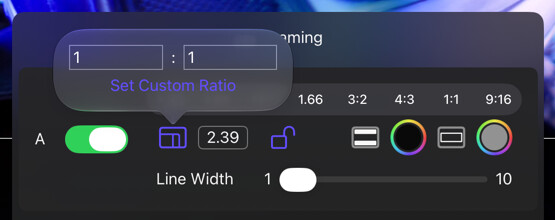
Other options allow you to configure how the guides are rendered, with independent color and opacity controls for the frame outline and the out-of-frame regions (or matte).
Use the A and B cards in the tool’s options drawer to configure each guide. When the drawer is open, enabled guides show labels and editing handles on the image.
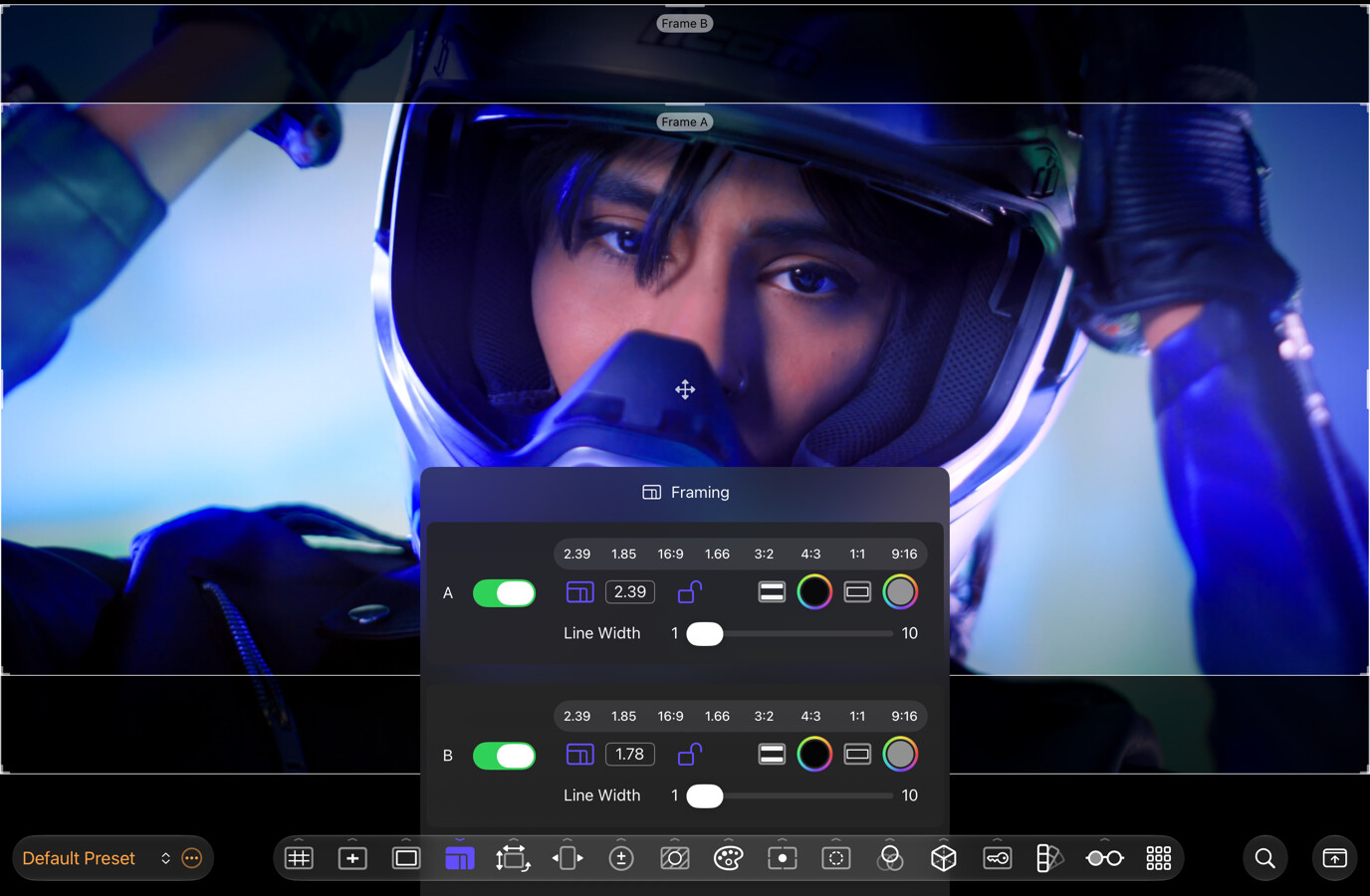
To position the active guide, drag it from its center marked by crossed arrows. To resize the active guide, use a pinch-to-zoom gesture, or drag any of its corners or edges. The guide will resize around its center.
If the guide is flush against one of the image borders, you might need to move it before resizing.
Crop monitors
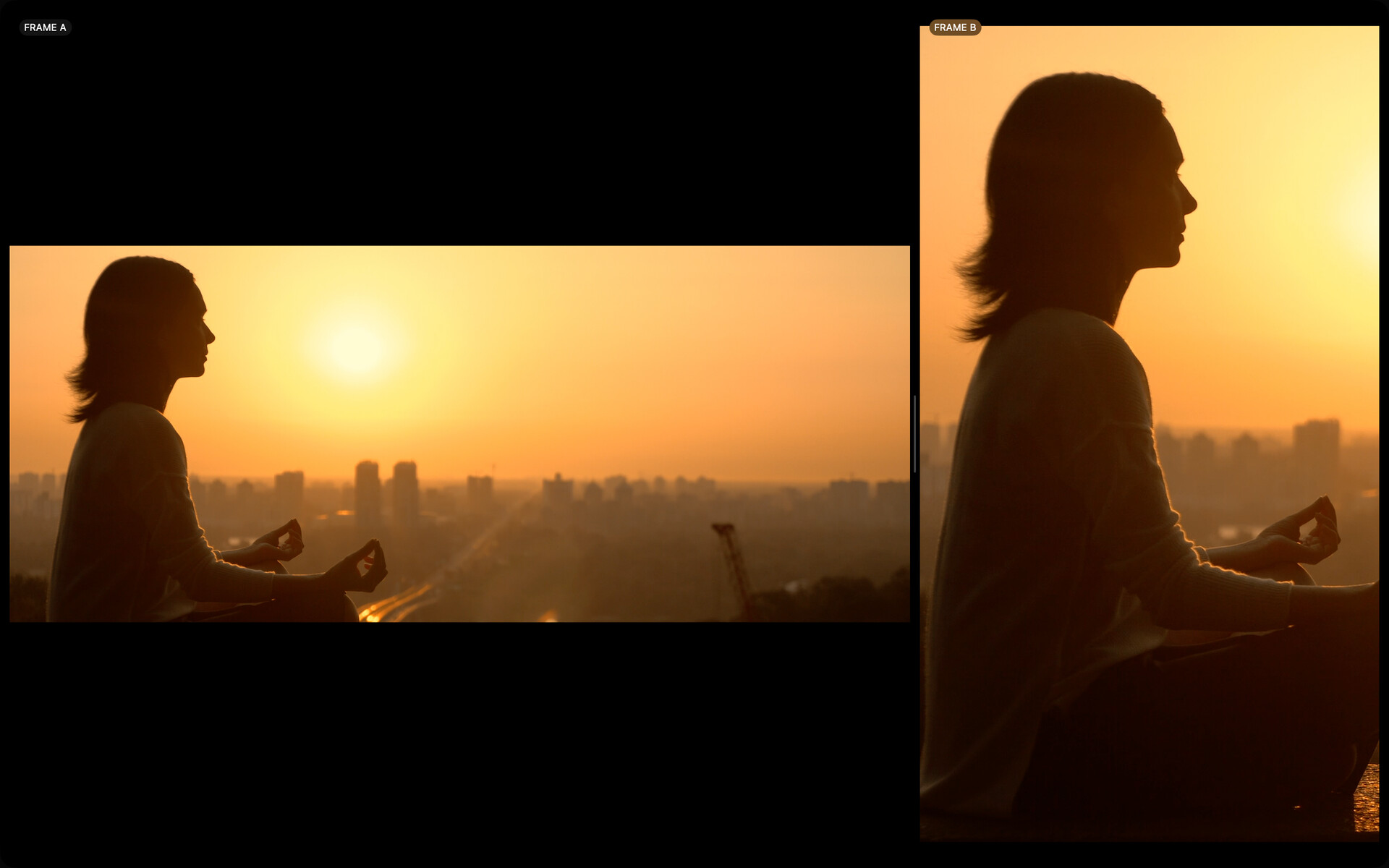
Even when the Framing Guide tool is inactive, you can use the Specialized Crop Monitors to display a cropped view of the input image. The crop monitors use the size and position of the enabled framing guides to crop the image.
Options
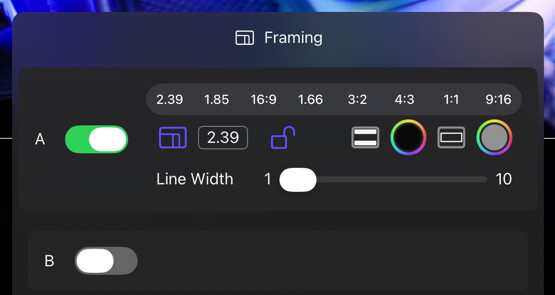
| Option | Values | Default | Description |
|---|---|---|---|
| Enable | On/Off | On (for A), Off (for B) | Enable or disable each Framing Guide. |
| Custom Aspect Ratio | Numerator/Denominator Fraction | - | Opens a popover to enter a custom aspect ratio as a fraction. |
| Lock Aspect Ratio | On/Off | Off | Locks the aspect ratio so that resizing operations maintain the frame proportions. |
| Blanking Color | Color/Opacity | Black, 90% | The color and opacity of the matte rendered over the portion of the image that falls outside the guide. |
| Border Color | Color/Opacity | White, 50% | The color and opacity of the frame border. |
| Line Width | 1–10 | - | The pixel width of the frame border line. |
| Aspect Ratio Presets | [2.39:1, 1.85:1, 16:9, 1.66:1, 3:2, 4:3, 1:1, 9:16] | - | Shortcuts to popular, full-screen aspect ratios. |
Selecting a Preset recenters and resizes the guide to fit the image.
Tips
To monitor two aspect ratios at once:
- Configure Frame A & B and show them as outlines only.
- Configure Frame A & B and use a Side by Side layout with crop monitors to visualize both crops.
- Configure two different presets, each with a different Framing Guide configuration, and switch between them.