
Spot Meter
Spot Meter places two virtual probes on the monitor image so you can measure specific areas of the frame. You choose a mode that determines what the probes report: exposure in stops relative to middle gray (Light mode) or encoded signal values as RGBA and IRE readings (Signal mode).
Available with the CineMon PRO Video Monitoring Pack or a CineMon PRO Pass subscription.
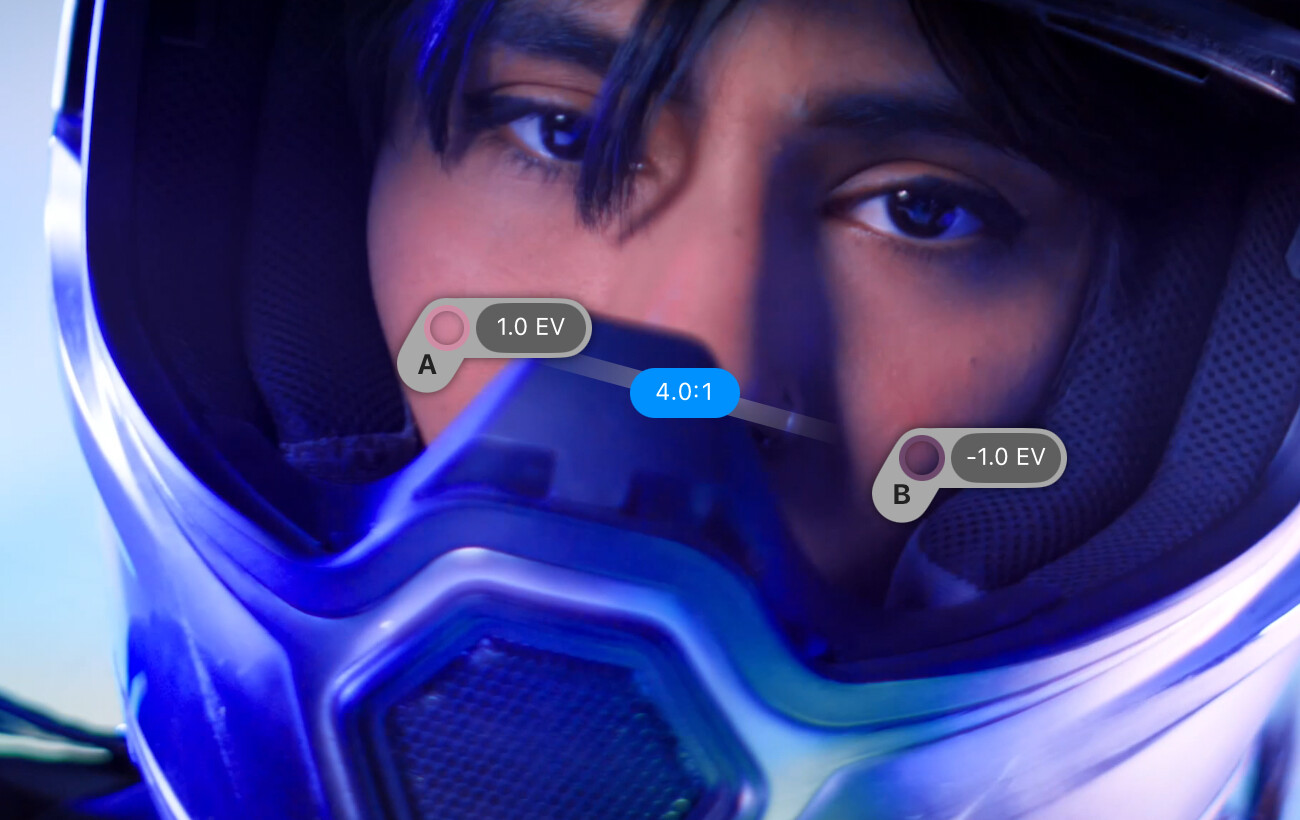
Move the probes by dragging them. Double-tap a probe on iPad or double-click it on Mac to return it to the center of the frame.
Meter while zoomed
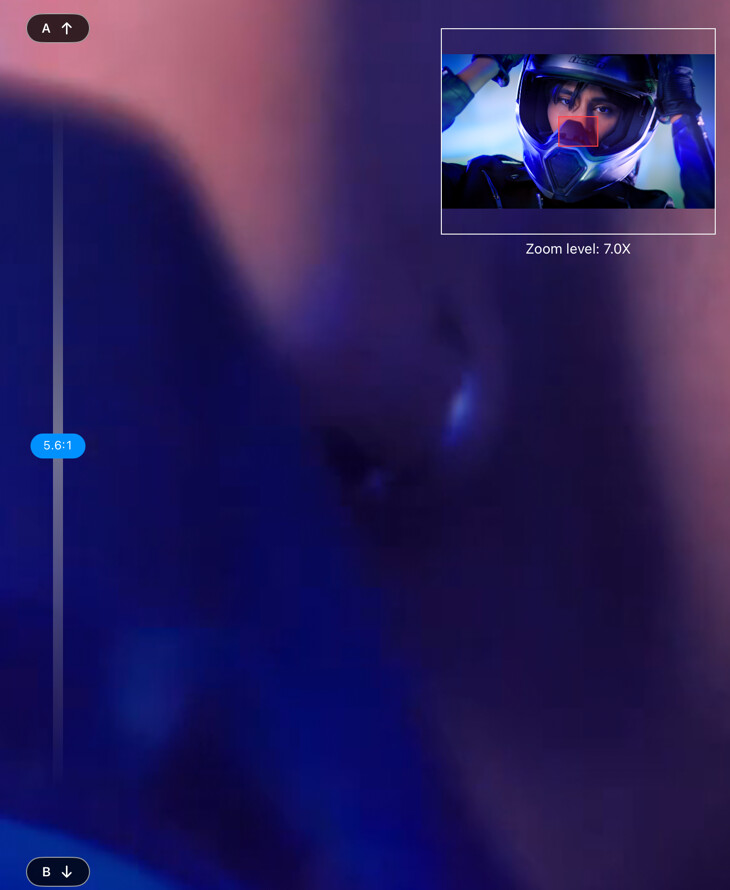
Probe positions stay anchored to the image when you resize the window, zoom, or pan. The probes remain a fixed size on screen, so zooming in lets you position them more precisely and sample a smaller part of the image. Single Pixel still samples one pixel regardless of zoom.
If panning moves a probe out of view, an edge button points toward it. Select that button to bring the probe back into view. You can start a pinch on a probe to zoom; the pinch cancels the probe drag started by the first touch.
Basic use
Long-press the Spot Meter button in the Assist Toolbar to open or close its options drawer. On Mac, you can also select the chevron beside the button. Select the tool button to turn the effect on or off.
- Choose Light for stops relative to middle gray or Signal for RGBA and IRE readings.
- Drag Meter A and Meter B onto the areas you want to compare. In Signal mode, choose Tap Signal At to measure the source or output.
Modes
Light
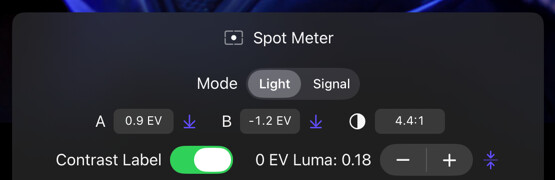
Light mode is a photometric exposure meter. CineMon linearizes the sampled area through the source transfer function configured in its Input Profile, averages the resulting linear luminance, and reports the value as EV relative to a configurable middle-gray anchor (default: 18% gray = 0 EV). All other luminance values are expressed as stops over or under middle gray.
The probe samples the image before color management and image adjustments, so the reading reflects the original light in the scene rather than any downstream processing.
A contrast ratio display shows the ratio between the linearized luminance readings at Meter A and Meter B. Use it to compare lit areas or measure the range between a shadow and a highlight.
Because Light mode works by inverting a log or gamma transfer function, the gamma curve in the source’s Input Profile must match the camera’s actual encoding. If the curve is set incorrectly, the EV readings will be off.
Signal
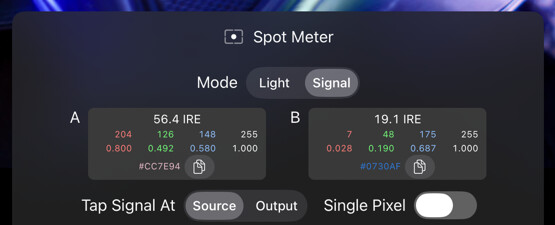
Signal mode measures encoded signal values. CineMon skips the log-to-linear conversion and reports the averaged RGBA values of the sampled pixels along with the corresponding IRE reading (computed from Rec.709 luma weights on the non-linearized values, multiplied by 100).
Use Signal mode to match code values between cameras, verify LUT output levels, or check the IRE value of a target area.
Tap Signal At controls where Signal mode samples, the same Source/Output choice offered by Zebras, False Color, and the Scopes:
- Source: samples the source signal, including any adjustment from the Exposure tool, but before color management, the Display LUT, and creative color. This is the same tap Light mode always uses, so you are reading the original camera signal.
- Output: samples at the end of the per-frame processing chain, after every adjustment, LUT, and false-color stage. The reading reflects exactly what the monitor displays.
Single Pixel: when on, Signal mode samples only the center pixel of the probe instead of averaging the probe area.
Options
Light mode options
| Option | Values | Default | Description |
|---|---|---|---|
| Mode | Light / Signal | Light | Selects what the meters report. |
| Meter A | EV | - | Scene luminance in stops relative to middle gray. |
| Set A | - | - | Sets middle gray to whatever Meter A is currently reading. |
| Meter B | EV | - | Scene luminance in stops relative to middle gray. |
| Set B | - | - | Sets middle gray to whatever Meter B is currently reading. |
| Contrast | Ratio | - | Ratio between the linearized luminance readings at Meter A and Meter B. |
| Contrast Label | On / Off | On | Controls visibility of the contrast ratio elastic bar between the two probes. |
| 0 EV Luma | Real number | 0.18 | The linear-light luminance value treated as middle gray (0 EV). |
| 0 EV Luma Stepper | - | - | Increments or decrements the middle-gray reference by 0.01. |
| Reset 0 EV | - | - | Resets middle gray to 0.18. |
Signal mode options
| Option | Values | Default | Description |
|---|---|---|---|
| Mode | Light / Signal | Light | Selects what the meters report. |
| Meter A | RGBA + IRE | - | Per-channel code values and IRE reading for the probe area. |
| Meter B | RGBA + IRE | - | Per-channel code values and IRE reading for the probe area. |
| Tap Signal At | Source / Output | Source | Where Signal mode samples: before or after color management and adjustments. |
| Single Pixel | On / Off | Off | When on, samples only the center pixel of the probe instead of averaging the probe area. |
Tips
To compare the key-lit and fill-lit sides of a face, place Meter A on one cheek and Meter B on the other. A 2.0:1 contrast ratio means one sampled area has twice the linearized luminance of the other, a difference of one stop.
In Light mode, you can calibrate the middle-gray reference for a specific camera by pointing both probes at an 18% gray card and selecting Set A to anchor 0 EV to the card’s actual code value.
In Signal mode with Tap Signal At set to Output, you can verify that a display LUT is mapping a specific input level to the expected output. Set Single Pixel on for the most precise reading.