
Media library
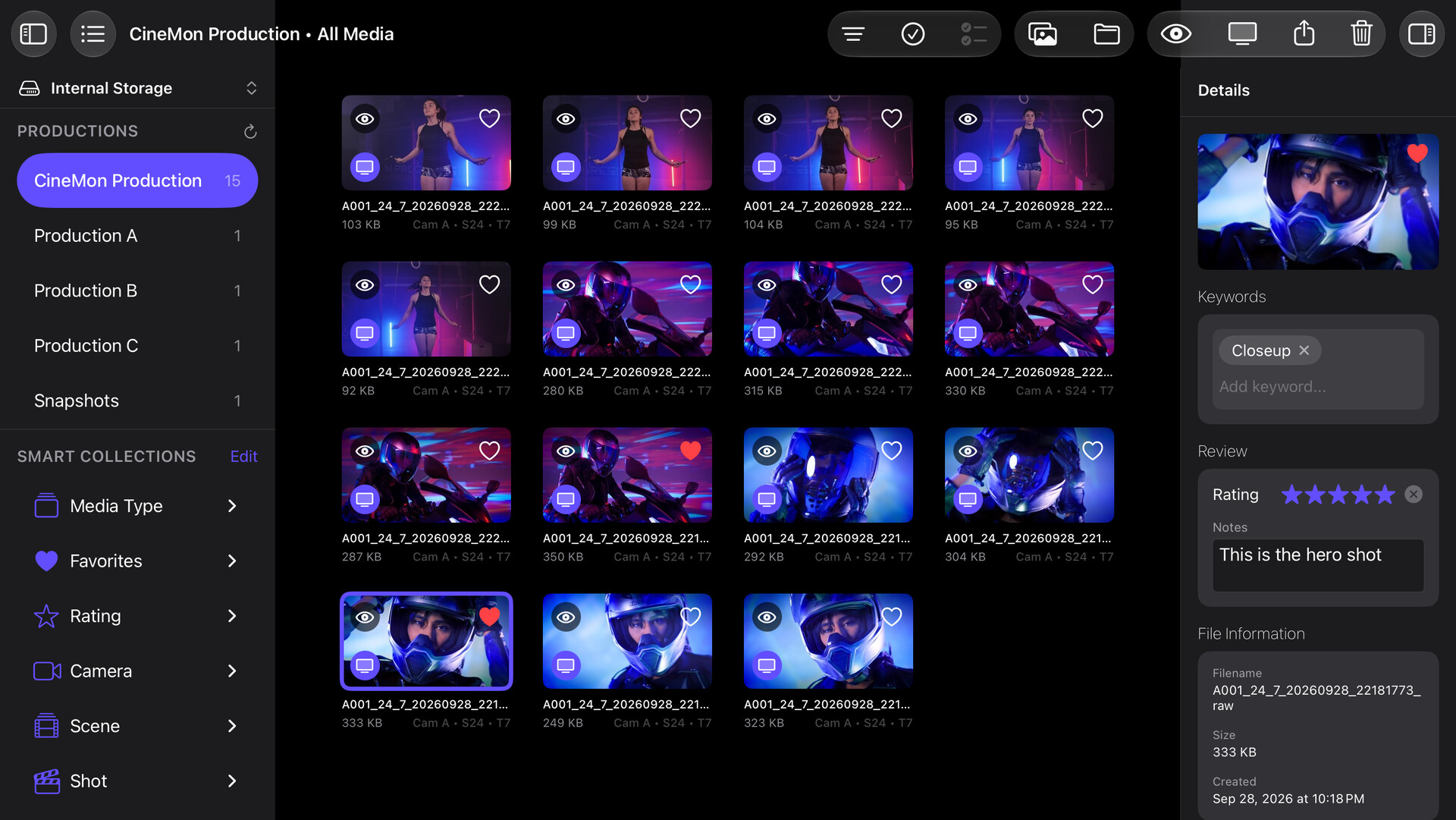
The Media Library contains recorded clips, snapshots, and imported media. Captures are added automatically with the slate metadata active at capture time. Browse them by production, scene, take, and keywords.
The Media Library is a PRO feature, available with the PRO Recording Pack or a PRO Pass subscription.
A library is a named storage location, such as internal storage, an external drive, or a project folder. Set up these locations in the Libraries organizer, then browse their contents in the Media Library.
Review a capture
- Open Media Library from the sidebar.
- Select a thumbnail to inspect its file details and metadata.
- Select the thumbnail’s eye button for a Quick Look preview, or its TV button to open it in Monitor.
- Use the inspector to mark a Good Take, set a Rating, or edit Notes and Keywords.
To change storage locations, use the Libraries organizer.
Browsing media
Open the Media Library to see a library’s contents as a grid of thumbnails. Select an item to open its inspector; select it again to deselect it.
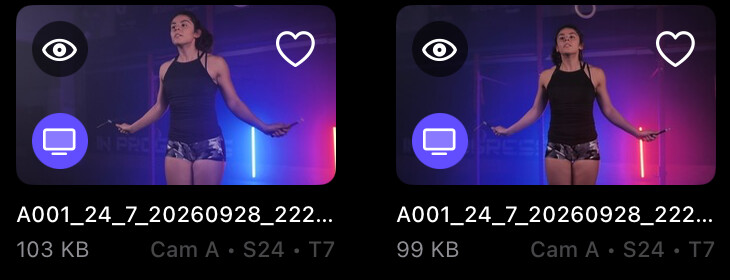
Each thumbnail carries two buttons: an eye in the top-left corner opens a full Quick Look preview, and a TV icon in the bottom-left opens that file on the Monitor.
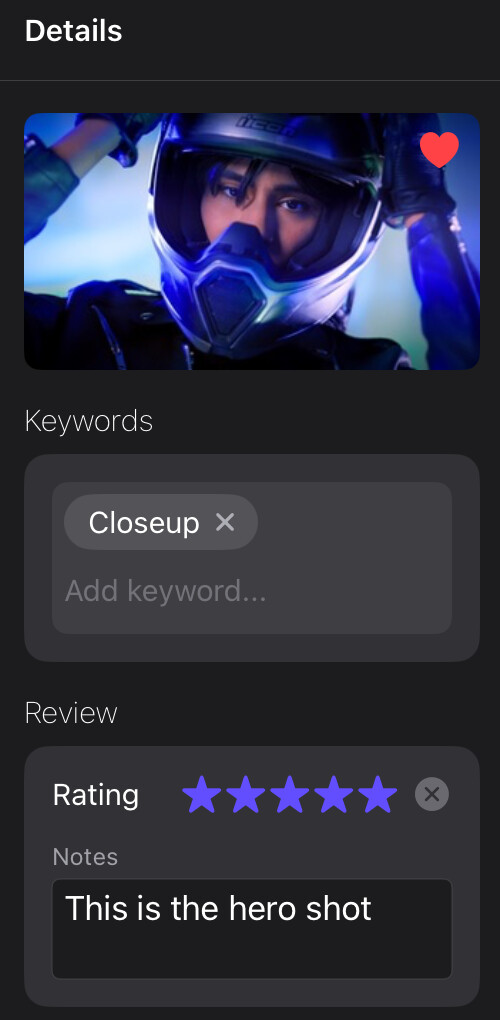
The file inspector shows the filename, format, duration (for video), dimensions, file size, capture date, and any embedded slate metadata (production, camera, scene, take, director, DOP, and keywords). For stills it also shows a read-only Snapshot Source, telling you whether the frame came from the Raw Input, the Processed Image, or the Monitor View. HEVC clips are labeled with their bit depth and chroma, so a 10-bit take reads as such in the inspector.
To work on several files at once, turn on Multi Select in the toolbar, then select each item to add it, or drag across thumbnails to sweep up a range. Select All takes everything currently shown, which means everything left visible by your active Smart Collections rather than the whole library.
Previewing with Quick Look
Quick Look gives you a full-size preview without leaving the library. Open it three ways: the eye button on a thumbnail, Quick Look in the item’s context menu (Mac right-click, iPad long-press), or the toolbar button. With a hardware keyboard, you can also press Space.
Move between preview items with a swipe on iPad or the arrow keys on Mac. Quick Look uses the grid’s current sort order and Smart Collection filters; filtered-out items are excluded. The last item you preview remains selected when you close Quick Look.
Toolbar and shortcuts
| Control | Shortcut | What it does |
|---|---|---|
| Toggle Productions Sidebar | Show or hide the list of productions on the left. | |
| Sort | Sort by Name, Date, or Size, Ascending or Descending. | |
| Multi Select | Turn multiple selection on or off. | |
| Select All / Deselect All | ⌘A | Selects everything currently shown. Available in Multi Select. |
| Import from Photos | Bring in photos and videos from the system Photos library. | |
| Import from Files | ⇧⌘I | Bring in movies and images from the file system. |
| Quick Look | Space | Open the full preview for the selected item. |
| Open in Monitor | ⌘↩ | Load the selected file onto the Monitor. |
| Share | Share the selection. Shows a count in Multi Select. | |
| Delete (trash icon) | ⌘⌫ | Permanently delete the selected media files after confirmation. Shows a count in Multi Select. See Delete media files. |
| Toggle Details | ⌥⌘I | Show or hide the inspector on the right. |
On iPad the keyboard shortcuts need a hardware keyboard; every command is also reachable from the toolbar.
Delete media files
Deleting media here permanently deletes the selected files from their library’s storage location, including an external drive when that is the active library. It does not just remove a thumbnail or a monitoring source. Files are not moved to Trash, and CineMon cannot undo this action. Keep a separate copy of any file you may need before deleting it.
- Select the file, or enable Multi Select and select the files you want to delete.
- Choose Delete from the context menu (long-press on iPad or right-click on Mac), select the toolbar’s trash button, or press
⌘⌫with a hardware keyboard. - Check the filename or file count in the confirmation. Select Cancel to keep the files, or Delete to permanently delete them.
For media imported through Import from Photos or Import from Files, this deletes the copy stored in the CineMon library. The original in Photos or the original import location is unchanged.
To stop using a file as a monitoring source while keeping it, remove the source with its × button instead. To remove a storage location from CineMon’s list while retaining its files, forget the library.
Metadata and keywords
Captures carry slate metadata in QuickTime keys (and XMP for stills). DaVinci Resolve and Final Cut Pro read these fields, including Scene, Take, Reel, Camera, and Notes. Recordings also carry color metadata. Check the imported color interpretation when working with camera log formats. See Slates for how that metadata is defined.
The Slate is a template for capture time. After capture, you edit each file’s review fields in the Media Library inspector: mark a Good Take (the heart toggle), set a Rating (the half-star control), and edit Notes and Keywords. Changes update in place in the grid and in Smart Collections. When several files are selected, keyword edits apply to all of them at once; if a change cannot be saved for an individual file, CineMon reports it after the batch finishes.
Smart Collections
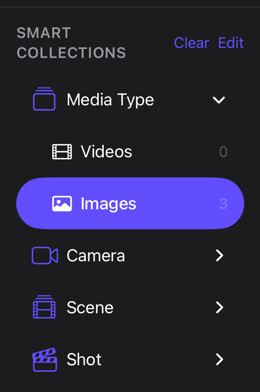
Smart Collections filter the current library’s media without creating separate folders. The filter panel builds its categories automatically from the metadata embedded in the library’s files:
| Category | Filters by |
|---|---|
| Media Type | Videos or Images |
| Snapshot Source | How a still was captured: Raw Input, Processed Image, or Monitor View. Appears once your library holds stills that record it. |
| Favorites | Files marked as a Good Take |
| Rating | The star rating set on a file |
| Camera | The camera identifier from the slate |
| Scene | The scene number from the slate |
| Shot | The take number from the slate |
| Reel | The reel from the slate |
| Int/Ext | Interior or exterior |
| Day/Night | Time of day |
| Keywords | Any keyword attached at record time, or edited on the file afterward |
Selecting one or more values filters the grid. Within a category, selected values combine with OR (any match passes). Across categories, filters combine with AND (every active filter must match). Clearing all selections shows the full library again.
Importing media
Choose Import from Photos to select photos or videos from the system Photos library, or Import from Files to select movies and images from the file system. The selected items are copied into the active production’s folder in the current library. With media-type subfolders turned on, imported files go into a Reference subfolder.
Imported files join the grid and the Smart Collection filters as soon as the import finishes, and every media type stays visible: importing a clip never hides your stills.
Where recorded media goes
Recorded clips and snapshots are saved to the active library, which is set by the active slate’s override when one is configured, or the App Default library otherwise. You manage libraries and the App Default in the Libraries organizer, and you configure recording itself in Recording & Capture.