
Using slates
A Slate holds the production metadata that CineMon attaches to every recording and snapshot: production name, camera, scene, take, crew information, dates, and keywords. Keeping the active slate current means each clip and still includes the details you need to filter and organize it in your Media Library.
Slates are a PRO feature, available with the PRO Recording Pack or a PRO Pass subscription.
To manage your library of slates (create, reorder, import, export, duplicate, rename, delete), see the Slates organizer. This page explains what a slate is and how the in-monitor slate works.
Opening the slate
In Monitor mode, select the Slate button (the clapperboard icon) in the Status Toolbar to open the active slate. iPad it opens as a sheet Mac it opens as an overlay.
The slate is a clapperboard card you can flip. The front holds the metadata, and the back holds per-slate recording settings. Only one slate is active at a time, and every capture uses the active slate.
Prepare a slate for capture
- Open the active slate with Slate on the Monitor toolbar.
- Enter the production name and keywords. Choose Advanced to add camera, scene, and take details.
- Select Settings… if this production needs different capture formats or a library destination.
- Return to the monitor and capture a clip or snapshot. Changes to the slate save automatically and apply to subsequent captures.
To switch or manage saved slates, use the Slates organizer.
The front: metadata
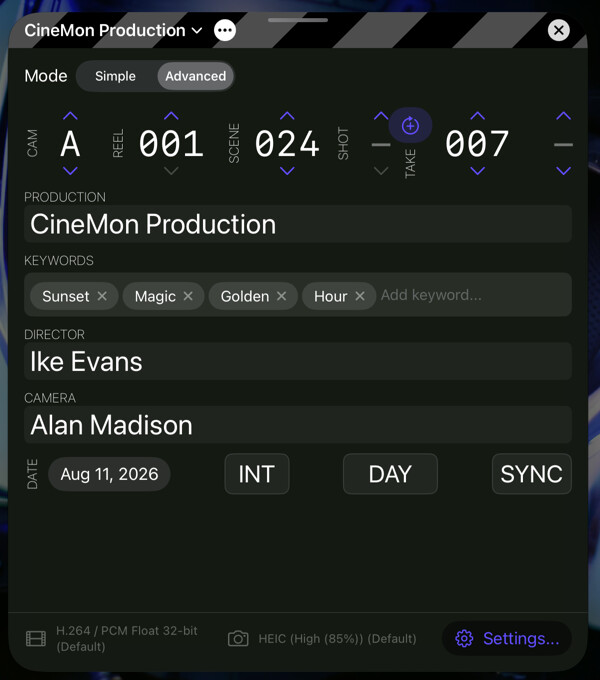
A Mode switch at the top toggles how much detail the slate shows:
- Simple shows just the Production name (with its tag) and Keywords. Use it for quick setups.
- Advanced shows the full clapperboard with all of the fields below.
Select a clapperboard field to type into it directly, or use its stepper where present.
| Field | Description |
|---|---|
| Production Name | The name of the production. |
| Production Tag | A short prefix used in filenames (see below). |
| Cam | A short identifier for the camera unit (for example, “A” or “B”). |
| Reel | The reel number, set with a stepper. |
| Scene | Scene number, with an optional Shot (scene variant) suffix. |
| Take | Take number, with an optional take variant. Auto-Increment advances the take after each recording. |
| Director | Director name, embedded in file metadata. |
| Camera | The camera operator or Director of Photography’s name, embedded in file metadata. A different field from the Cam unit identifier above. |
| Date | The shoot date. Defaults to today. |
| INT / EXT | Interior or exterior. |
| DAY / NIGHT | Time of day. |
| SYNC / MOS | Whether audio is synced or MOS (silent). |
Changes you make on the slate are saved automatically; there is no separate Save button.
The slate is a template for capture time. Its metadata is embedded in industry-standard QuickTime keys (and XMP for stills), so clips open in DaVinci Resolve and Final Cut Pro with Scene, Take, Reel, Camera, Notes, and more already filled in. After capture, per-file fields (Good Take, Rating, Notes, Keywords) are edited in the Media Library, not on the slate.
Production tag
The production tag is the short prefix used in recorded filenames (for example, ABC_A001_S001_T001_…). CineMon derives it automatically from the first characters of the production name, and you can override it by editing the tag directly. Valid characters are uppercase letters, digits, underscores, and hyphens, up to eight characters.
Keywords
Keywords are free-form labels you attach to the slate. They are embedded in every recording and snapshot taken while that slate is active, and they appear as filters in the Media Library’s Smart Collections so you can browse by keyword. Enter a keyword and press Space or comma to add it; each appears as a pill you can remove with its ×.
You can also edit keywords on individual files later in the Media Library, without changing the source slate.
The back: per-slate recording settings
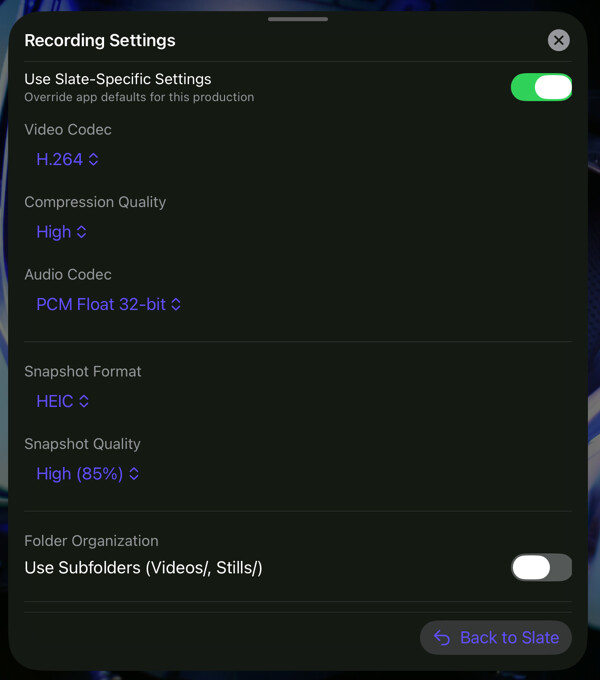
The summary at the bottom of the front shows the current recording and snapshot formats. Select Settings… to flip the slate to its Recording Settings side, where you set overrides for this slate.
Turn on Use Slate-Specific Settings (“Override app defaults for this production”) to reveal the overrides:
- Video Codec, and Compression Quality for codecs that support it
- Audio Codec
- Snapshot Format (and its quality)
- Media Library destination
How overrides work
When Use Slate-Specific Settings is off, the slate follows the global formats in Settings → Capture and the app default library. When it is on, each value you change replaces the matching app default for captures made while this slate is active; anything you leave alone still follows the app setting. A Media Library override sends this production’s captures to a specific library instead of the app default. Recording-format overrides are locked while a take is in progress.
Flip the slate back to return to the metadata side.
How the active slate is used
The active slate stamps its metadata into every clip and snapshot and routes them to its library override (or the app default). For how captures are made and where files land, see Recording & Capture; for browsing the results, see Media Library.