
Timecode and sync
CineMon can write a timecode track into your recordings and show timecode during playback. You set how the starting timecode is calculated in Settings → Capture, in the Timecode picker.
The toolbar shows a live timecode readout. While recording, it turns red and counts the take’s timecode.
Set recording timecode
- Open Settings → Capture and find Timecode.
- Choose Record Run, Free Run, or External, using the mode descriptions below. Choose Disabled if you do not need a timecode track.
- For Record Run, enter the starting value. For External, select the LTC input device and channel, then wait for Chasing status.
- Check the toolbar readout before recording a test clip. Review its timecode in playback.
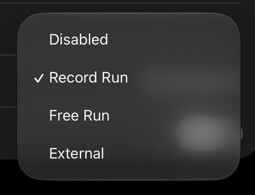
Timecode modes
The Timecode picker offers four modes:
| Mode | What it does |
|---|---|
| Disabled | No timecode track is written into recordings. |
| Record Run | Timecode starts at a value you set and advances only while recording. The next take resumes from where the last one stopped. |
| Free Run | Timecode starts at the current time of day and runs continuously. Time-of-day values alone do not guarantee frame-accurate sync between devices. |
| External | Timecode is read from an external source over LTC. The starting value is jammed from that source at record start. |
For Record Run, enter a starting value as HH:MM:SS:FF, or just type digits (for example, 1000000 becomes 01:00:00:00).
For Free Run, the settings screen shows a live Wall Clock readout so you can confirm CineMon sees the right time of day before you record.
Drop-frame and non-drop-frame timecode
Drop-frame timecode keeps timecode aligned with real elapsed time at the NTSC fractional rates 29.97 fps and 59.94 fps. It does this by skipping certain frame numbers in the count (no actual frames are dropped). At any other frame rate, drop-frame has no effect and is ignored.
In Record Run and Free Run modes, a Drop-Frame Timecode toggle controls this. Non-drop-frame timecode is shown with colons (HH:MM:SS:FF); drop-frame is shown with a semicolon before the frames (HH:MM:SS;FF).
In External mode, the drop-frame flag is inherited from the external source, so the toggle is hidden.
External LTC input
External mode reads Linear Timecode (LTC) from an audio input. LTC is an audio signal carrying timecode, produced by sync devices such as Tentacle Sync, Ambient Lockit, and UltraSync.
Because LTC arrives as audio, you select an audio input device and a channel for it in Settings → Capture. The device and channel pickers list your available audio inputs.
If the input you want is already in use by the Audio Mixer, CineMon flags it and keeps your selection so it can resume once the conflict clears. Remove the matching audio source from the mixer to free the input.
How CineMon treats an LTC rate that differs from your video frame rate depends on the pairing:
- Standard half-rate pairs are fully supported and pass without a warning. Shooting at 47.952, 48, 50, 59.94, or 60 fps against LTC at half that rate (23.976, 24, 25, 29.97, or 30 fps) is a normal, aligned configuration.
- Unrelated rates raise a Timecode Frame Rate Mismatch prompt. You can continue with Record with Converted Timecode, which converts the starting label to the recording cadence and then advances one label per recorded frame. The clip will not stay synchronized to the original LTC labels.
- A non-standard LTC cadence, or a video rate outside 1 to 255 fps, raises Unsupported Timecode Cadence and blocks recording until you fix the source.
If the source frame rate changes partway through a take, the timecode track no longer maps one-to-one to every frame. CineMon flags this in its Review Recorded File notice and you should re-derive timecode before conforming the clip.
Advanced LTC Alignment
Different audio and video paths can introduce a consistent offset between LTC and the picture: every clip is off by the same amount, in the same direction.
Use Advanced LTC Alignment in Settings → Capture to compensate for a measured, constant offset. The section is collapsed by default, and its header shows the configured offset when one is set.
| Control | What it does |
|---|---|
| Alignment Offset | Shifts the LTC reading against the picture. Positive values advance LTC, negative values delay it. The readout shows the offset in both video frames and milliseconds. |
| Adjust By | The step size the stepper moves in: 1 Frame, 1 ms, or 1 Sample. 1 Frame is unavailable when there is no active video cadence to measure against. |
| Precise Value | The exact offset in audio samples, which is how it is stored. |
| Reset to Zero | Clears the calibration. |
The range runs to 192,000 samples either way, which is four seconds at a 48 kHz sample rate.
Leave this at zero unless a frame-accurate test has shown you a stable offset. It is a calibration for a measured problem, not a control to nudge by feel. Shoot a clapper or a timecode slate, check the recorded frames against the burned-in timecode, and apply the measured difference.
This global calibration describes the hardware path and is not stored in presets or slates. Recheck it after these changes:
- Changing the LTC audio source or channel resets it to zero, since a different input means a different path.
- Changing the camera, the video capture route, or the audio sample rate changes the timing too, so recalibrate after any of those.
The sync cycle: Chase, Jam Sync, Freewheel
In External mode, CineMon shows the status of the incoming LTC. The settings screen shows the current state with a colored status dot, and the same colors appear on the toolbar timecode pill:
- No signal (grey): no usable LTC is arriving.
- Locking (yellow): frames are arriving and CineMon is confirming a stable, trustworthy read. A counter shows progress.
- Chasing (green): CineMon is following the external source frame by frame. This is the normal locked state. The dot turns yellow if the source’s frame rate does not match your video source.
- Holdover (orange): a brief automatic hold during a short dropout while chasing. If the signal returns quickly, CineMon goes back to chasing; otherwise it falls back to locking or no signal.
- Freewheel (blue): CineMon is running timecode on its own internal clock from a captured reference. The external source is no longer required and can be disconnected.
While chasing, select Jam Sync to capture the current external frame into CineMon’s internal generator. CineMon then runs in Freewheel, so you can release the audio input (using Acquire Signal) for other uses without losing the reference. From Freewheel you can select Jam Sync again to update the reference, or Resume Chase to follow the live source again.
When freewheeling with the source still connected, the settings screen shows the live drift between CineMon’s internal timecode and the external source, plus the wall-clock time of the last sync.
Recording in External mode will not start until the LTC reader is locked.
Playback timecode
When you play back a recorded clip that contains a timecode track, CineMon reads the embedded timecode and shows it in the transport controls, advancing as the clip plays.
For more on playing back clips, see Video Playback.