
Getting started
This guide takes you through one monitoring session: open a source, display its picture, and turn on composition guides. You can use a video file if you don’t have a camera connected. These steps use free features.
1. Install and open CineMon
| Device | Requirements |
|---|---|
| iPad | USB-C iPad running iPadOS 26 or later. Lightning models are not supported. |
| Mac | macOS Tahoe 26 or later. An Apple Silicon Mac (M1 or later) is recommended. |
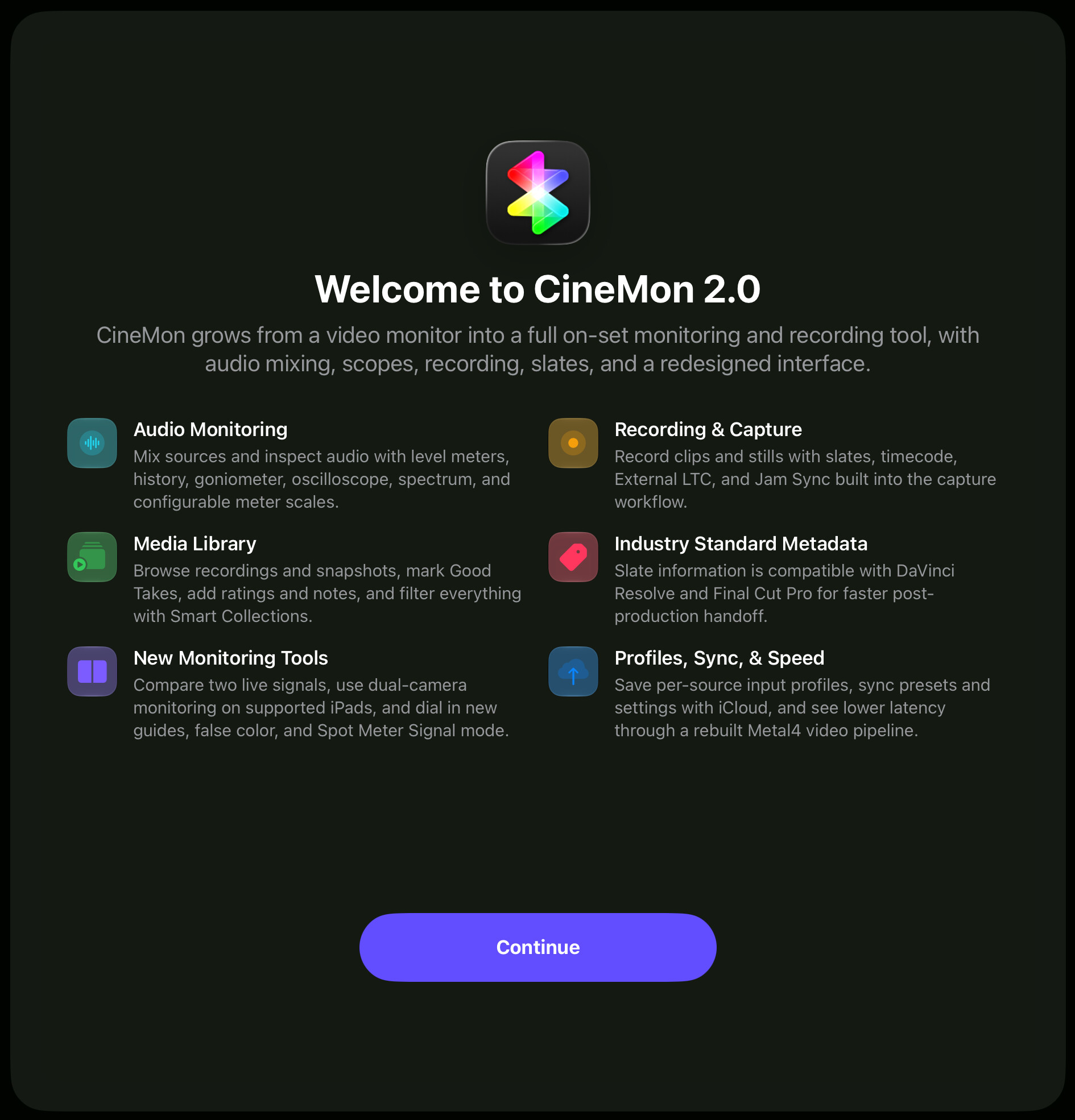
Download CineMon from the App Store. Open the app and select Continue on the welcome screen. The Home screen is where you add and configure sources.
2. Add a source
Choose one of these routes:
Use a video file
- On Home, select Add Source (+).
- Choose Media File, then select a video on your device and add it.
- The file appears as a source card on Home.
Connect a camera
- Connect the camera’s HDMI or SDI output to a compatible video capture adapter, then connect the adapter to your iPad or Mac. Some cameras can send video directly over USB.
- On Home, select Add Source (+) and choose Camera.
- Select your capture device and add it. Allow camera access when prompted.
A capture adapter sends video into your iPad or Mac. A USB-to-HDMI display cable sends video out and cannot replace a capture adapter. See Video input options for device types and connection details.
You can also choose a supported built-in camera. For an audio-only session, follow Audio sources & devices.
3. Display the picture
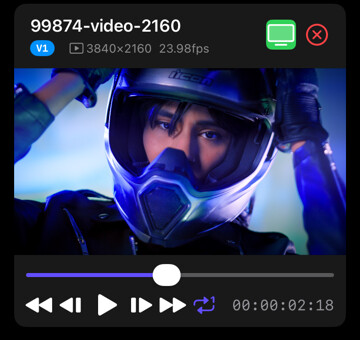
Select Monitor (the TV icon) on the source card. Its button turns green and CineMon opens the Monitor screen. For a video file, use Play on the floating transport bar to start playback.
The video slots are named V1 and V2. With one source, you only need V1. You can return to Home from the sidebar to adjust a source without stopping its picture.
If you don’t see a picture, follow No picture.
4. Try a composition guide
- In the Assist Toolbar (at the bottom by default), select Composition Guides.
- Long-press the tool button to open its options drawer. On Mac, press and hold the mouse or trackpad button; you can also select the small chevron.
- Turn on Grid. Set Vertical and Horizontal to
2for a rule-of-thirds grid. - Adjust the guide color or line width to suit the picture. Long-press the tool button again to close the drawer.
The guide helps you judge framing while you monitor. See Composition Guides for other arrangements and options.
5. Find your way around
- Home: add sources and adjust their settings.
- Monitor: view the picture and use tools. Pinch with two fingers on the iPad screen or a Mac trackpad to zoom; drag to pan while zoomed.
- Sidebar: move between screens, open settings, or select Help to open the documentation. Use the sidebar button or
⌃⌘Swith a hardware keyboard.
For the full toolbar map, gestures, and keyboard shortcuts, see User interface.
Next steps
- Use a waveform monitor or histogram to check the video signal.
- Monitor audio from your camera, microphone, or audio interface.
- Record a clip or snapshot, then review it in the media library.
- Save a preset to recall your tools and layout.
Some of these features require a purchase. Each page lists the required pack; see Packs & purchases for the full comparison.