
User interface
Use Home to add and configure sources, Monitor to view the picture and apply tools, and Media Library to review captures. The sidebar connects these screens, along with organizers and app settings.
Find your way around
- On Home, select Add Source and configure a camera or media file.
- Select Monitor on the source card to display its picture.
- Select a tool on the Assist Toolbar to enable it. Long-press the button to open its options; on Mac, you can also select its chevron.
- Open the sidebar to return to Home or review captures in Media Library.
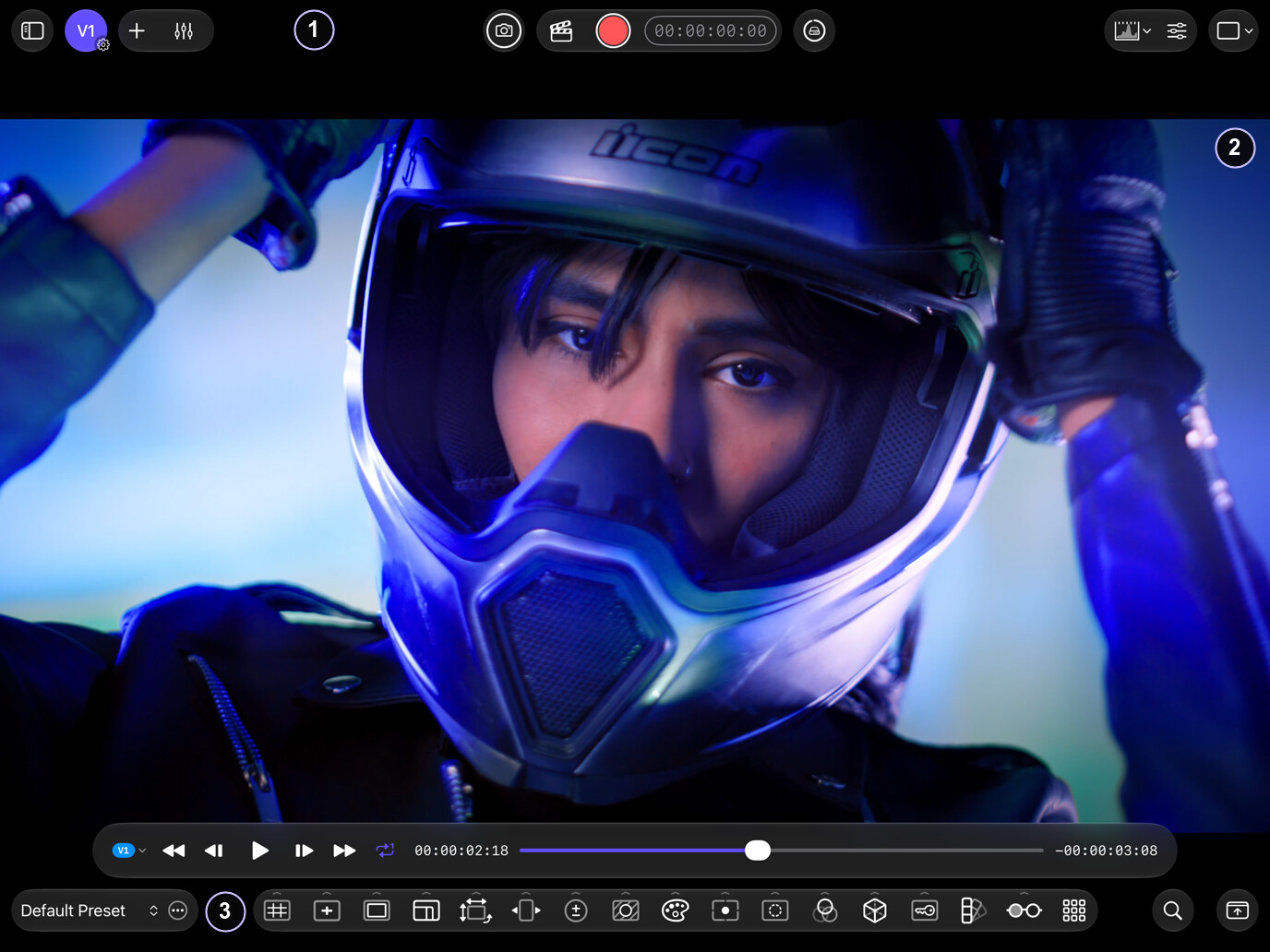
The Monitor screen has three areas: the Status Toolbar, the Main Display Area, and the Assist Toolbar. Each toolbar is composed of one or more regions that group related functions. In the example above, the Status Toolbar is at the top and the Assist Toolbar is at the bottom.
The Main Display Area shows one or more Monitors depending on the active Layout. Until you start a source, from a card on Home or the V1 / V2 buttons on the Status Toolbar, it stays empty.
Double-tap any monitor on iPad or double-click it on Mac to take a Snapshot. To hide the toolbars, swipe vertically iPad with a finger Mac with two fingers on the trackpad, or use the ⌘/ keyboard shortcut, and the Main Display Area expands to cover the whole window. Repeat to bring the toolbars back.
For monitor layouts and side-by-side Compare modes, see Monitoring & Compare.
Main display area
Home screen
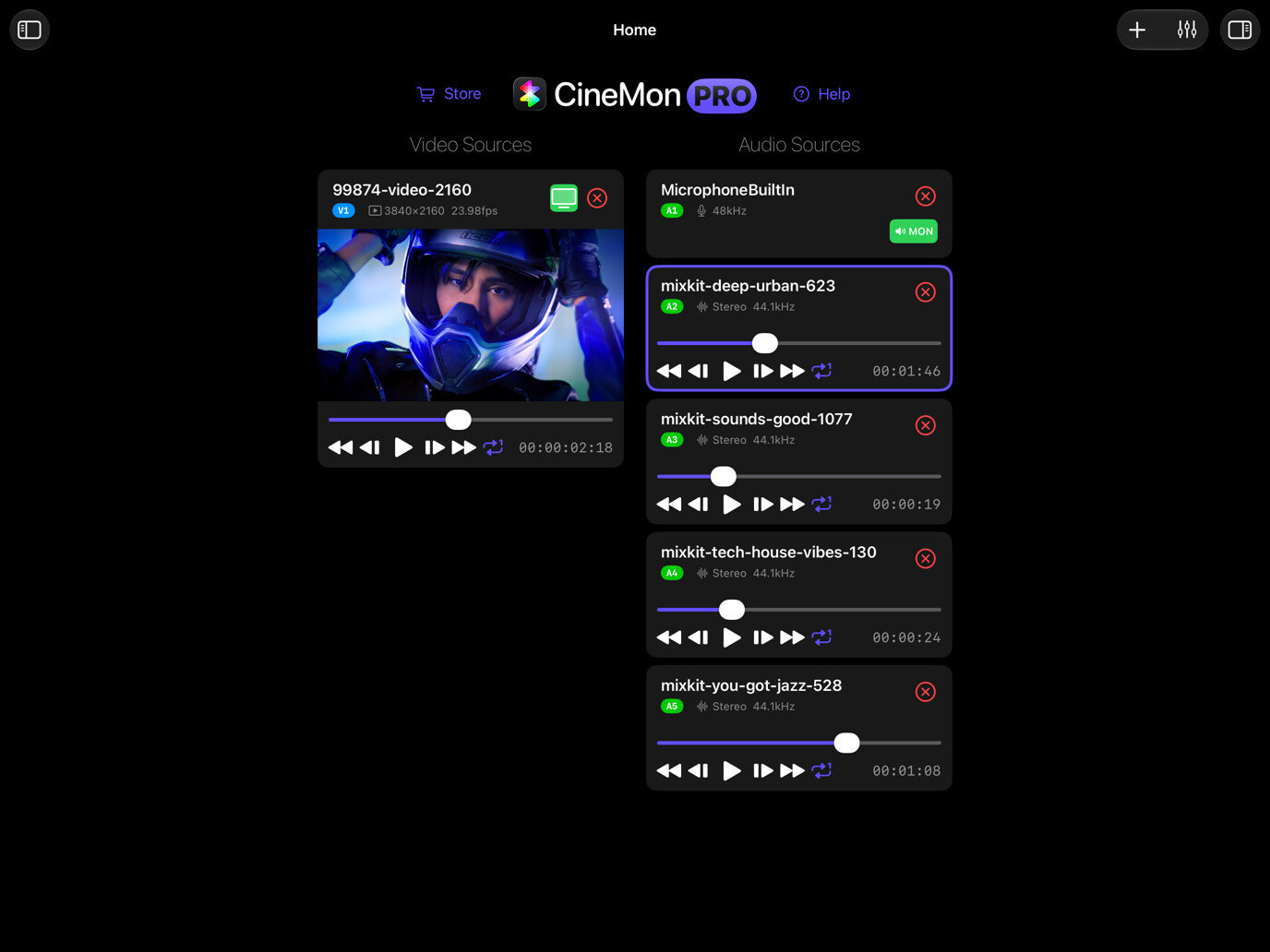
Home is the first screen. Use it to add, arrange, and configure sources. Return to Home from the sidebar without stopping the Monitor picture. The header contains the Store button for the CineMon Store, the CineMon logo, and Help for the documentation. Open App Settings and other screens from the Sidebar.
Sources workspace
Below the header, sources are listed in two columns: Video Sources on the left and Audio Sources on the right. Without sources, the workspace shows No Sources and options for adding a camera, media file, audio input, or audio file.
Each source is a card. On a card you will find:
- A Monitor button (a TV icon) that starts monitoring that source and takes you to the Monitor screen. It turns green while the source is on the monitor.
- A remove button (×) to remove the source from the setup. This does not delete the underlying video, image, or audio file. You can add the device or file again; its source settings may need to be configured again.
- A MON button on capture sources that carry audio, for input monitoring.
- An inline transport strip on sources you can play.
Select a card to open the inspector on the right, where you configure that source. Toggle the inspector with the Show Inspector / Hide Inspector button. Drag cards to reorder them within a column; the order of your video sources determines which one is V1 and which is V2.
The Home toolbar has an Add Source (+) button and a Mixer button. Add Source opens a sheet with the five source types: Camera, Media File, Accsoon (iPad only), Audio Input, and Audio File. Choosing a type takes you straight to that type’s editor. The Mixer opens as a tray over the Home screen, just as it does over the Monitor.
CineMon routes multiple sources into named slots, tagged V1 / V2 (video), A1, A2, A3… (discrete audio, with no fixed limit), and V1A / V2A (audio paired with a video source). For the full source model, see Video Input Options.
Monitor
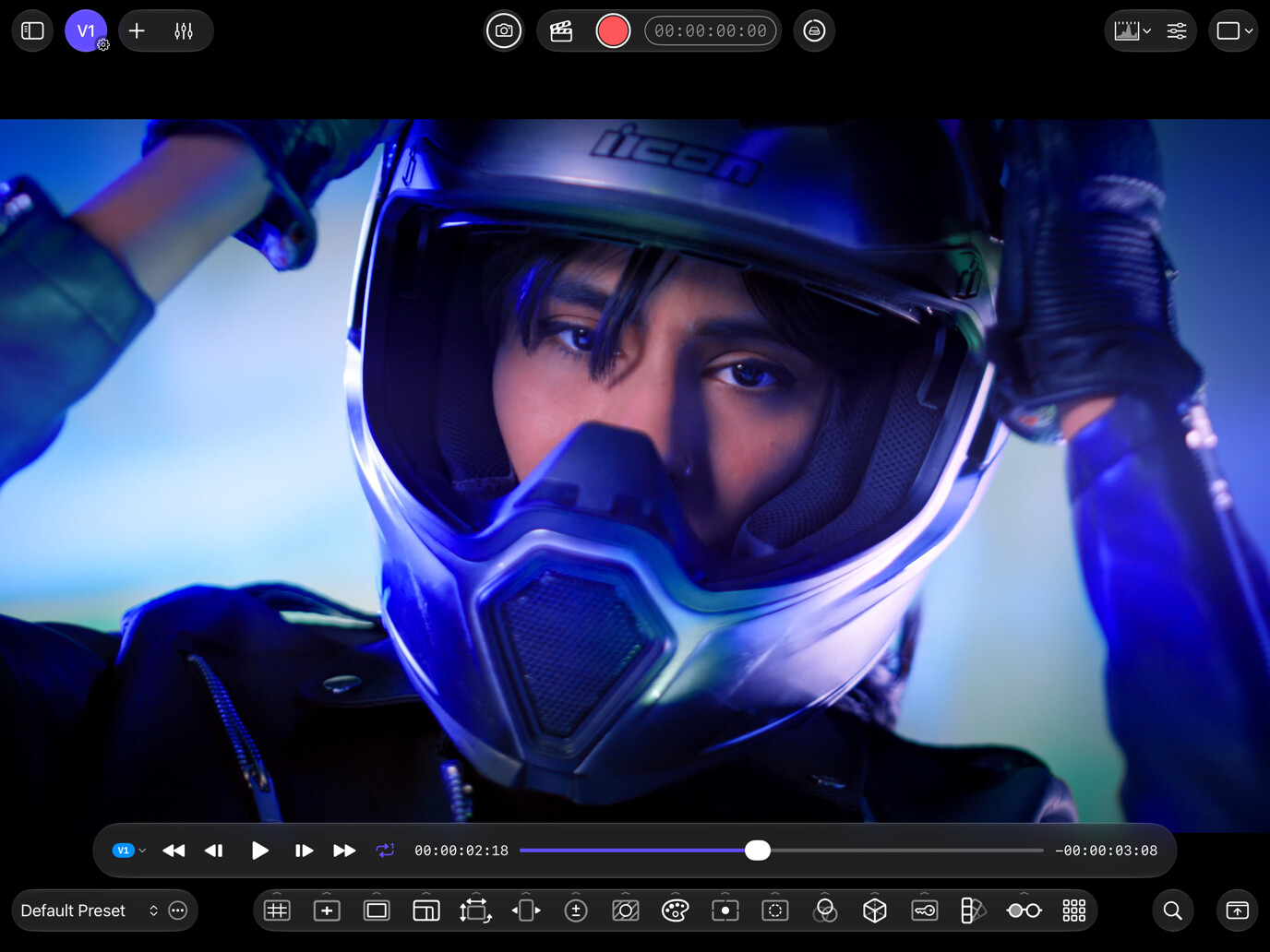
By default, CineMon displays a single monitor with video assist overlays and effects applied to the source image.
Monitor gestures
A summary of the gestures available on a monitor:
| Gesture | Action |
|---|---|
| Pinch-to-zoom (iPad screen or Mac trackpad) | Magnify the image, up to 12x |
| Drag (while zoomed) iPad, or Drag / two-finger trackpad scroll (while zoomed) Mac | Pan the magnified image |
| Double-tap (iPad) / double-click (Mac) | Take a Snapshot of the current frame |
| Vertical swipe iPad with a finger Mac with two fingers on the trackpad | Hide or show the toolbars |
| Horizontal swipe iPad with a finger Mac with two fingers on the trackpad | Cycle to the next or previous Preset PRO |
| Long-press iPad / Right-click Mac | Show the monitor-type selection context menu |
Taking a snapshot requires the PRO Video Monitoring Pack or a CineMon PRO Pass.
Swiping to cycle presets only works when you have more than one preset, and can be turned off in Settings → General if you find it triggers by accident.
Pinching zooms around the point where the gesture begins. Panning stays within the picture, and letterboxed axes remain centered. Zoom and pan are retained when you leave Monitor and return. In Wipe mode, the guide hides while zoomed so gestures navigate the picture instead of editing the comparison.
When zoomed in, a mini-map appears and a red rectangle indicates the portion of the image that is currently visible. You can navigate to other areas of the image by dragging the image itself, or by dragging the red rectangle in the mini-map. Zoom all the way out to turn off the mini-map.
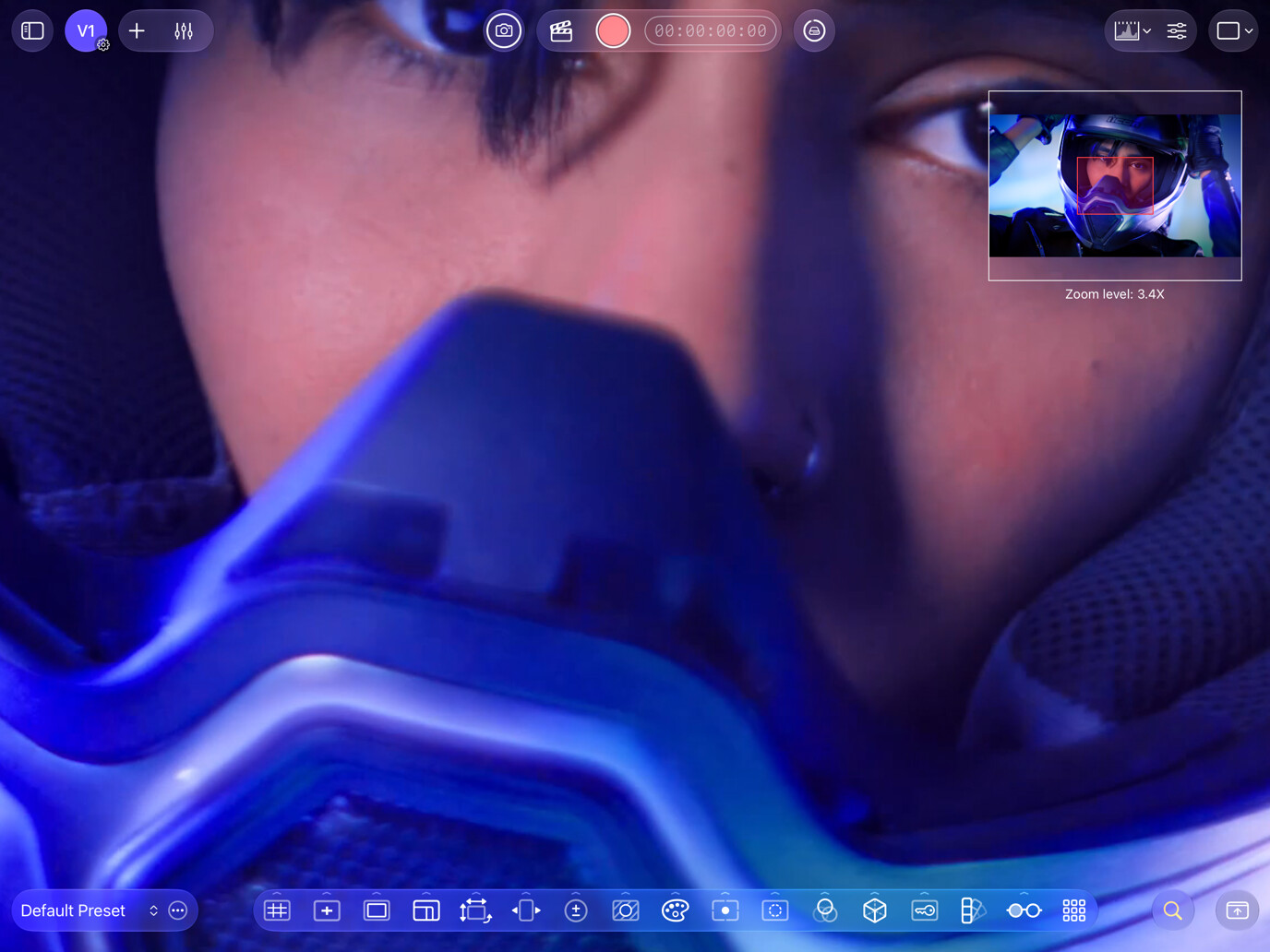
You can also adjust magnification with the Zoom Control (🔍) on the Assist Toolbar, or with ⌘+ / ⌘- to zoom in and out and ⌘0 to reset.
Specialized monitors
Each monitor panel can display one of the types below. To change its type, iPad long-press Mac right-click on the monitor and choose from the context menu.
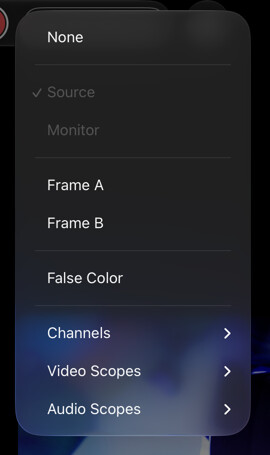
| Monitor Type | Displays |
|---|---|
| Source | The original image source, without any processing applied. |
| Monitor (Default) | The processed image, including all guides, color adjustments, effects, and assist widgets. |
| Frame A | A cropped version of the source image based on the A framing guide. |
| Frame B | A cropped version of the source image based on the B framing guide. |
| Red Channel | A grayscale image representing the values of the Red Channel from the RGBA source. |
| Green Channel | A grayscale image representing the values of the Green Channel from the RGBA source. |
| Blue Channel | A grayscale image representing the values of the Blue Channel from the RGBA source. |
| Alpha Channel | A grayscale image representing the values of the Alpha Channel from the RGBA source. |
| Waveform Monitor | A Waveform Monitor. |
| Waveform Monitor 2 | A secondary Waveform Monitor which can be configured independently from the first. |
| Vectorscope | A Vectorscope. |
| Histogram | A Histogram. |
| False Color | A false-color rendering of the image, with the color key strip for the active mode. See False Color. |
| Audio Scopes | An audio meter or analyzer selected from the Audio Scopes submenu. See Audio scopes. |
The color-channel monitors (Red / Green / Blue / Alpha), the video scopes, and the Compare modes are available with the CineMon PRO Video Monitoring Pack or a CineMon PRO Pass subscription.
Audio scope panels require the PRO Audio Monitoring Pack or a PRO Pass subscription.
Monitor layouts
The Main Display Area displays a single monitor by default. CineMon PRO supports multi-view layouts that host multiple monitors at once, in different Panels. To change the layout, use the Display Layout menu on the Status Toolbar. Monitor layouts and the Compare modes are covered in detail on the Monitoring & Compare page.
Floating scopes
The video scopes can also be displayed in windows that float above the monitor. Open the Scopes menu on the Status Toolbar and choose Histogram, Waveform Monitor, or Vectorscope to bring up the corresponding scope window; choose it again to close it. Use a pinch-to-zoom gesture to resize the scope window, drag the window to reposition, and double-tap on iPad or double-click on Mac to open that scope’s settings bar.
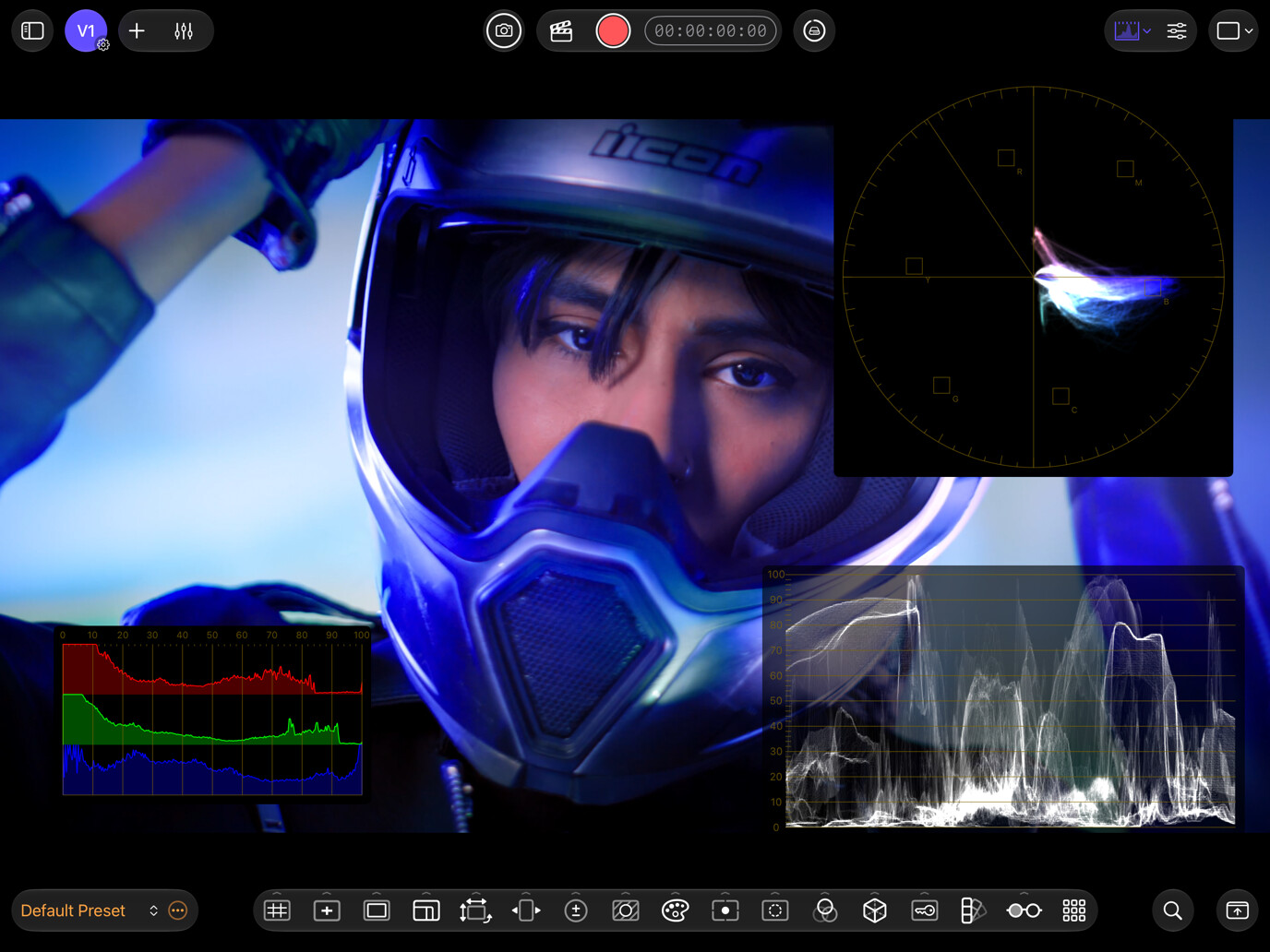
For more information on each scope and its settings, see the reference pages for the Waveform Monitor, Vectorscope, and Histogram.
Toolbars
With Floating Liquid Glass Toolbars enabled (the default) in Settings → Display, controls appear in translucent capsules over the edge-to-edge picture. Turn it off for the classic layout, with solid toolbar bars above and below the picture.
The Assist Toolbar and Status Toolbar occupy the top and bottom positions. Swap them with Swap Toolbars at the lower right of the bottom toolbar, or View → Exchange Top and Bottom Toolbars.
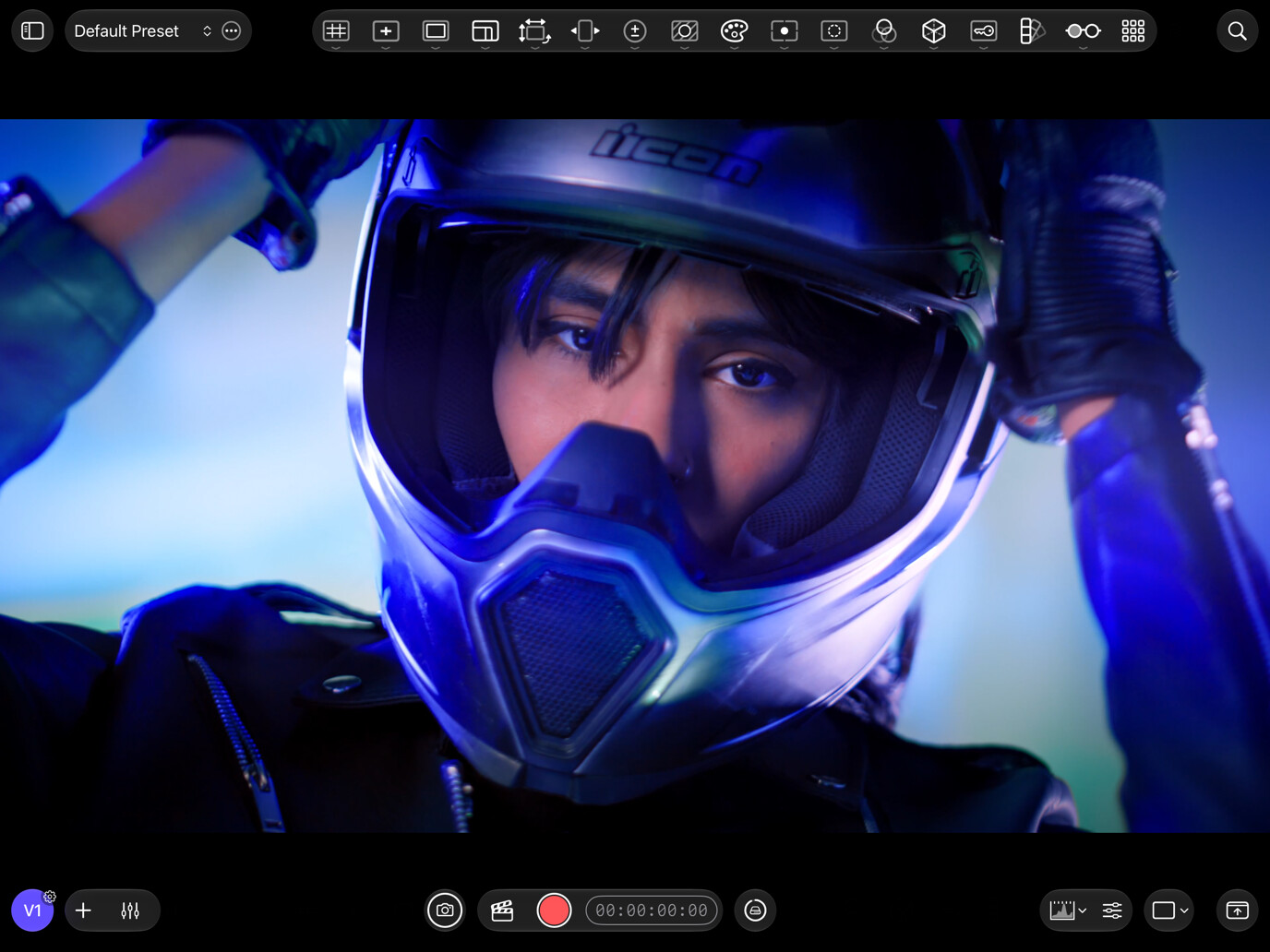
Use the Feature Manager to rearrange toolbar groups and choose which controls appear. See the Toolbars organizer page.
Assist Toolbar
| Region | Location | Purpose |
|---|---|---|
| Presets Menu | Left | With CineMon PRO you can quickly switch presets by selecting them from this menu. Use the Preset Actions Menu (…) to save, rename, duplicate, and delete presets. Presets unlock with any Pack or the PRO Pass; without one, the Presets menu is replaced by a button that opens the CineMon Store. |
| Video Assist Tools | Center | You can have multiple video assist tools active at the same time. Select a tool button to turn it on or off. Long-press a tool button to open or close its options drawer. On Mac, you can also select the small chevron beside the button. Only one drawer is open at a time, opening one closes any other. |
| Zoom Control | Right | Adjust the magnification level of the image. |
Status Toolbar
| Region | Location | Purpose |
|---|---|---|
| Source Slots | Left | A V1 and a V2 button, one for each configured video source. Select a button to put that source on the monitor (it fills in with the accent color) or to turn it off again. Long-press iPad / right-click Mac, or select the small gear badge, to open that source’s configuration popover, where you can also remove the source from the setup without deleting its media file. The buttons are locked while recording. |
| Source Utilities | Left | Switch to Other Source flips the picture between V1 and V2. Reference Mode PRO turns on Compare with both sources at once. Add Source (+) opens the Add Source sheet. Mixer PRO toggles the Mixer tray. |
| Capture | Center | Snapshot PRO saves a still. The recording island holds the Slate toggle, the Record button, and a live timecode readout that turns red while recording (PRO Recording Pack). The Media Library dial next to it shows which library captures are going to; select it for details. |
| Scopes & Layout | Right | The Scopes menu toggles the floating Histogram, Waveform Monitor, and Vectorscope and each of the audio scopes. Scope Settings opens the per-preset scope settings popover. The Layout menu PRO switches between the Single, Side by Side, Over-Under, Quad, 1 Over 2, and 2 Over 4 layouts. |
| More Controls | Right | On a narrow window the toolbar collapses in stages, and whatever no longer fits (Scopes, Layout, then the source utilities and Media Library) moves into a More Controls (…) menu. |
Every button on the Status Toolbar can be hidden or shown from the Toolbars organizer. A control you have not unlocked is dimmed with a lock badge; selecting it opens the Store.
Transport bar
When a playable source (a V1/V2 video file or a discrete audio file) is available, a floating transport bar appears as its own Liquid Glass capsule over the monitor. It includes play/pause, forward and backward shuttling (1x/2x/4x/8x, which loops back to 1x when you shuttle past 8x), and a progress/scrub bar.
The transport bar is draggable: drag it vertically to reposition. On iPad, tap the picture once to hide or show it. When stopped, the controls stay visible until you dismiss them; while playing on iPad they auto-hide after a few seconds. On Mac, they appear whenever the pointer moves inside the window.
When more than one playable source is available, a leading source picker (V1, V2, A1, …) lets you choose which source the bar controls. This selection is decoupled from the active monitor source: scrubbing or pausing in the transport bar never changes what’s on the monitor. See Video Playback for more on playback.
Mixer tray
The audio Mixer opens as a tray that overlays the bottom of the monitor area. Toggle it with the Mixer button on the Status Toolbar. The Mixer is available with the CineMon PRO Audio Monitoring Pack or a CineMon PRO Pass subscription. For channel strips, faders, and routing, see Audio Monitoring.
Tool options drawers
Long-press a tool button to open its options drawer, then long-press it again to close the drawer. This works on both platforms: touch and hold on iPad, or press and hold the mouse or trackpad button on Mac.
On Mac only, you can also select the chevron beside the tool button to open or close the drawer.
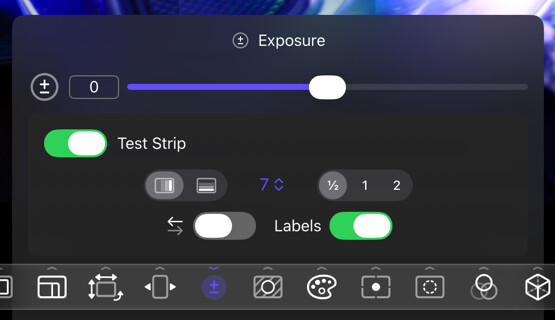
On Mac, or on iPad with a hardware keyboard, you can also open a drawer from View → Tool Settings, which also offers Hide All Tool Settings.
Only one options drawer is open at a time. Opening a tool’s drawer closes any other drawer that was open.
Adjust and reset controls
- Live preview: slider changes update the monitor.
- Reset a control: double-tap a control’s label or text field on iPad or double-click it on Mac to reset it to its default value.
- Save with a preset: drawer state (open or closed) and all its control values are saved with the active preset.
For detailed information on drawer options for each tool, visit the Tools Reference Section.
Sidebar
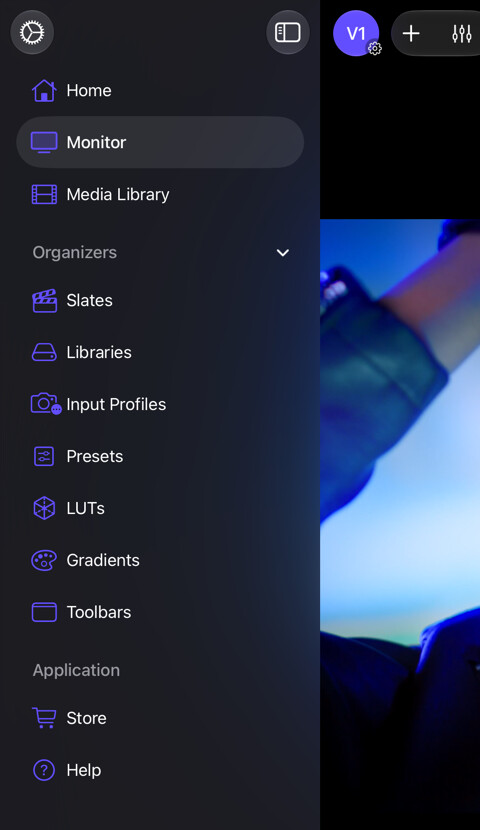
The Sidebar is hidden by default. On iPad a Show Sidebar button appears at the left end of the top toolbar whenever the sidebar is hidden; on Mac use the sidebar button in the window toolbar, which hides along with the monitor toolbars, so ⌃⌘S and View → Show Sidebar are the reliable way back. Turn on Auto-close sidebar in Settings → General to have it close itself once you pick a destination. Its visibility state is remembered, so it reopens in the same state on the next launch.
The sidebar lists the main screens (Home, Monitor, Media Library), the Organizers (Presets, Slates, Libraries, Input Profiles, LUTs, Gradients, Toolbars), and the Application items (Store and Help). See the Organizers section for details. On iPad a Settings gear at the top of the sidebar opens App Settings; on Mac use CineMon → Settings (⌘,).
Gestures
Gesture reference:
| Target | Gesture | Action |
|---|---|---|
| Monitor | Double-tap (iPad) / double-click (Mac) | Take a Snapshot |
| Vertical swipe (finger iPad, two-finger trackpad Mac) | Hide or show the toolbars | |
| Horizontal swipe (finger iPad, two-finger trackpad Mac) | Cycle to the next/previous Preset PRO | |
| Long-press (iPad) / right-click (Mac) | Show monitor-type context menu | |
| Pinch-zoom (iPad screen or Mac trackpad) | Zoom or magnify the image (up to 12x) | |
| Drag (while zoomed) | Pan the magnified image | |
| Mini-map red rectangle | Drag | Navigate the magnified image |
| Wipe guide (Compare, at actual size) | Drag the picture, rotation handle, or opacity wedge | Adjust wipe position, angle, or opacity; see Wipe |
| Double-tap on iPad / double-click on Mac | Center the wipe on the picture, reset the angle on its handle, or restore 100% opacity on its wedge | |
| Floating Scope Window | Double-tap (iPad) / double-click (Mac) | Show scope options bar |
| Pinch-zoom (iPad screen or Mac trackpad) | Resize the floating window | |
| Drag | Reposition the floating window | |
| Transport bar | Drag | Reposition the bar vertically |
| Assist Toolbar tool | Long-press (both platforms), or select the chevron (Mac only) | Show or hide the tool’s options drawer |
Swiping to hide/show toolbars and cycling presets by swipe both work on the main Monitor, in Compare mode, on specialized/floating monitors, and over a scope set to fullscreen. The one exception is the Loudness meter, where dragging inside the graph pans the loudness history instead; the meter and readout band to its right still swipes. Preset swiping requires more than one preset; you can turn it off in Settings → General.
Menus
On Mac (and iPad OS 26+ with a hardware keyboard) CineMon’s commands are organized into menus:
| Menu | What’s inside |
|---|---|
| File | Add Source, Open Media as Source, Open Recent, the active Slate, Start/Stop Recording, Take Snapshot, Save Preset |
| View | Show/Hide Sidebar, Monitor Layout, Show/Hide Monitor Toolbars, Exchange Top and Bottom Toolbars, Tool Settings, and the zoom commands |
| Sources | Monitor V1 / Monitor V2, Switch to Other Source, Reference Mode and Reference Layout, Configure V1/V2, Exchange V1 and V2 Assignments, Manage Sources, Stop Monitoring, Remove V1/V2 |
| Presets | Revert to Saved, Previous Preset, Next Preset, Manage Presets |
| Tools | Video Tools, Video Scopes, Audio Scopes, and the Audio Mixer |
Keyboard shortcuts
These shortcuts work on Mac and on iPad with a hardware keyboard.
| Shortcut | Action |
|---|---|
⌘N | Add Source |
⌘O | Open media as a source |
⌘S | Save preset |
⌃⌘S | Show or hide the sidebar |
⌘/ | Show or hide the monitor toolbars |
⌘0 | Actual size (reset zoom) |
⌘+ | Zoom in |
⌘- | Zoom out |
⌘1 | Single monitor layout |
⌘2 | Side by Side layout |
⌘3 | Over-Under layout |
⌘4 | Quad layout |
⌘5 | 1 Over 2 layout |
⌘6 | 2 Over 4 layout |
Monitor keys
These single-key shortcuts work while the Monitor is the active screen. They are suspended while you type into a text field, including slate fields, rename fields, numeric entry, and mixer fields. The same commands are available from the menus.
| Key | Action |
|---|---|
1 | Monitor V1 |
2 | Monitor V2 |
` | Switch to the other source |
R | Start or stop recording |
F | Take a snapshot |
Playback keys
| Key | Action |
|---|---|
Space | Play or pause |
J | Increase backward shuttle speed (1x/2x/4x/8x, loops back to 1x past 8x) |
K | Pause playback |
L | Increase forward shuttle speed (1x/2x/4x/8x, loops back to 1x past 8x) |
← | Step back one frame |
→ | Step forward one frame |
Playback keys belong to the floating transport bar rather than the menus. The bar takes keyboard focus automatically when it appears, and the keys act on the source named in its source pill, which is not necessarily the source on the monitor. If you select something else that takes focus, such as the sidebar list, the keys go there instead until you select the transport bar again.